
Financial Line Item Templates: Create & Use
After reading this article you'll be able to create reusable line item templates and insert them into financial documents with a single click.
Line item templates save you time when creating documents: bundle your most-used line items into a template once, then insert them into any quote or invoice in just a few clicks.
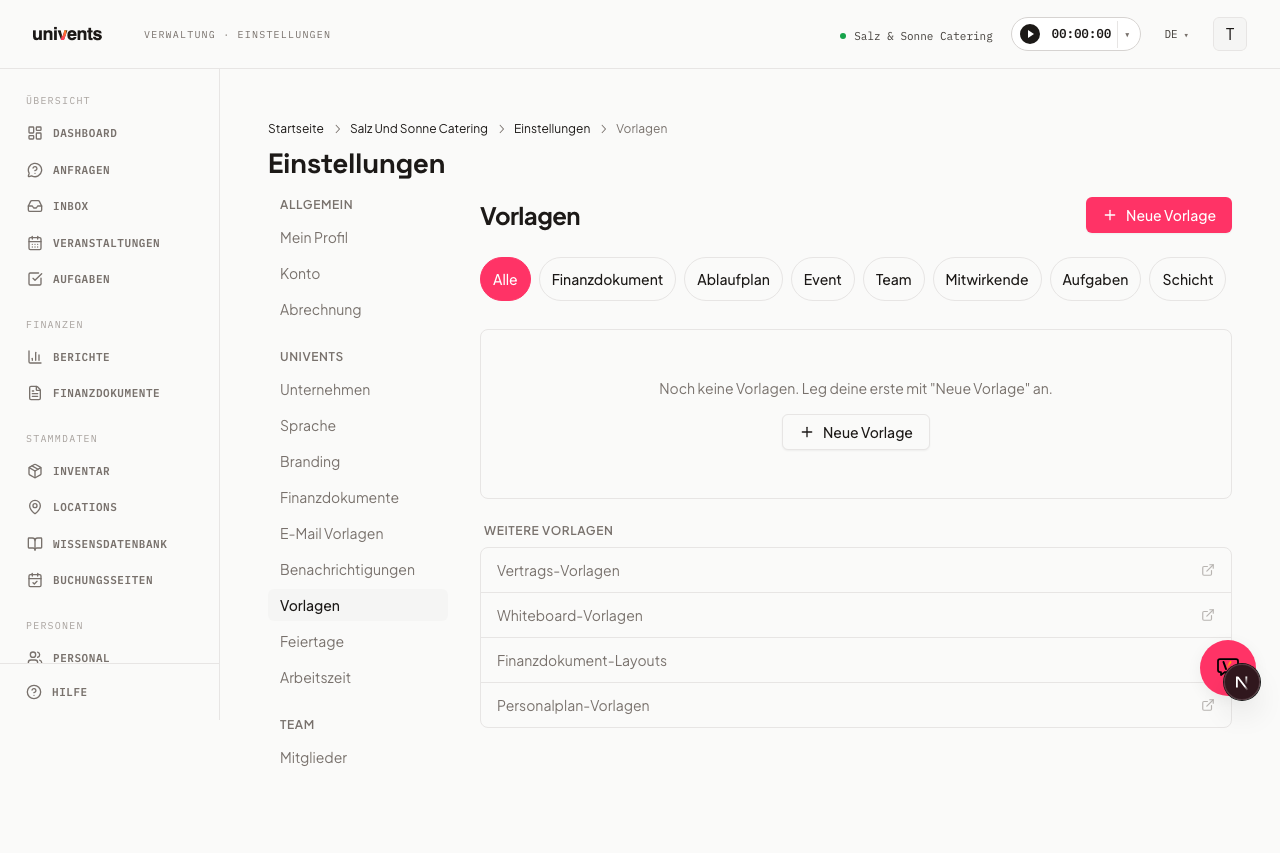
Create a template
- Open Settings in the main navigation.
- Select the Templates card (no. 08) in the settings overview.
- Click New Template in the top-right corner and choose Financial Document from the dropdown.
- You will be taken to the Line Item Templates page. Click New Template there.
- Enter a meaningful name in the Template Name field, for example "Catering Package Standard".
- Add one or more rows under Line Items. Each row contains:
- Description – the line item text
- Quantity – pre-filled unit count
- Unit – e.g. "pcs", "hrs" or "pers."
- Unit Price (net) – net price per unit
- VAT % – tax rate (default: 19)
- Use the Line Item button to add further rows. The bin icon on the right removes a row.
- Click Save — the template appears in the list immediately.
Edit or delete a template
The template list shows all saved line item templates with their name and the number of line items they contain.
- Edit: Click Edit next to the template you want to change. The dialog opens with all saved values pre-filled. Make your changes and click Save.
- Delete: Click Delete next to the template. Confirm the prompt "Really delete template?" by clicking Delete again. The template is permanently removed and cannot be restored.
Use a template in a financial document
Once you have created at least one template, it is available in all financial documents.
- Open a quote, invoice, or any other financial document in the event area.
- Scroll to the line items table and click Insert from Template.
- The Select Template dialog shows all saved templates.
- Click Add next to the template name you want — all its line items are inserted into the document immediately.
- You can edit the inserted line items directly in the document without affecting the template.
Templates can be used as many times as you like and across as many documents as you need.
Tips
- Combine multiple templates: You can use Insert from Template several times in a row to pull line items from different templates into the same document.
- Use clear names: Name templates so every team member immediately understands their purpose — e.g. "Drinks Flat Rate 3-Course" rather than "Template 1".
- Templates for different event types: Create separate templates for different event formats (corporate event, wedding, catering-only) to keep the selection dialog easy to navigate.
- Keep prices up to date: The unit price is copied from the template at the time of insertion. Update your templates regularly whenever your prices change.
Frequently asked questions
Can I edit a template after saving it without affecting existing documents? Yes. Changes to a template only apply to future insertions. Line items already inserted into existing documents remain unchanged.
Why are no templates showing in the dialog? No line item template has been created yet. Go to Settings > Templates, click New Template, select Financial Document, and create your first template.
Can I reorder the inserted line items? Inserted line items can be edited directly in the document. Automatic sorting after insertion is not supported.