
Importing Team Members
Follow this guide to add team members in Univents – one at a time using the form, or quickly in bulk with onboarding templates.
You add new staff members in Univents directly in the Personal section. For teams with similar roles (e.g. multiple service staff), templates automatically pre-fill most fields – so a new profile is ready in seconds.
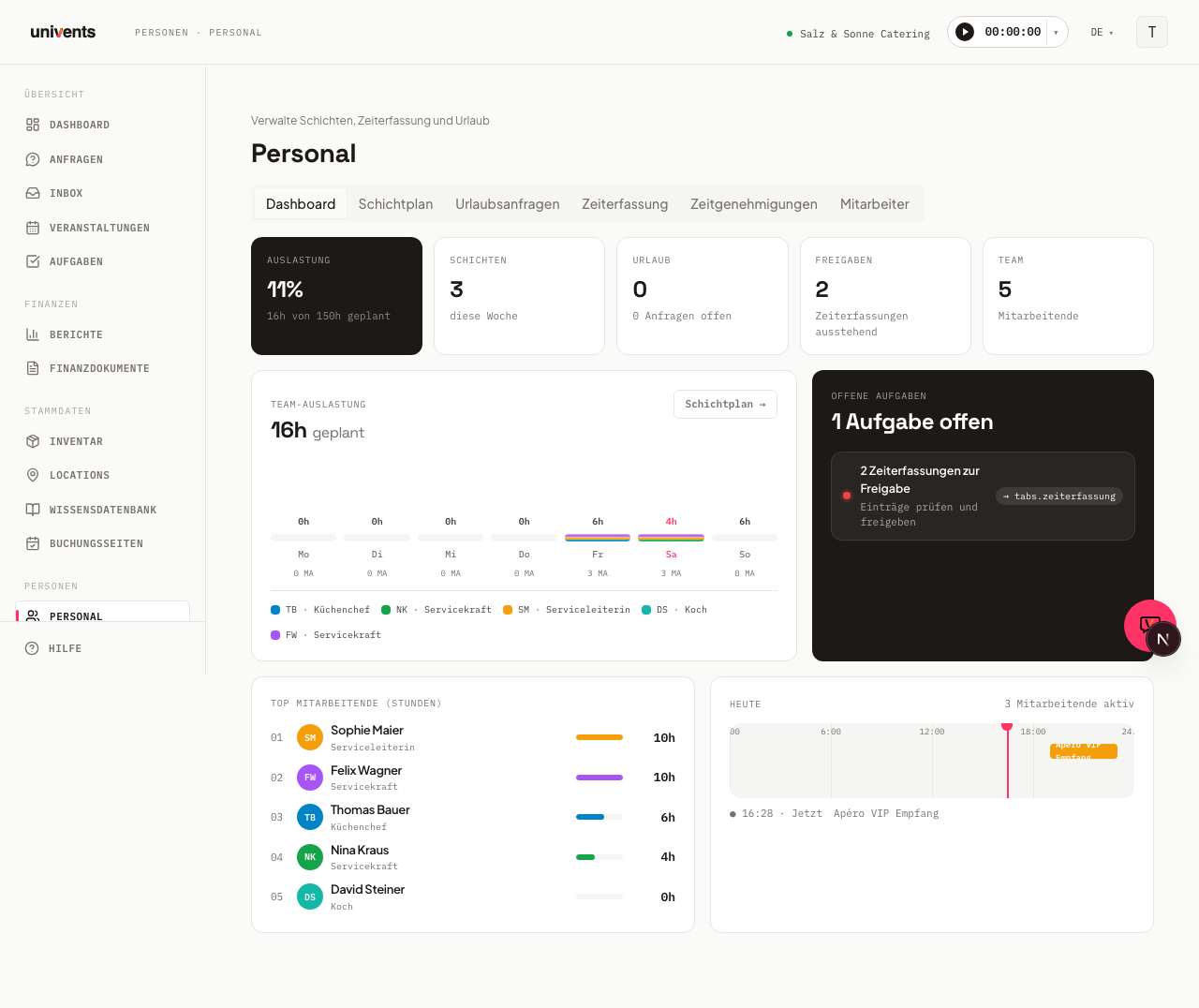
Opening the staff list
- Go to Personal in the left navigation.
- Click the Mitarbeiter tab.
- You will see all active team members as cards, along with a KPI strip showing team size, number of managers, total contracted hours, and number of templates.
Adding a single team member
- Click Mitarbeiter in the top right (the button with the plus icon).
- The Neuer Mitarbeiter form opens.
- Fill in at least Vorname and Nachname – all other fields are optional.
- Under Rolle, choose either Manager (supervisory role) or Helfer (casual worker, service staff).
- Optionally enter h / Woche and Urlaubstage – these values feed into the time balance and leave planning.
- Click Mitarbeiter anlegen.
The profile appears immediately as a card in the staff list and can be edited further by clicking on the card.
Adding many members quickly – with templates
When you need to add several people with similar contract terms, a template is worth setting up. It automatically pre-fills role, weekly hours, hourly rate, vacation days, and skills when creating a new profile.
Creating a template:
- In the Mitarbeiter tab, click Vorlagen (the button in the top right next to the plus button).
- In the panel, click Neue Vorlage in the top right.
- Enter a descriptive name, e.g. Full-Time Service.
- Fill in the default values for Rolle, Position, h / Woche, € / Stunde, and Urlaubstage.
- Click Vorlage anlegen.
Using a template when adding a member:
- Open the Neuer Mitarbeiter form via the Mitarbeiter button.
- In the Vorlage section, select your template from the Vorlage anwenden dropdown.
- The fields are filled in automatically – you only need to enter Vorname, Nachname, and E-Mail.
- Click Mitarbeiter anlegen.
Fields at a glance
| Field | Required | Description |
|---|---|---|
| Vorname | Yes | First name of the team member |
| Nachname | Yes | Last name of the team member |
| No | For notifications and the staff portal | |
| Telefon | No | Contact phone number |
| Rolle | No | Manager or Helfer |
| Position | No | Free text, e.g. Day Shift Service |
| h / Woche | No | Contracted weekly hours for time balance tracking |
| Urlaubstage | No | Annual leave entitlement |
| Skills | No | Competencies as tags, e.g. Barista |
| Lohn-Produkt | No | Link to a payroll product from the inventory |
Large initial import – contact the Univents team
If you want to migrate an existing team of more than ten people from another system, you can send us a structured list. We will carry out the import for you and follow up once the transfer is complete.
Simply reach out via the Help button in the app or email us at support@univents.app.
Tips
- Create templates first: Set up all your templates before you start adding profiles. This saves the most time for large teams.
- Email address: The email address is only needed if you want to give the team member access to the staff portal.
- Add data later: All fields can be updated at any time via the team member's detail view – you don't need to fill everything in at once.
- Archive instead of delete: When a staff member leaves, archive them via the detail view using Archivieren. Shifts and time tracking entries are preserved.