
Creating Staff Schedule Templates
After reading this, you'll be able to create, edit, and apply reusable staff schedule templates with run-of-show entries for event planning.
Staff schedule templates let you define the run of show for a typical event or product once — setup, service start, breakdown, and everything in between. Next time you plan an event, simply load the right template instead of entering every item from scratch.
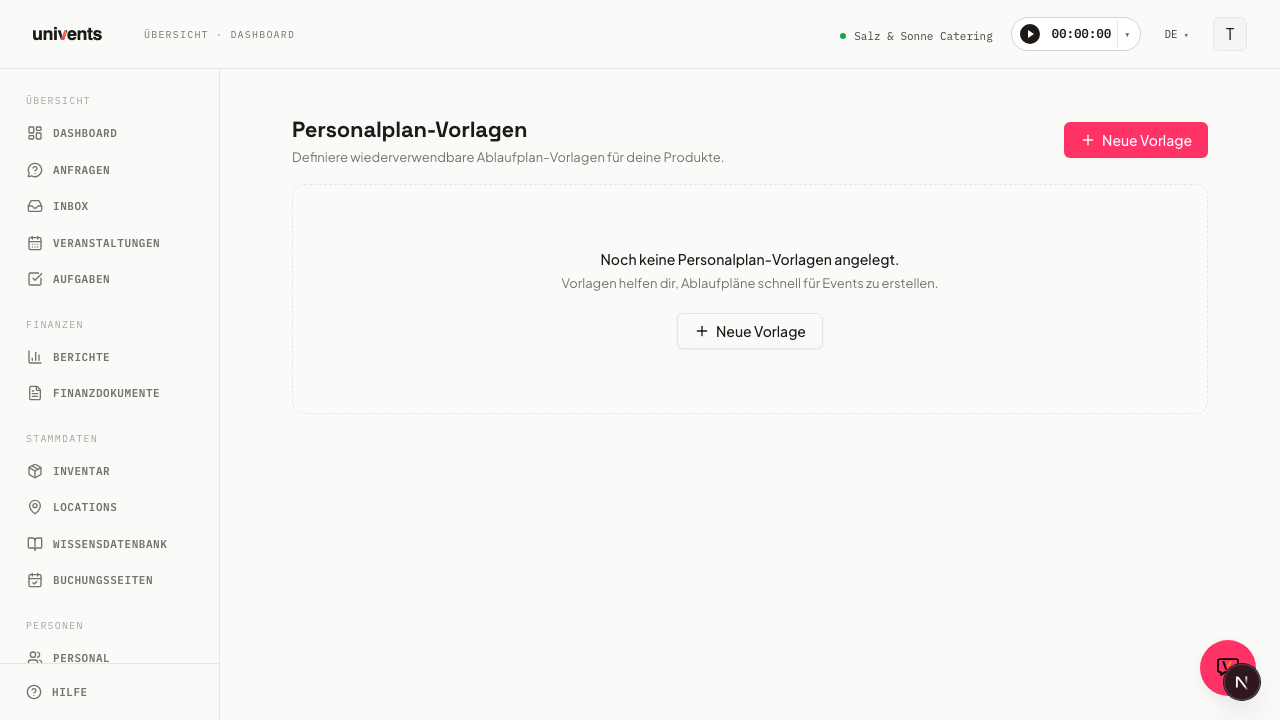
Creating a template
- Open Staff Schedule Templates in the left sidebar.
- Click New Template in the top right.
- Enter a Name (e.g. "Wedding – Standard Run of Show").
- Optional: Add a Description to help your team identify the template at a glance.
- Choose a Color so the template stands out in the list.
- Click Save — the template now appears in the overview list.
Adding run-of-show entries
Run-of-show entries are the individual items within a template — for example setup, guest reception, or breakdown.
- Open an existing template via the pencil icon, or add entries directly while creating a new template.
- In the Run-of-Show Entries section, click Add Entry.
- Fill in the fields in the dialog:
- Title — e.g. "Set up seating"
- Description — optional details for your team
- Start (minutes after event start) — define when the entry begins. The field consists of four parts: a numeric value, the unit (Minutes / Hours / Days), the direction (before / after), and the reference point (Event Start / Event End)
- Duration (minutes) — optional shift duration in minutes
- Click Save — the entry appears in the list.
- Repeat for all remaining items in the run of show.
Editing entries
To change an existing entry, click Edit next to it in the template editing view. To remove an entry, click the trash icon beside it. Entries are saved in the order they were created.
Editing or deleting a template
- Edit: Click the pencil icon next to the desired template in the template list. The edit dialog opens with all fields pre-filled.
- Delete: Click the trash icon. A confirmation dialog asks you to confirm before the template is permanently removed. Deletion cannot be undone.
Frequently asked questions
Can I create multiple templates for the same product? Yes — you can create as many templates as you like, for example one for the standard run of show and one for shorter events.
What happens if I delete a template? Any staff schedules already created based on that template remain unchanged. Only the template itself is removed.
What is the "Event End" reference point used for? It allows entries that are anchored to the end of the event — for example a breakdown that starts one hour after Event End. This keeps the schedule correct even when the event duration changes.