

Configuring a rule's triggers & conditions
Pick a trigger from the catalog for an automation rule and add conditions so the rule only fires in the cases that match.
An automation rule is built from two parts that you set in the rule editor: the Trigger that kicks the rule off, and optional Conditions that narrow down when the rule's actions actually run. That way a rule only fires when the right case occurs.
Open the rule editor
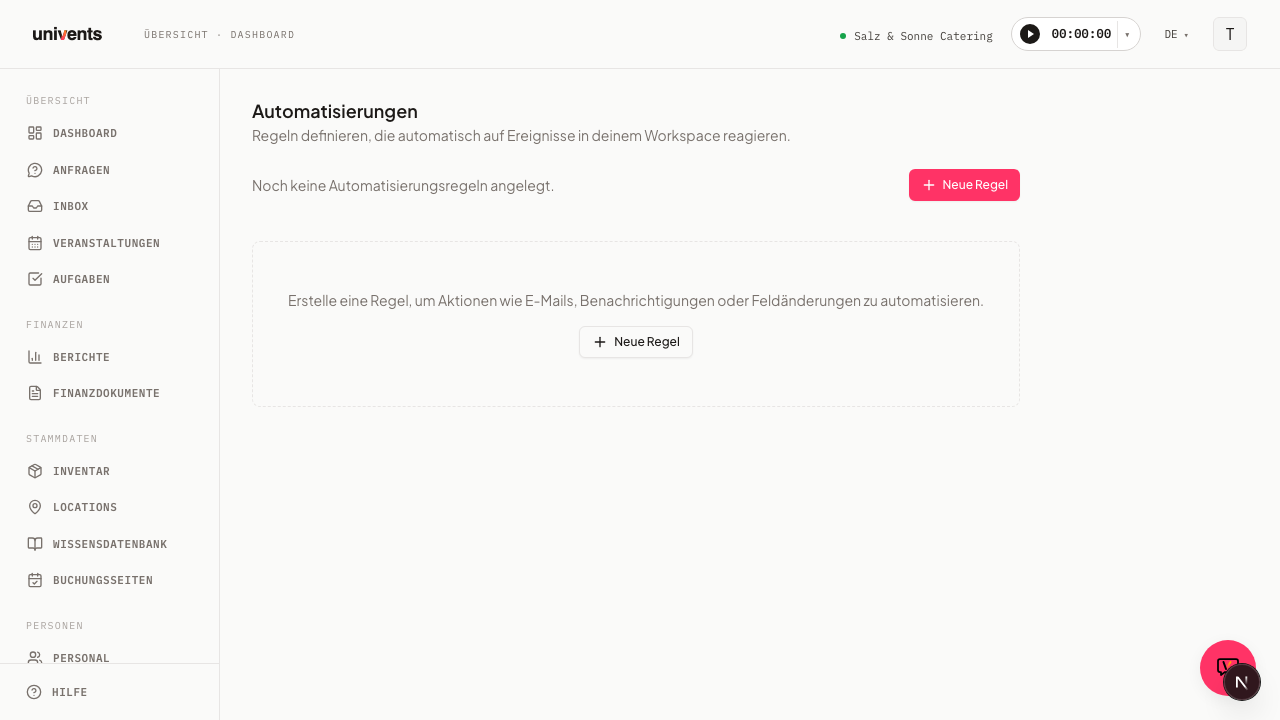
You reach the page through the sidebar: in the Admin section, directly below Integrations, you'll find Automations. The Automations page shows the description "Define rules that automatically react to events in your workspace." at the top. Below it you'll find your existing rules or, while none have been created yet, the ready-made templates to install.
- Open Automations in the sidebar as described above.
- Click New Rule at the top right. The canvas opens with an empty rule.
- In the Rule name field, give it a meaningful name, for example "Confirm inquiry". This is how you'll recognize the rule later in the list.
A template is quicker: while the area is empty it sits directly on the page, otherwise behind the Templates button. An installed template comes with its trigger, conditions, and actions ready-made and starts switched off — you adjust it and switch it on afterwards.
The name has no effect on the rule's behavior; it's only there to help you identify it. Choose one so colleagues can immediately understand what the rule does too.
Choose a trigger from the catalog
The trigger determines which event in your workspace kicks the rule off in the first place. Right below the rule name you'll find the Trigger field.
- Click the select field with the placeholder Choose a trigger ….
- The catalog of available triggers opens. Univents provides a fixed set built around typical events: those involving inquiries and events, as well as those involving invoices and payments.
- Click the matching trigger to apply it.
You choose exactly one trigger per rule. Each trigger is tied to a specific area, such as an inquiry, an event, or an invoice. Which data you can then check in the conditions depends on this chosen area.
Univents offers you these fifteen triggers:
| Trigger | Fires when … |
|---|---|
| Event confirmed | an event switches to the "Confirmed" status. |
| Quote accepted | a quote is set to “Accepted”. This covers both routes: when you accept an inquiry, and when a quote is accepted directly on an event — whether you set the status yourself in the quote's status bar or your customer signs in the customer portal. If the event has an inquiry attached, the inquiry acceptance counts, so the rule never fires twice for the same job. |
| New inquiry | a new inquiry comes in to your workspace. |
| Webshop order paid | a payment comes in for an order placed through your booking page (webshop). Internal invoices are not affected — use Invoice paid for those. |
| Invoice overdue | an invoice passes its due date without being paid. |
| Days before event start | the number of days you've set before an event's start is reached. Right below the trigger field, a dedicated Days before event start field appears — enter the number you want there so the rule fires exactly that many days before the start. Add the Weekday condition and a whole week of events lands in a single run instead — see below. The rule does not run for cancelled or archived events. |
| Days after event end | the number of days you've set after an event's end is reached — handy for a thank-you note, a request for feedback, or follow-up work. Right below the trigger field, a dedicated Days after event end field appears. Enter the number you want there; 0 is a valid value and means "on the day it ends." If the event has no end date set, its start counts instead. The rule does not run for cancelled events; archived ones stay in. |
| Email received | an email arrives in one of your connected inboxes. |
| Invoice paid | one of your invoices is marked as paid — whether via a Stripe payment link, a bank statement reconciliation, or manually. |
| Quote sent | you send a quote to your customer. |
| Quote expired | a sent quote passes its validity date without the customer responding. |
| Quote rejected | a quote is set to “Rejected” — whether you reject it yourself in the quote's status bar or your customer rejects it in the customer portal. The rule fires once per rejection. Typical use: a friendly confirmation of the decline to the customer via the Send email action with your own template (“Sorry to hear that, maybe next time”). |
| Event cancelled | an event is marked as cancelled. |
| Contract signed | a contract is fully signed by all parties. |
| Once a month | the day of the month you've set is reached — for anything that should happen regularly and independently of a single event, such as the monthly document export to your accountant. Right below the trigger field, a Day of month field appears (1 to 28 so the rule also runs in February; default is the 5th). The rule runs on that day early in the morning in your workspace's time zone. This trigger has no object (no event, no inquiry) — so only the actions Export documents to accounting (Core plan and up) and Notify user are available here, and no delay. |
Add conditions
Conditions are optional. Without a condition, the rule runs on every matching event. With conditions, it only runs when all checked values apply.
- In the Conditions section, click Add condition.
- A row appears with three inputs: a field, an operator, and a value.
- On the left, in the field with the placeholder Field name, enter which data field should be checked.
- In the middle, choose the Operator. The options are equals, not equals, greater than, greater or equal, less than, less or equal, contains, and contains any of — the last one only for Tags and Venue fields (see below).
- On the right, enter the Value to compare against.
Use Add condition to add more rows. All conditions must apply together for the rule to fire. You remove a single row using the trash icon at the end of the row.
Which fields you can check per trigger
The Field name dropdown only shows the fields that match the chosen trigger — depending on whether the rule is about an event, an inquiry, an order, a finance document, or an email. If you change the trigger afterwards, Univents automatically removes any already-entered conditions that no longer exist on the new trigger, and tells you how many conditions were reset.
The tables below show, per trigger group, which fields are available, what type they are, and — for selection fields — which values you can enter.
Event confirmed, Days before event start & Days after event end
| Field | Type | Possible values |
|---|---|---|
| Event name | Text | — |
| Guest count | Number | — |
| Budget | Number | — |
| Start date | Date | — |
| Date confirmed | Yes/No | — |
| System status (legacy) | Selection | Requested, Draft, Live, Publicly live, Archived, Declined, Confirmed, Option, Cancelled, Invoiced, Completed |
| Language | Selection | German, English |
| Tags | Tags | — (operator: contains any of only) |
| Venue | Venue | — (operator: contains any of only) |
| Customer | Customer | — |
| Status | Selection (multiple) | Your own statuses, e.g. “Confirmed, in planning”, “Confirmed, final” |
Under the Days before event start and Days after event end triggers, you enter the number in their own dedicated field above the conditions section (see above), not as a condition. Event cancelled also uses these same event fields.
Status offers the statuses you created yourself — not the “System status (legacy)” field above it. With contains you pick one or more of them, for example “Confirmed, in planning” and “Confirmed, final”, so production and packing lists only go out for confirmed events. The rule reads the status fresh when it runs: if you move the event after the list was queued, the new status counts.
Weekday: put a whole week of events into a single run
The Days before event start trigger offers one extra field: Weekday. It only exists on this one trigger, and it is optional — leave it out and the rule runs exactly as many days before the start as you entered, just like before.
Set it, and Univents moves the run to the last matching weekday before that. An example with 7 days before and Weekday = Monday: an event on Monday, one on Tuesday and one on the Sunday after are all handled on the same Monday — seven days before the first one, up to thirteen days before the last. The lead time never gets shorter than your number, only longer.
This is for everything you want to handle in one go: your kitchen gets all of next week's production lists on Monday and places a single order with the supplier instead of seven separate ones.
Days before event start never fires retroactively. Univents automatically catches up on a narrowly missed target day, up to three days later, in case the check itself happens to run a little late. But if the event in question has already started by then, the rule no longer fires for it, even if its target day still falls within that catch-up window.
Here is how to set the weekday:
- In the Conditions section, click Add condition.
- Pick Weekday as the field name.
- Leave the operator on equals and pick the day you want as the value.
One weekday per rule, and the operator has to be equals — Univents rejects “not equals” and “contains” when you save, with a note, because the rule hangs on exactly one weekday. If you want to switch an existing rule over, add the condition to that rule rather than creating a second rule with the same number of days next to it: otherwise both run and you get two emails instead of one.
Once a month
This trigger has no fields to check, because it does not refer to a single record — it runs for your whole workspace. You enter the Day of month in its own field above the conditions section, just like with the day-based triggers, not as a condition. If you create two rules with the same day, both run once on that day.
New inquiry & Quote accepted
| Field | Type | Possible values |
|---|---|---|
| Guest count | Number | — |
| Estimated value | Number | — |
| Event date | Date | — |
| Event type | Text | — |
| Date flexible | Yes/No | — |
| Inquiry status | Selection | Open, In progress, Accepted, Rejected |
| Tags | Tags | — (operator: contains any of only) |
| Venue | Venue | — (operator: contains any of only) |
| Customer | Customer | — |
These fields come from the inquiry. When a quote is accepted directly on an event that has no inquiry, there is no inquiry to read them from — a rule with a condition on guest count, estimated value, event date, event type, “date flexible” or inquiry status will not run in that case. If your rule should also cover quotes without an inquiry, leave the conditions on Quote accepted empty. Tags and customer work on both routes.
Webshop order paid
| Field | Type | Possible values |
|---|---|---|
| Gross total | Number | — |
| Currency | Text | — |
| Payment method | Text | — |
| Order status | Selection | Draft, Basket, Reserved, Open, Paid, Repaid, Cancelled, Expired |
| Customer | Customer | — |
Invoice overdue
| Field | Type | Possible values |
|---|---|---|
| Gross total | Number | — |
| Net total | Number | — |
| Deposit amount | Number | — |
| Due date | Date | — |
| Document type | Selection | Quote, Invoice, Delivery note, Credit note |
| Invoice status | Selection | Draft, Issued, Sent, Paid, Cancelled, Overdue |
| Tags | Tags | — (operator: contains any of only) |
| Customer | Customer | — |
Invoice paid, Quote sent, Quote expired & Quote rejected
These four triggers all revolve around a finance document and offer the same fields:
| Field | Type | Possible values |
|---|---|---|
| Gross total | Number | — |
| Net total | Number | — |
| Deposit amount | Number | — |
| Due date | Date | — |
| Expiry date | Date | — |
| Issue date | Date | — |
| Sent on | Date | — |
| Tags | Tags | — (operator: contains any of only) |
| Customer | Customer | — |
You don't need to check the document type or status separately here — each of the four triggers only ever fires for exactly the matching combination (invoice/paid, quote/sent, quote/expired, quote/rejected).
Contract signed
| Field | Type | Possible values |
|---|---|---|
| Title | Text | — |
| Contract type | Selection | Uploaded file, Created in editor |
| Sent at | Date | — |
| Expiry date | Date | — |
| Signed PDF available | Yes/No | — |
| Customer | Customer | — |
Email received
| Field | Type | Possible values |
|---|---|---|
| Sender email | Text | — |
| Subject | Text | — |
| Has attachments | Yes/No | — |
| From a known contact | Yes/No | — |
For text and selection fields, you can use contains in addition to equals and not equals to check several possible values at once. For number and date fields you also get greater than, greater or equal, less than, and less or equal. For Yes/No fields, only equals and not equals are available. For Tags and Venue, you pick one or more options from a search field listing your workspace's own values, and the only operator offered is contains any of — the condition matches as soon as at least one of your selected values is present on the record. For Customer, you search for the contact via its search field and check with equals or not equals.
Would this rule fire?
Once you've chosen a trigger and entered at least one condition, Univents shows you right in the editor what the conditions currently match — without you having to save or run the rule for that.
- Click Would this match anything? below the conditions.
- Univents looks up the most recently created matching records in your workspace and lists one or two of them by name under Fires for example on:.
- If nothing currently matches, it shows Nothing would fire right now. — that's not an error, it just means there's no matching record (yet).
- For the Email received trigger there's no preview, since inbound emails aren't searchable existing records — instead you'll see a note that there are no examples for this trigger.
The preview only checks the conditions, not the actions — to see what a rule would actually do on a match, use the Test rule button instead (see Branching, Testing a Rule & AI Rule Draft).
Save and check
Once the trigger and conditions are set, you save the rule.
- At least one action is required. Create it in the Actions section before you save.
- Click Save at the bottom. While the operation runs, the button shows Saving ….
- After saving, the rule appears in the list, set to Active by default.
If a required entry is missing, such as the trigger or an action, the rule won't be saved and you'll be pointed to the missing value. Using the toggle in the rule list, you can switch a saved rule to Inactive at any time without deleting it.
Frequently asked questions
I can't find Automations in the menu — where's the page? You find it in the sidebar: in the Admin section, directly below Integrations. See Automations: Basics & your first rule for more.
Do I have to set conditions? No. Conditions are optional. Without a condition, the rule reacts to every event that matches the chosen trigger. With conditions, you narrow it down specifically.
Can a rule have multiple triggers? No. There's exactly one trigger per rule. If you need multiple events, you create multiple rules.
What does the contains operator mean? With contains, you check whether the value appears in a list, rather than testing for exact equality. For an exact comparison, use equals.
What's the difference between contains and contains any of? Contains compares a single value against a list you enter (for example Event status contains Confirmed, Option). Contains any of is meant for fields that can themselves hold several values, such as Tags or Venue — the condition matches as soon as one of the values on the record matches one of your selected values. That's why Tags and Venue fields only ever offer contains any of.
Why can't a rule be changed? If a rule carries the Locked marking, it's a system default and can be neither toggled nor deleted.