

Reviewing a rule's run history & errors
You can open the history of an automation rule, read each run's status, and trace error messages.
When an automation rule is supposed to do something but nothing happens, the run history is what helps. For each rule, it shows you which actions ran and when, whether they succeeded, and which error message was recorded if something went wrong.
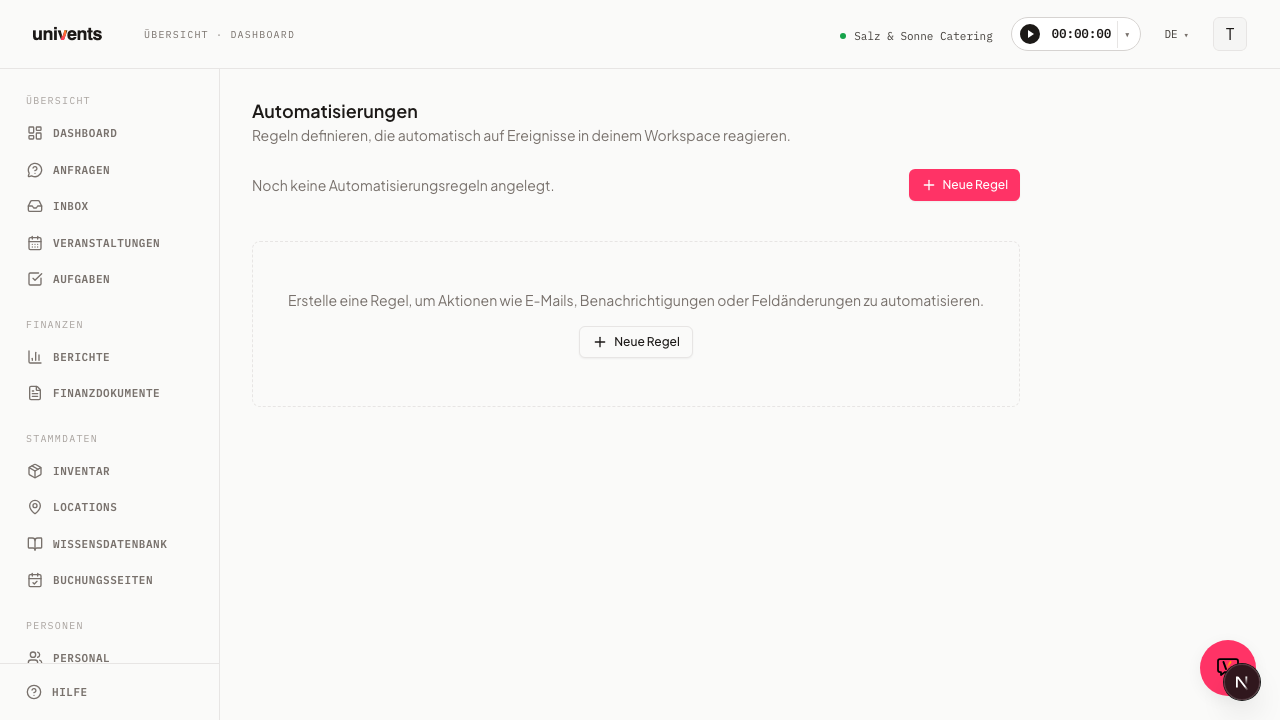
Opening a rule's history
You'll find the history directly in the list of your automation rules. Each rule has an arrow button on its right edge that expands and collapses the history.
- Open the Automations page in the sidebar: it sits in the Admin section, directly below Integrations.
- In the rule list, find the rule you want to check. On the left edge you'll see the rule name, the trigger, and the configured actions.
- For that rule, click the Show history arrow button on the right.
- The Run history section opens below the rule, showing the individual runs.
- To close it, click the same button again, which now reads Hide history.
If there are no runs yet, you'll see the note No runs yet. instead. This is normal for rules that were just created or haven't been triggered yet.
Reading a run's status
Each entry in the history represents a single action of the rule and begins with a colored status label. Next to it, in small type, you'll see the technical action type, for example for sending an email or setting a field.
The following statuses exist:
- Started: The action has begun but hasn't finished yet.
- Done: The action ran through successfully.
- Failed: The action couldn't be executed. This is where it's worth looking at the error message.
- Skipped: The action was deliberately not executed, for example because a condition wasn't met.
- Needs review: The action needs a manual check before it can continue.
This lets you see at a glance whether a rule is running smoothly or getting stuck on a particular action.
Timestamps and extra details
Below the status, each entry shows the run's timestamps. Both are displayed with the date and time.
- Started at: When the action began.
- Ran at: When the action finished.
If only a start time is present, the action is either still in progress or was interrupted partway through. On some entries you'll also see the Canonical marker. This identifies the authoritative run in case the same action was triggered multiple times. That way you know which entry actually counts and which are just duplicate triggers.
Which path ran
If a rule has several paths (branching), every run also records which path was taken — for example "Path "Corporate events" chosen". If that path has since been deleted, it shows "A path that has since been deleted" instead. If none of the paths matched and there's no otherwise path, nothing happens — the run shows "No path matched and there is no otherwise path — so nothing happened.".
Tracing errors
If an entry shows the Failed status, the history displays a plain-language error message in red type directly below the entry. Univents translates the technical cause into a clear message, for example "Email sending is not configured for this workspace.", "The linked record could not be found.", "This tool isn't part of your plan." (for Run tool without the Growth plan), or "Status changed. This change no longer triggered further automations — the chain reached its maximum length." (for Change status, when rules would keep triggering each other too often).
- Expand the Run history for the affected rule.
- Find the entry with the Failed label.
- Read the red error message below it. If Univents doesn't recognize the exact cause, it shows "Unknown error — see details below." and the original technical error message appears underneath in grey text.
- Adjust the affected action of the rule and correct the faulty value.
Make a note of the exact wording of the error message before you change anything. If you contact Univents support, this exact text helps pinpoint the problem quickly.
Frequently asked questions
Why is the history empty even though the rule is active? The history only fills up once the trigger actually fires. An active rule without a matching event won't produce any runs yet. Check whether the selected trigger matches the event you're expecting.
What does Skipped mean? The rule was triggered, but a configured condition wasn't met, so the action was left out. Take a look at the rule's conditions if you expected the action to run.
Why does the same action appear multiple times? If an event is triggered multiple times, there can be several entries. The run marked Canonical is the authoritative one. The others are secondary triggers and you can usually ignore them when reviewing.
Why can't I find "Automations" in the menu? The page isn't currently linked in the left-hand navigation while Univents rolls it out gradually. You can still reach it reliably via the direct address, as described above under "Opening a rule's history".