

Convert a Quote into a Delivery Note or Invoice
After creating a quote, you can create a matching delivery note or invoice directly and import the booking line items with a single click.
Once a quote has been sent, you can create a matching delivery note or invoice in Univents without re-entering all line items. The booking positions from the event can be imported directly into the new document.
The video shows how to create a delivery note with a delivery window, mark extra items provided on site, bill by consumption and merge delivery notes.
You’ll find the individual steps written out below as well.
Create a new document
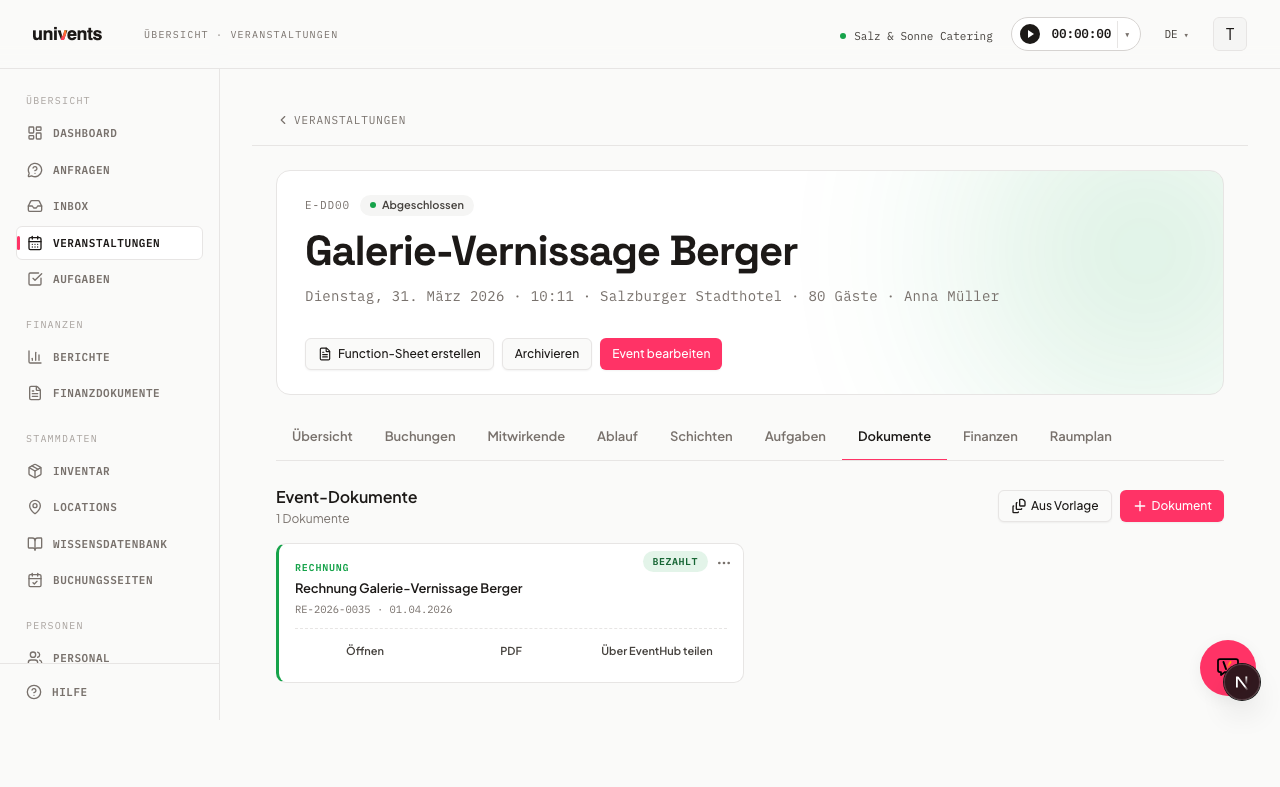
- Open the desired event and switch to the Documents tab.
- Click Document (top right).
- In the Create new document dialog, select either Delivery Note or Invoice from the dropdown.
- Click Create — the editor opens immediately.
You can also access all documents across all events via the Finance Documents section in the main navigation.
Import booking line items
Inside the editor there is a collapsible box called Adopt positions. It gathers everything that belongs to this event and is still missing from this document, in groups:
- Bookings not on any document — positions from the event that are not on any valid document yet
- Shifts not on any document — planned shifts that have not been billed yet
- Tracked time — working time actually recorded
- From other documents — one group per other document of this event, to copy its positions
How to adopt:
- Under Bookings not on any document, Shifts not on any document and Tracked time, every row carries an Add button.
- Under From other documents the row button reads Adopt, and Adopt all takes that whole document at once.
- At the top of the box, Adopt everything takes every group together; Insert open bookings only limits that to the bookings not on any document.
- Target section decides which section the new positions land in.
The positions then appear directly in the line-item table of the new document.
Each group only appears when it has something to offer — and when there is nothing left to adopt at all, the whole box disappears. It is not empty, it is simply not there. If every booking of the event is already on a valid document, for example, the Bookings not on any document group is missing entirely while From other documents is still offered.
Linked positions
A position adopted from the quote stays linked to the original booking. If you then change that position's quantity on the delivery note, Univents asks whether the new quantity should apply everywhere — including the quote and the booking — or only to this delivery note, for example for a partial delivery. Title, description, price, and tax rate, on the other hand, are still applied everywhere without asking.
If you split a position across several delivery notes, the editor also warns you as soon as the combined delivery-note quantities exceed the original quoted quantity.
Send the document
Once all positions are correct, two options are available at the bottom of the editor:
- Save as draft — saves the document without sending it; status remains Draft.
- Save and send — sends the document to the customer by email; status changes to Sent.
After sending, you can continue managing the status via the Status Actions section — for example, marking an invoice Mark as paid or a delivery note Mark as signed.
Understanding status transitions
The current status of a document determines which actions are available:
| Document | Status | Available actions |
|---|---|---|
| Quote | Sent | Accept, Decline, Cancel |
| Quote | Accepted | Cancel |
| Invoice | Sent / Overdue | Mark paid, Mark overdue (only from "Sent"), Correct invoice, Full credit note (storno), Cancel |
| Invoice | Paid | Correct invoice, Refund (only if paid via Stripe), Full credit note (storno) |
| Delivery Note | Sent | Mark as signed |
A cancelled document (Cancelled) cannot be restored — this action requires confirmation.
For invoices, two cancellation paths need to be told apart: a plain Cancel cancels the invoice directly, without creating a credit note. Full credit note (storno), on the other hand, automatically creates a credit note draft — only once that credit note has been sent is the original invoice considered cancelled. Correct invoice goes one step further: it cancels the invoice in the background (a silent credit note, no email to the customer) and immediately creates an editable, corrected draft that receives a new invoice number once sent. Refund is only available for invoices paid via Stripe and returns the amount — in full or in part — to the original payment method.
What about the order confirmation?
From an accepted quote you can additionally create an order confirmation. It is not a step on the way to the invoice, though — it is an endpoint: it confirms in writing what the customer ordered, and it is never changed afterwards.
Delivery notes and invoices still come from the quote, not from the order confirmation — the line items sit with the event and the quote. So there is nothing to rewire: creating an order confirmation and creating a delivery note or invoice are two independent paths. How the order confirmation works is covered in the article Creating an order confirmation.
Tips
- Multiple documents per event: You can create as many delivery notes and invoices as needed for a single event. A booking counts as taken as soon as it sits on any valid document of the event – quote, delivery note or invoice alike. So a second delivery note will not offer you the bookings the first one took, and what is on the invoice will not show up for the delivery note either. Cancelled, superseded and deleted documents do not count – their positions are free again.
- Positions from another document: Anything already taken can be pulled in through the From other documents group, which lists every other document of the event with its positions.
- Invoice fields: For an invoice, you can fill in additional fields such as Due date, Cash discount days, and Cash discount percent directly in the editor under the Invoice fields section.