

Manually log a phone inquiry
After reading this article you'll be able to log inquiries that come in by phone or informal email directly in Univents — complete with contact, date, guest count, and estimated value.
Not every inquiry comes in through the online booking form. When a customer calls or sends a quick email, you can log the inquiry in Univents in just a few clicks — it will appear immediately in the inbox view and move through the normal handling process.
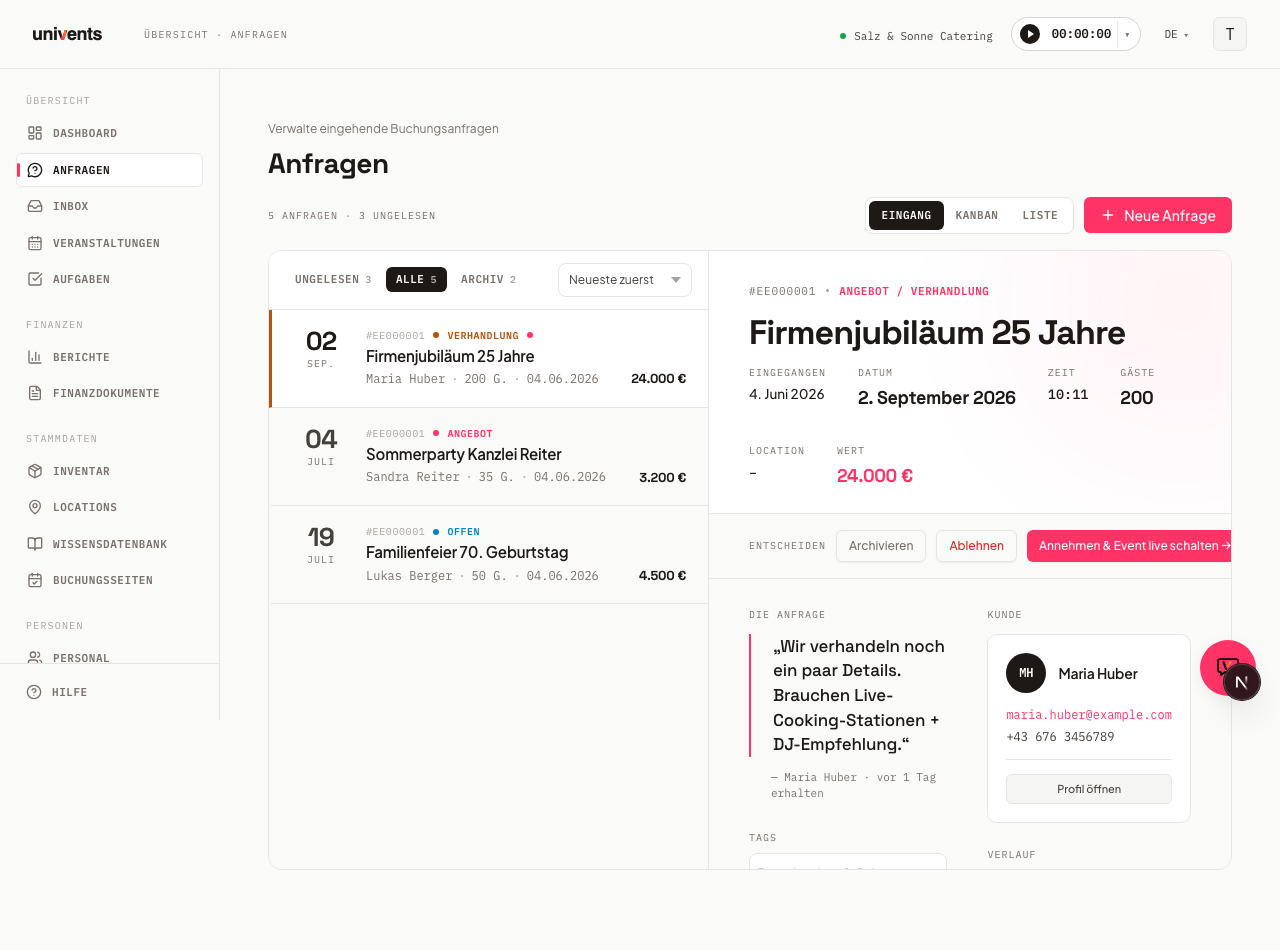
Open a new inquiry
- Open the Inquiries section in the left-hand menu.
- Click New Inquiry in the top right. A dialog titled "New Inquiry" will open.
The form is divided into sections: Caller, Event, Date, Guests & Value, Location, and Tagging. Required fields are marked with an asterisk (*).
Enter the caller
In the Caller section you record who called.
- Click the Search contact … field and type the person's name or email address.
- If the contact appears in the results list, select them — Name, Email, Phone, and Company will be filled in automatically and locked.
- If the caller is not yet in the system, select New Contact from the list or click the plus button to the right of the search field. A dialog will open where at least Name * and Email * must be filled in. The contact is created immediately on save and linked to the inquiry.
Describe the event
In the Event section you capture what the inquiry is about.
- Enter a meaningful name in the Name * field, e.g. "Summer Party Müller GmbH".
- Use the What did the customer say? field to note what the caller mentioned: occasion, wishes, budget range, special requirements.
- If you have event templates set up, optionally select a Template to pre-populate standard products and custom questions.
Record the date
In the Date section you enter the date and time.
- Select a date and start time under Start. The End field is automatically set to Start + 6 hours — adjust it as needed.
- If the date is not yet confirmed, tick the Date is flexible checkbox.
- If the customer mentioned alternative dates, click Add alternative date and fill in Alt. Start and Alt. End.
- The Setup from field is available for the planned setup time.
Add guests, value, and location
In the Guests & Value section enter how many people are expected (Guests) and the rough revenue you anticipate (Estimated value (€)). Both fields are optional but help with prioritization later. In the Seating text field you note freely how the room should be set up, for example “Standing reception with high tables”; while you type, the field suggests values you have entered before. When you accept the inquiry, the text travels into the event, and the inquiry detail shows it.
In the Location section select one or more Location entries from your workspace. If the event is taking place off-site, enter the address in the External address field.
Tagging
In the Tagging section you can optionally assign Tags and a Color to the inquiry.
- Type a keyword in the Tags field and press Enter to add it as a chip. You can assign multiple tags.
- Pick a Color to make the inquiry easier to spot later on.
Important: these tags are the same event tags that carry over when the inquiry is converted into an event. If you've assigned a role an Event visibility (tags) filter under Access, Roles & Permissions, this exact tag decides whether admins with that role can see the resulting event at all. See Access, Roles & Permissions for details.
Save the inquiry
- Scroll to the bottom of the form.
- Click Create inquiry. The form closes, a short confirmation appears, and the new inquiry shows up straight away in the Inbox view with the status Open.
Click Cancel to close the form without saving anything.
If the date you entered is in the past and the … hide past switch is on, the fresh inquiry would disappear from Kanban, Liste and Inbox the moment you save it. To prevent that, Univents temporarily shows past inquiries again in this case and tells you why. More often than not this is the fastest hint at a typo in the date — check the Start field.
Frequently asked questions
Can I assign an inquiry to a contact after the fact? Yes — open the inquiry in the detail view and edit the contact entry there.
What happens if the contact is not yet in the system and I choose "New Contact"? Univents creates the contact immediately and links them to the inquiry. You will also find them afterwards under Contacts.
Do I have to fill in all fields? No. The only required fields are Name and Email (Caller section) and Name (Event section). All other details can be added at any time in the detail view.
Where do I find the inquiry after saving? In the Inquiries section under the Inbox view, All segment — or directly under Unread, since new manually created inquiries are marked as unread.