

Creating and getting the most out of event locations
You create event locations, maintain details, photos, the maximum guests, turn-around and cleaning time, default tasks, linked products (Required vs. Available), and files, add floor plans with a name and seats or as a drawing right in the overview, draw tables, chairs and standing areas for receptions in them, block periods and public holidays per location, bundle locations into groups with their own title image, and see each location's schedule and events at a glance.
In Univents, event locations are the venues you plan and market. You set them up once, maintain capacity, address, photos, and tags, and then see all linked events, the utilization, and the next dates for each location at a glance.
The video shows how to maintain a venue with translations, tags, mandatory products, revenue accounts and floor plans, and how to create location groups.
You’ll find the individual steps written out below as well.
Opening locations and creating new ones
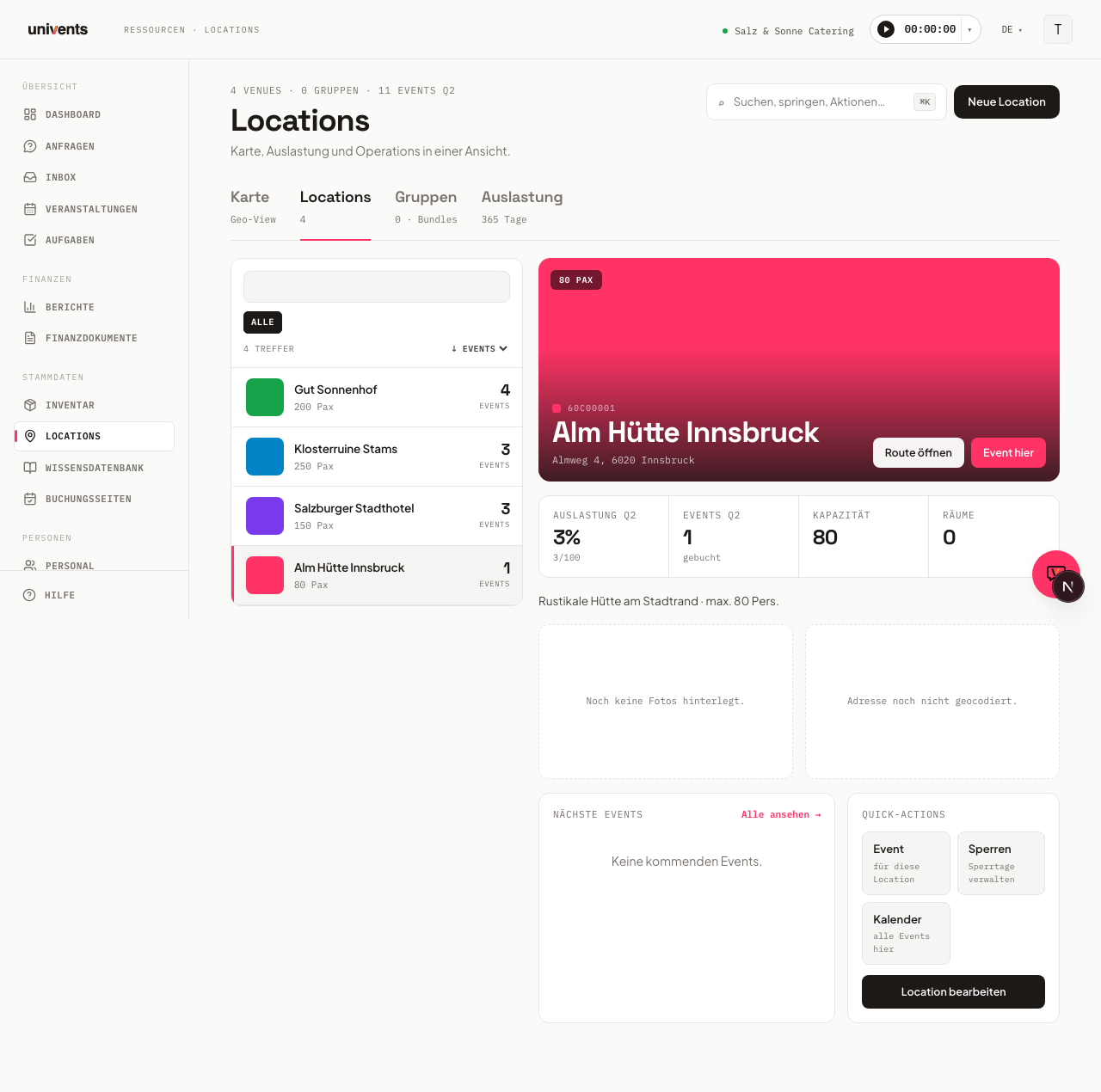
You'll find this area in the main navigation under Locations. At the top you'll see the heading Locations with the note "Map, utilization, and operations in one view." Below it, you switch between the views using the Map, Locations, Groups, Utilization, and Schedule tabs. When you open the area, the Locations tab is active.
- Click New Location in the top right. A centered form opens.
- Fill in the fields in the General information section and add address, color, and images as needed.
- Click Create at the bottom to save the location. For an existing location, the button is labeled Save.
A location you've created appears immediately in the list on the Locations tab. Using the search field in the top right (keyboard shortcut ⌘K), you can quickly jump to a specific location, a group, an action, or a view.
Maintaining general information
In the General information section, you define how the location appears internally and on the booking page.
- Name: Required field. Shown in the list, in the calendar, and on the booking page. Phrase it clearly and recognizably.
- Maximum guests: The most guests the location takes, for example "200." The number has two effects: it is the upper limit for the guest count on your public booking pages and the basis for utilization. It does not count for the notice about too many guests — floor plans do that (see What happens when there are too many guests). The Capacity figure in the detail view shows the same value. How many seats the location offers per seating style is stored in its floor plans (see Capacity by floor plan).
- Parallel events: How many events may overlap in this particular room. Leave the field empty and your booking page setting still applies. Enter a number and it applies everywhere: the booking page calendar, the venue picker for the chosen date, the check when a request is submitted, and the availability check. Example: the main hall takes two parallel events, the side room only one.
Schedule items occupy a room too. When a programme item in a schedule carries a room plus its own start and end time, that room counts as occupied for that window — just like an event. If the item has only a start time, the room counts as occupied at exactly that moment. Items of cancelled events do not count.
- Turn-around and cleaning time (minutes): How much time before and after every booking goes into setup, cleaning and teardown. If this location's stated booking duration already covers setup and teardown — that is, the time from reaching for the first chair to leaving the room — leave the field at
0. See Turn-around and cleaning time below. - Area (sqm): Optional square-meter value, for example "400."
- Description: Free text that makes the location tangible for customers. Describe which events it suits and what makes it special.
- Tags: Keywords that you type and add with Enter. On the Locations tab, you can later filter by these tags. Events and inquiries at this location take over its tags automatically — which lets you separate several sites from each other with roles (see Members, roles & permissions).
Using the language selector under Languages, you can additionally maintain the Name and Description in other languages, in case you use multilingual booking pages.
Turn-around and cleaning time
With the Turn-around and cleaning time (minutes) you keep the room free around a booking. Enter 90 and the room is unavailable for an hour and a half before and after every date. The field takes whole numbers from 0 to 1440 (24 hours); 0 is the default and means no turn-around time.
An example: a room is booked on Saturday from 10am to 2pm and carries 90 minutes of turn-around time. On Saturday it is bookable again only from 3:30pm — and already blocked until 8:30am in the morning. A customer asking for 3pm through the booking page does not get the room.
What matters is the difference from a buffer set on the booking page (see Create & configure booking pages): the room value applies to this one room only, the page value to every room of that page. When both apply, only the larger of the two values counts, not the sum. A room with 30 minutes of turn-around time on a booking page with a 2-hour buffer therefore means 2 hours, not 2.5 — a small room value never blocks on top of your page setting.
The turn-around time blocks like a booking. It applies on both sides of the booking and against everything else that holds the room: against events that are already planned and against the availability query through the API. The overbooking warning counts it too — hover the notice and you see which room is affected (see Spotting an overbooking).
No turn-around time on schedule items. Programme items with a room and times of their own stay exactly inside their window — the room's turn-around time does not stretch a schedule item. If you plan setup or cleaning as a position of its own, create a separate item in the schedule for it.
Capacity by floor plan
How many guests a location holds per seating style is stored in its floor plans — one plan per seating style, such as “Gala seating · 450” or “Standing reception · 750”. A floor plan doesn’t need a drawing: a name and a seat count are enough (see Floor plans in the detail view below).
In the location’s edit dialog, the Capacity by floor plan section lists every floor plan with its seats, largest first — for viewing only. You create floor plans, rename them and change their seats in the detail view of the overview.
Your earlier numbers have been carried over. If you had entered seats per seating layout in the edit dialog (theatre style, banquet, gala …), each number has become its own floor plan without a drawing, named with the German name of the seating style — for example “Bankett (runde Tische) · 380”.
A typical example: a hall seats 120 guests theatre style but only 80 at round banquet tables. Create two floor plans — “Theatre · 120” and “Banquet · 80” — and pick the right one for each event.
What happens when there are too many guests
If an event’s guest count is above the seats of the chosen floor plan, you get the notice “130 guests > floor plan “Bankett” (120).” In the event form it appears before you save, right below the Floor plan field. After saving, the same sentence appears in the “Possibly overbooked” notice in the events overview (Kanban, timeline, season) and on the document.
The notice blocks nothing: you can save and carry on planning. It only warns via the floor plan, and only if the event has exactly one location and the floor plan belongs to it. Without a floor plan there is no notice; the seating note and the location’s Maximum guests do not trigger it.
Good to know: You choose the floor plan in the event form on the Date step. If you change an event’s location, Univents automatically removes a floor plan that doesn’t belong to the new location. You record how the room is set up in the Seating text field — also during inquiry capture; when an inquiry is accepted, the text travels into the event.
Linking default tasks and products automatically
In the Tasks on booking section, choose one of your task-list templates under Default task list. When this location is assigned to an event, the tasks from this template are created on the event automatically — once per event. Leaving it on None — don't create tasks automatically means nothing happens automatically.
In the Products / services section, under Linked products, you link products to this location — and for each selected product you set whether it's Required or Available:
- Required is booked automatically as a venue line item as soon as the location is assigned to an event — you don't need to add anything manually.
- Available is not booked automatically when the location is chosen. It's offered as an option that you (or, on the booking page, your customer) add yourself when needed. On booking pages with the Location first design it appears for selection on its own as soon as the guest picks this location; on other booking pages only if you also add it to the page's product list.
Either way, the price follows the product's own billing model (per hour, per piece, …). The products you have already selected are listed at the top under “Selected”, with their price, the Required / Available switch and a button to remove them; below that you search for more products to add.
Rental price at a glance: Univents adds up the net prices of all Required products and shows the total as "Rent from … net" in the location list and on the location's detail view. The detail view also lists each required product with its price and unit. If a location has no required product with a price, no rental amount is shown.
Adding address, color, and photos
Under the Address section, you type the address into the address field. The suggestions automatically complete street, postal code, city, and country and store the geocoordinates, so the location later appears with a pin on the Map tab and in the map preview of the detail view. The same address also feeds the map on the overview of every event held at this location.
If a location has no address of its own (a single room such as “Hall 2”, for example), the map looks for an address in this order:
- The event’s own address, if you entered one there (for an off-site event, for example) – it always wins.
- The location’s address, otherwise its coordinates.
- The address of the group the location belongs to (Groups tab).
- Your company address from the settings.
When the address comes from the group or from your company, the map is labelled “Group · Location” or “Company · Location”, for example “Legienhof · Hall 2”. Only if no address is stored anywhere does the event overview show the note No address on file with a link to edit the location instead of a map.
In the Color section, you choose a color from the color swatches. It marks the location in the list, on the map, and in the calendar. Use Clear to remove the selection again.
In the Images section, you upload photos using the Add image area (a maximum of 12, each up to 5 MB). Use the star icon to mark a Hero image, which appears as the cover image on the booking page and in the list thumbnail. Use the X icon to remove an image again.
The first time you save the location, Univents unlocks the Files section. Until then, the form shows the note “Save the location first — then you can upload files.” You don’t manage floor plans in this form but directly in the detail view of the overview (see Floor plans in the detail view below).
In the Files section, you upload any file type for this location (Upload file (any type), up to 50 MB each). Use Download to download a file again, and Delete to remove it (with a confirmation prompt).
Assigning events and using the detail view
When you select a location on the left in the Locations tab, the detail view opens on the right with a cover image, address, and a metrics bar (Utilization, Events, Capacity, Rooms).
- Click Event here to create a new event for this location directly.
- In the Upcoming events area, you see the upcoming dates. Via View all, you jump to this location's filtered event list.
- Under Quick actions, you reach Event (new event), Block (manage this location's blocked periods and public holidays), and Calendar (all events here).
- With Open route, you open the location's address in Google Maps in a new tab.
If a location belongs to a group, that's shown under Member of groups. To edit, click Edit location in the detail view.
Floor plans in the detail view
Below the metrics bar you find the Floor plans section. It lists every floor plan of this location with a small preview, its name and its seats — the plan with the most seats first. The heading tells you how many seats the largest plan offers, for example “Floor plans · up to 450 seats”. If a location has more than six floor plans, expand the rest with show all …. A plan that only has a name and seats is marked not drawn.
- Click New floor plan. In the window, enter a Name (such as “Gala”) and optionally the Seats (such as “450”).
- Create adds the plan to the list right away — without a drawing. Create and draw opens the editor straight after, where you draw the plan to scale with the same tables, chairs and capacity logic as the Floor Plan tab of an event (see Whiteboard & Seating Plan in an Event). If the venue already has a plan with that name, the window points it out — you can still create it.
- The three-dot menu of a row lets you change name and seats with Edit name/seats (or tap the name), open the plan in the editor with Draw, or remove it with Delete.
- Back to overview takes you from the editor back to exactly this location. If you haven’t saved your changes yet, Univents asks first. Drawing happens on desktop: on a phone you create and edit floor plans with a name and seats, while Draw only shows a note.
Drawn or entered? As long as a plan isn’t drawn, the seats you entered apply — you can also enter them at the top under Seats in the editor. As soon as you draw tables and chairs, the drawn seats count; the seats field in Edit name/seats is then locked and says “From the drawing”. If you drew fewer seats than you entered, saving asks first (“From now on 80 instead of 450 seats apply”). If you later delete all tables again, the entered number applies again.
Standing areas for receptions. For events without tables, the editor now has a Standing area element — a rectangle you draw, move, rotate, resize and duplicate just like a table. Under Properties you set Width, Depth (in metres) and m² per person (default 0.5; 0.2 to 5 is allowed). The area shows its number of people right on the plan: 20 × 12 m is 480 people at 0.5 m² per person and 240 at 1.0 m² per person. That number counts towards the plan’s seats just like tables do — tables with 80 seats plus a standing area for 480 people make 560 seats, in the location list, in the event form, in the overbooking notice and on the function sheet. The plan preview also shows the area with its number of people; Univents doesn’t draw chairs on a standing area automatically.
If a floor plan is selected for events, the delete confirmation tells you how many. After deleting, the selection is removed from those events and their schedule items, and the function sheet no longer shows the plan. If it is linked in event templates, the confirmation names those too, and deleting removes it there. Only people whose role may delete events can delete floor plans. The same confirmation appears in the overview’s detail panel and when deleting in the editor.
When you later create an event with this location, you pick one of these floor plans under Floor plan in the event form — drawn or with just a name and seats. You can also pull drawn plans into the event’s floor plan via From location template; plans without a drawing aren’t offered there until you draw them.
Good to know: The selected location is part of the page address. Reloading, or a link from a report or an event, takes you straight to this location. Floor plans are part of the events module — without that module, the section only shows a note. The AI assistant also creates floor plans with a name and seats, changes and deletes them, for example: “Add a floor plan Cinema with 280 seats for the event space”. A standing area works the same way: “Create a floor plan Standing reception for the hall with a standing area 20 × 12 m”.
Blocked periods and public holidays per location
Via the Block quick action you open the Blocked periods dialog for this one location. There you create the periods in which the location is not bookable — for a renovation, say — and delete them again.
- In the detail view, click Block under Quick actions.
- Under Block a period, optionally enter a Label (for example “renovation”), plus From and To. The selection is on One-off.
- Click Create block. The period appears in the Blocked periods for this location list right away.
- To remove it, click Delete in the row and confirm the prompt. The location is then bookable for customers again.
The block applies to this location only. Every other room stays bookable on those days. Workspace-wide blocked periods — your annual closure, which you manage via Global blocked periods in your booking page overview — are shown read-only in this dialog. They still apply to all rooms and cannot be changed here.
The end date counts. A period from the 1st to the 3rd is three blocked days: the 1st, the 2nd and the 3rd.
Block every week (for example every Sunday)
If a room is regularly unavailable, you do not enter each day one by one — you create a weekly block:
- In the Block a period section, switch to Weekly.
- Choose the Weekdays — one or several, for example just Sun or Sat and Sun.
- Set From when the block starts (today is pre-filled). Optionally enter an Until (optional) date; without an end date the block has no limit. The end date counts.
- Click Create weekly block.
In the list the block reads clearly, for example “Every Sunday”, followed by the start date and, if set, the end date. You cannot edit a weekly block afterwards: to change it, delete it and create it again. Blocks always apply for the whole day — times of day cannot be set.
If the From day itself is not one of the chosen weekdays, it stays bookable; the block then starts on the first matching weekday after it.
Groups: If a room is part of a location group (for example “Whole venue”), the block also applies to the group and its rooms: block the group and its rooms are not bookable on those days either, and block a single room and the group is not bookable on those days. Other rooms in the same group stay bookable.
Via AI chat: The AI assistant can also show, create (one-off or weekly) and delete a room’s blocks — for example “Block the hall every Sunday from October”.
Importing a region’s public holidays
Below the list you find the Import public holidays section. It blocks the public holidays of a region for this location — selected one by one, not wholesale:
- Pick a Year (the current or the next one) and the Region — without your own choice, the region from Settings → Public holidays applies. The regions of the country your workspace is in are available. The list shows that year’s public holidays.
- Tick the holidays that should apply to the location.
- Click the Block … holidays button. Univents creates a full-day block for every selected day.
Days that are already blocked for this location are marked already blocked in the list and are skipped. Adopted holidays carry the Public holiday tag in the blocked periods list — so later on you can tell which blocks came from the import and which you created yourself. Your workspace’s own public holidays are in the list as well.
These blocks apply to this location only, too. If you want a public holiday to close your whole operation, use Global Blocked Periods in your booking page overview.
Bundling locations and seeing utilization
On the Groups tab, you combine several venues into one bundle, for example to market several rooms together.
- Switch to the Groups tab and click New Group.
- Under General information, give it a Name and optionally a Description.
- Under Capacity (persons), enter the maximum number of guests for the whole group. That number appears on your booking page, and anyone entering more guests can no longer pick the group there. Leave the field empty if there is no upper limit.
- In the Address section, optionally enter the address of the venue building. Locations in this group without an address of their own inherit it on the event-overview map.
- In the Images section you upload photos for the group, just like for a single location. The first image is the group's title image and appears in the Groups tab and on the inquiry and booking page. If the group has no image of its own, the customer page shows the first image of its first location.
- In the Bundle options section, enable "Show on booking page as its own bundle" if needed and optionally enter a Bundle price (net, optional). If the field stays empty, the sum of the individual locations applies.
- In the Link venues section, you select the associated locations and save with Create.
You change the capacity of an existing group via Edit on the group card — in the same window you created it in.
On the Utilization tab, you see a yearly grid of booked days for each location. This lets you tell at a glance which venues are heavily booked and where capacity is still free.
Setting the order on booking pages
You decide the order in which your customers see the locations on a public booking page.
- Click Order in the top right. A centered window opens with all locations and groups.
- Drag the entries by the handle on the left into the order you want. Every move is saved immediately.
- Close the window with Done.
Each booking page still only shows the locations you assigned to it in the booking-page editor — but now in exactly the order you set here.
Good to know:
- As long as you do not move anything, Univents sorts alphabetically by name. The window tells you at the top which of the two applies right now.
- A newly created location is appended at the end until you position it. That way it does not jump to the first spot on your customer page unasked.
- Groups are in this list too. If you offer a group as its own bundle on a booking page, you position it just like a single room.
- Not to be confused with the sorting of the list on the left (↓ Events, ↓ Pax, A–Z). That only changes your own view and has no effect on the customer page.
Viewing occupancy as a schedule
On the Schedule tab, you see the bookings of all your locations as a calendar, with one location per row. Use the view switcher to move between Day, Week, and Month; use Previous, Today, and Next to navigate through time. If you haven't created a location yet, a note points that out; if there are no bookings in the selected range, Univents shows that too.
Deleting a location
If you no longer need a location — because it was created twice by mistake, for example — open it for editing and click Delete at the bottom left. After a confirmation the location disappears from the overview, the map, the utilization view and every picker.
Events already scheduled at that location keep their entry: the location is hidden, not removed from history. If a venue should only be unavailable for a while, the Suggest on public booking page switch is the better choice.
Tips
- Maintain a meaningful Description and good photos. A Hero image and clear text increase the booking chances on the booking page.
- Use Tags consistently so the tag filter on the Locations tab is genuinely helpful.
- Enter the address via the suggestions, not by hand. Only then does the location appear with a pin on the Map tab.
- Check the Utilization tab regularly to specifically promote less-booked locations.