

Creating & using custom questions
You can define your own questions and required fields on a booking page, set them up with the right field types, put them in the order you want, and review the answers in the incoming inquiries.
On every booking page, you decide for yourself what information a customer has to provide when they submit an inquiry. In addition to the fixed standard fields, you can add your own custom questions, give each one the right field type, and collect exactly the information you need for planning, with no follow-up emails.
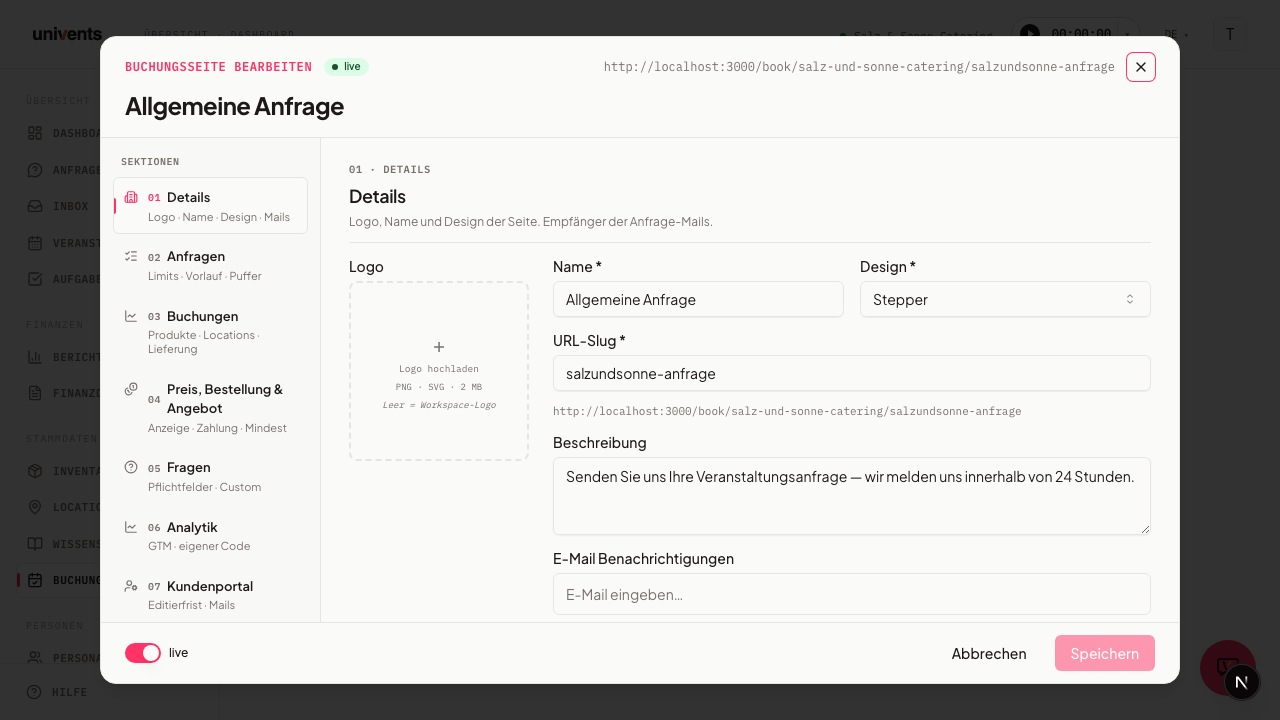
Where to find the questions
Questions belong to a single booking page. Here's how to get there:
- Open Booking Pages in the menu.
- Click Configure on the page you want.
- In the left sidebar, under Sections, select the Questions entry (section 05).
In this section you'll see two blocks: the standard fields at the top and the custom questions below. Together they determine what the public inquiry form looks like. Your changes are saved automatically as soon as you pause briefly; you can also save them yourself at any time with the Save button in the bottom right.
Setting up the standard fields
The standard fields are the typical contact details. Name and Email are always required and can't be turned off (you'll recognize them by the lock icon and the note "Name & E-Mail sind immer Pflicht"). You switch all the others on or off as needed with the toggle:
- Phone and Mobile
- Address
- Company name and Company email
- Billing address
- VAT ID
When you enable a field, it appears as a required entry on the inquiry form. This way you can collect, for example, the billing address and the VAT ID from business customers right away, without having to ask later. Leave only the fields active that you really need, every extra required field raises the barrier to completing the form.
Adding your own questions
In the custom questions block, two buttons are available in the top right:
- Add question opens the search across questions you've already created and want to reuse on this page.
- New question opens a small window where you create a brand-new question.
When you create a new question, you fill in:
- Label: the question text the customer sees (e.g. "How many guests are vegetarian?"). The input field is multi-line — line breaks and blank lines appear on the public page exactly as you enter them here. That way you can put a title on the first line and an explanation below it after a blank line.
- Field type: determines the kind of answer (see the next section).
- Required: tick the box if the question must be answered.
Click Create to save the question. It is added to this booking page immediately and appears in the list with a badge for its field type. Use the X on a question to remove it from the page again.
Order of the questions. The questions appear in the inquiry form in exactly the order you see them in this list. With the Move up and Move down arrows on a question you shift it step by step to where you want it; on the first entry the up arrow is greyed out, on the last one the down arrow. The new order applies to the public booking page straight away — there is nothing extra to save.
Choosing the right field types
The field type determines how the customer answers. These types are available in the Field type dropdown:
| Field type | Best for |
|---|---|
| Text | short or longer text entries, e.g. special requests |
| Number | numeric values such as the number of vegetarians |
| Date | preferred or alternative dates |
| Time | preferred delivery or start time |
| Dropdown | a single choice from fixed options |
| Multi-select | several options selectable at once |
| Checkbox | a simple yes/no question or confirmation |
| Address | delivery or pickup address |
If you choose Dropdown or Multi-select, a list of answer options appears below instead of a free-text field: use Add option to create one row at a time, each with its own label (optionally in English too, switchable at the top of the dialog). You can also optionally link each option to a product and then enter a surcharge — when a customer picks that option on the booking page, it automatically becomes its own line item on the order (the "menu configurator": guests put together their own selection, e.g. of dishes — see Menu configurator: let guests put together their own menu). Options without a linked product behave like plain text. That is why a surcharge requires a linked product: without a product the field is locked, because no line item is created that a surcharge could be charged on. If you remove an option's product, its surcharge is removed too. On the booking page a surcharge only appears on options with a product. An answer option can also span several lines: in the option’s field, press Enter to add a line break or a blank line so that title and description appear one below the other. The selection list shows them the same way; in the Dropdown, which can only display one line, the app shows the parts on one line, separated by “ – ”. A surcharge on an answer in that single-choice dropdown is calculated: it appears next to the answer (for example “+8.50 €”) and flows into the cart, checkout and inquiry.
For Multi-select, you can also set Select at least and Select at most to limit how many options can be chosen (e.g. "exactly 5 out of 17 dishes"). The customer sees a counter and can't select more than the maximum. If several selection questions are attached to the same product, each question splits the line item's quantity only among its own selected answers.
Only ask when a specific product is ordered
Questions you add in the Questions section of the booking page under Custom questions appear on every order through that page. If a question should only appear when a particular product is in the cart — for example "Pickup or delivery?" only for the festive box — do this:
- Remove the question from the booking page with the X. The question itself is kept; it just isn't active on this page any more.
- Open the product in Inventory and go to the Custom Questions area. Click Add and pick the question. The product must be saved first.
A question belongs either to the booking page or to products, never to both. Otherwise the same question would appear twice and it would be unclear which answer counts. That is why step 1 is needed: as long as the question is active as a page question on a booking page, it is locked in the selection on the product and names the booking page (Page question on: …). The other way round, the question selection of the booking page locks a question that is attached to a product and names the product (Attached to product: …). If you want the same question in both places, create a separate question for the booking page.
The question then only appears when the product is selected, once per product even if you order it on several days: in the webshop at checkout, in the inquiry form right below the product selection, in the Stepper design (and Location first) in the step where the product is chosen, right below the selection, and in the AI chat, which asks it and shows it in the summary. Products that are automatically part of every inquiry and have no selection step of their own in the Stepper are asked in the step with the contact details. Required product questions cannot be skipped there — if an answer is missing, the page names the question, in the Stepper as soon as the guest clicks Next. Guests only see surcharges on options if the page has Show prices switched on.
Frequently asked questions
Can I use a question on several booking pages? Yes. Create the question once and add it to other pages via Add question. The search shows all the questions you've already created, and one click activates it for the current page. The exception are questions attached to a product: they are listed as locked, with the product's name.
How do I require customers to accept the terms and conditions? Create a question with the Checkbox field type, phrase it as a confirmation ("I have read and accepted the terms and conditions."), and tick Required. The inquiry then can't be submitted without the confirmation.
What happens to the answers after submission? The answers arrive together with the inquiry in your inbox and appear in all inquiry views: the detail view, the list, the Kanban board, and the inbox. That way you have guest counts, dates, or delivery addresses right there with the booking, with no separate follow-up.
Can I ask questions in the customer portal too? Yes. In the Customer Portal section (section 07) there's a portal questions area for questions shown to the customer in the EventHub portal. They now also answer them there themselves and can change their answers until the booking page's editing deadline (a different one per event is possible); after that they only see them. An empty field counts as "not answered yet", and open required questions don't block saving. For Dropdown and Multi-select, the answer options are available with your Select at least/Select at most limits. Questions that require a file, and pure section headings, appear in the portal without an input field. A question you attach to a product in the product form only appears in the customer portal for events where that product is booked: a customer who booked canapés only won't see the buffet questions. Questions without a product link always appear, and a question that has already been answered stays visible together with its answer.
Do answers in the customer portal change prices or documents? Directly saved answers do not: they are only stored — prices, quotes, and invoices stay unchanged. It is different when the customer changes a multi-select with linked products in the Changes tab. There the selection is a real selection with your limits, every changed option becomes its own item in the change request, and the line items on the order only follow once you approve. Without your approval nothing changes.