

Managing Contributors in Events
After reading this article you will be able to create contributor groups for an event, assign contacts, save groups as templates, and send targeted emails to individual groups or all contributors.
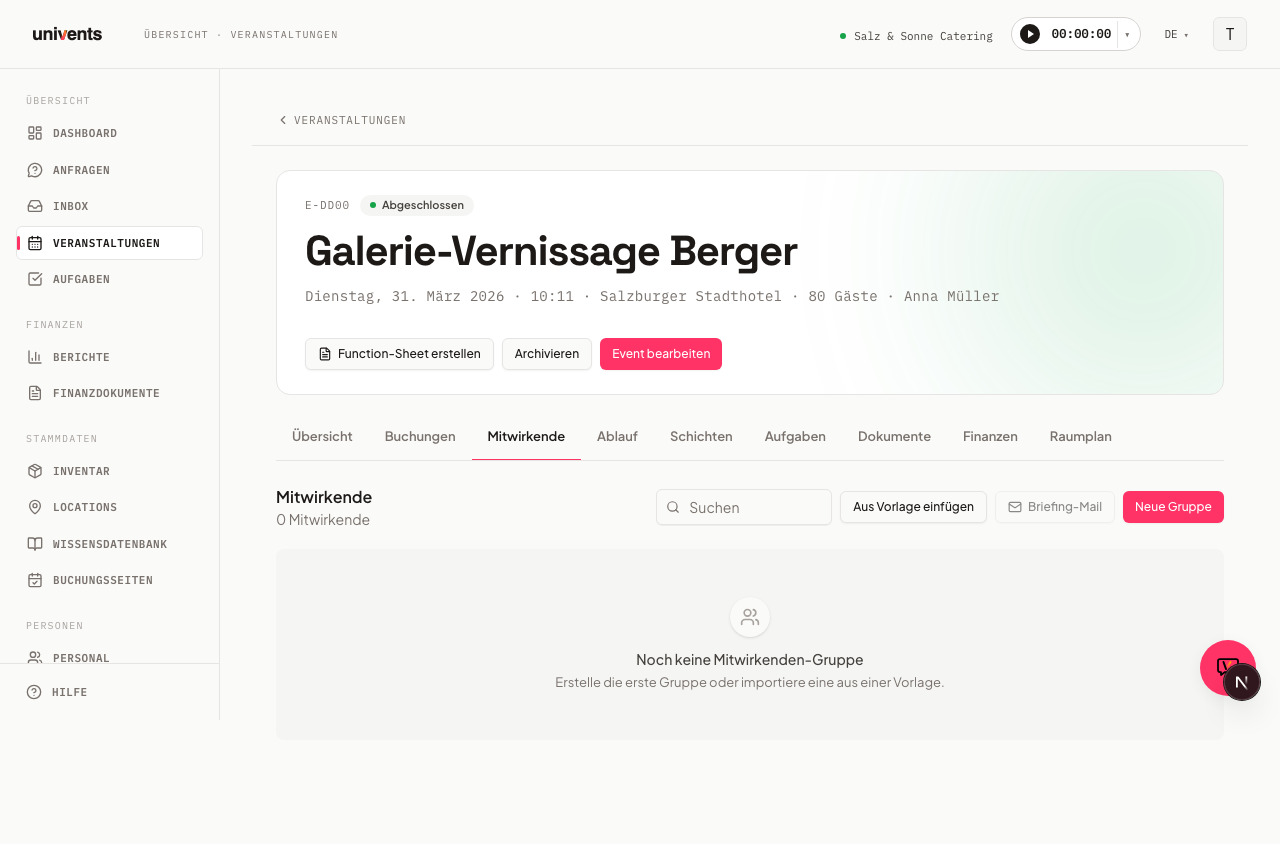
Under Contributors for an event you record all people and organisations involved in the function — from the client to external suppliers and the service team. The group-based structure gives you an instant overview of who holds which role and lets you send emails directly from the list.
The video shows how to create supplier orders, how the supplier confirms them in the portal and how to invite more partners in the Contributors area.
You’ll find the individual steps written out below as well.
Creating groups
Each contributor group bundles one category of participants, for example "Client", "Technical" or "Catering".
- Open the relevant event and switch to the Contributors tab.
- Click New Group in the top-right corner.
- Enter a Name (required) and an optional Description.
- Choose a Color from the color palette to visually distinguish the group.
- In the Link Contributors section, type a name or email address into the search field and select the desired contact from the list.
- Click Save Group (or Save Group with N Contributors if you have already selected members) to create the group.
External contacts who do not have an internal staff profile are automatically labelled external within the group.
Creating new contributors on the fly
If a contact does not yet exist in the address book, you can add them quickly while setting up a group — without leaving the dialog.
- Click Create Contributor inside the group dialog.
- Enter the Name and, optionally, an Email.
- Click Create — the contact is immediately added to the selection and included in the group.
The newly created contact is also available in the general contacts area afterwards.
Editing and deleting groups
Each group has a pencil icon and a trash icon in the top-right corner.
- Edit (pencil icon): Opens the same dialog used when creating the group — name, description, color, and members can all be changed.
- Delete (trash icon): Shows a confirmation prompt Delete Group?. After confirming, members are removed from the group; the contacts themselves remain in the system.
Below the group name you will find the link Save Group as Template — this stores the current composition as a reusable template (see the next section for details).
Using group templates
If you regularly need the same group compositions, save yourself the repetitive work with templates.
Saving a template
Click Save Group as Template inside an existing group. The group is immediately saved as an account-level template.
Applying a template to an event
- Click Insert from Template in the Contributors overview.
- The dialog shows all saved templates along with their member lists, so you can check who you are importing before confirming.
- Click Insert on the desired template. The group is materialised in the event.
- Templates you no longer need can be deleted from the same dialog using the trash icon.
Sending emails to contributors
Email to a single group
Click Email Group in the group row. In the dialog, enter a Subject and Message, then click Send. Each member receives a personalised email. Members without a stored email address are automatically skipped.
Briefing email to all contributors
Click Briefing Email in the top-right corner. The default email includes the event name, date, and location. In the Notes (optional) field you can add supplementary information such as the meeting point or dress code. Click Send Briefing — all contributors on the event receive the email.
Frequently asked questions
Why does a contact appear as "external"? Contacts who do not have an internal staff profile are automatically tagged external. This is not an error — it is a visual orientation aid.
Do contributors appear in the Function Sheet? Yes. When the layout of your Function Sheet includes the Contributors block, the groups are included with the name, email address, and phone number of each contact.
Can I add the same group to multiple events? Direct copying is not possible, but you can save the group as a template and apply that template to as many other events as you like.