

How do I get started and set up my workspace?
After completing this article you will have entered your company details, uploaded your logo and brand colours, and invited your team to Univents.
To set your workspace up professionally from day one, you work through three areas: company details, branding, and team. You reach all three via Settings in the left-hand navigation menu.
Sample data, start checklist and tutorials
Your new workspace is not empty: we create sample data (rooms, products, contacts, inquiries, events and sample documents) so you can try everything out. A banner points this out. Delete sample data removes everything in one click, after a preview. More in Sample data in a new workspace.
The start checklist guides you through the most important steps, including Choose a document design and Delete sample data. Every step has a short tutorial video (Watch video). You find all videos via the All tutorials on YouTube link in the checklist and in the help window, or directly on the Univents YouTube channel. The empty tabs of an event (Shifts, Schedule, Tasks, Guests, Contributors) show their tutorial too.
The video walks you through the four settings you make once at the start — company details, branding, number ranges and the sender for outgoing documents.
You’ll find the individual steps written out below as well.
Step 1: Enter your company details
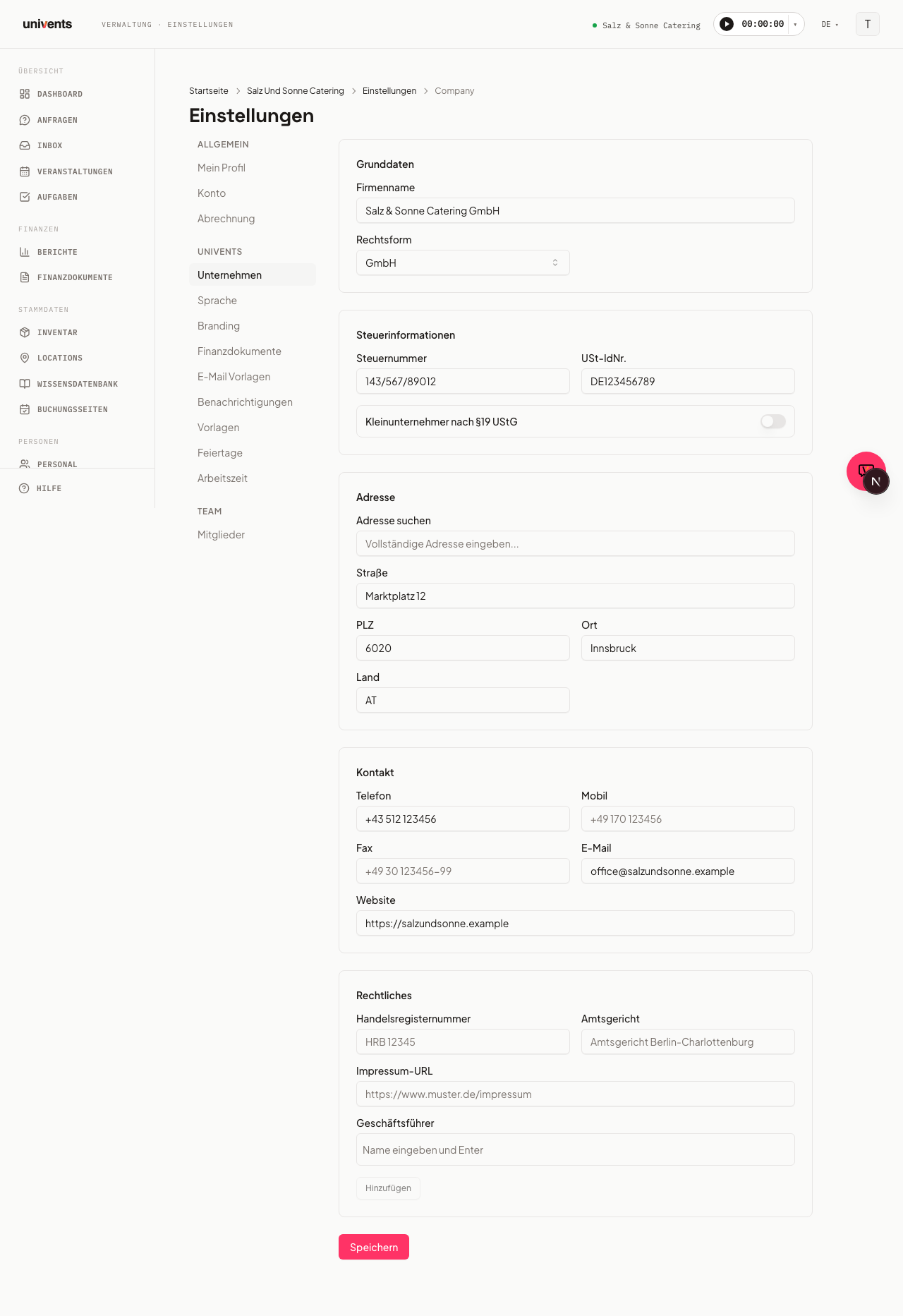
Open Settings > Company. The form is divided into eight sections.
- Basic data — enter your Company name and Legal form (e.g. GmbH, sole trader).
- Tax information — enter your Tax number and VAT ID. If you are a small business owner, enable the Small Business (§19 UStG) toggle.
- Bank details — add your Bank, IBAN, and BIC.
- Bookkeeping — optionally add a Deposit account (e.g. SKR03 1718 / SKR04 3270); Univents uses it automatically when booking received deposits in the DATEV export.
- Customer reviews — add a Google review link that happy customers are offered in the customer portal after the event.
- Address — type into the Search address field, select a suggestion from the autocomplete, and Street, Postcode, City, and Country are filled in automatically.
- Contact — add your company's Phone, Mobile, Email, and Website.
- Legal — fill in Commercial register number, Registry court, and Imprint URL. Under Executive directors, enter names and confirm each one by pressing Enter or clicking the Add button.
Click Save when you are done. These details appear on quotes, invoices, and your booking page. See Managing Company Details for the full field reference.
Step 2: Set up your logo and colours
Open Settings > Branding.
Upload a logo
- Click Choose file under Logo.
- Select a PNG, JPG, WebP, or SVG file (maximum 5 MB) from your device.
- The logo appears immediately as a preview. Use Replace to swap it out, or Remove to delete it.
Upload a favicon
Follow the same steps in the Favicon section — a PNG, ICO, or SVG file is recommended here, ideally square.
Set your colours
The Colours section shows eight colour fields (e.g. Primary, Secondary, Background). Click a colour field, pick a colour using the picker, or type the hex value directly into the text field (format #rrggbb, e.g. #ff3366). The primary colour determines buttons and accents in the customer portal and on PDFs.
Set your email signature & footer
Right below that, in the Email signature & footer section, you can optionally add two more texts: an Email signature that appears at the end of every system email (e.g. when sending quotes and invoices), and a smaller Email footer (legal) below it, for example for imprint details.
Click Save once all values are correct. See Set up branding (logo, colors) for the full colour and email-signature reference.
Step 3: Invite team members
To see who already has a login and which invitations are still open, go to Staff and open the Access tab.
Inviting and changing happens on the People & Access page. That page is not in any menu — you reach it via its address: univents.app/home/<your-workspace>/settings/members. For <your-workspace>, use the part that also appears in the address bar while you work in Univents. Bookmarking it is worthwhile.
The page shows a single combined list of everyone in your workspace, with their access level: Owner, Admin (full app access), or Staff (portal access only).
To invite someone new:
- Click Invite Members in the top right.
- Enter the email address and the desired role.
- Confirm. The person receives an invitation email and appears in the list once they accept.
For people already in the workspace, adjust their access from the three-dot menu in their row: Make admin, Make crew, or Remove access. Pending invitations and fine-grained roles live in the Advanced section further down the same page — see Access, Roles & Permissions for details.
Tips
- Follow the order: Company details first, then branding — this ensures invoices and quotes are complete from your very first event.
- Logo format: SVG produces the sharpest results on PDFs and in the customer portal.
- Delegate the setup: If you would prefer to hand the setup off to us, reach out via the in-app chat — we are happy to set up the workspace for you.
- Multiple locations: Locations are not configured here; use the Locations section in the main navigation instead.
Frequently asked questions
Where do I find the settings? Click Settings in the left-hand navigation bar. You will first see an overview of all sections; open individual pages via the left-hand side menu.
Can I change the logo later? Yes, at any time under Settings > Branding using the Replace button.
What happens if I don't enter the tax number? Univents saves and validates the settings regardless. However, the tax number will be missing from automatically generated invoices — it is best to add it before sending your first invoice.
How do I change a team member's access? Open the People & Access page via its address, univents.app/home/<your-workspace>/settings/members — it is not in any menu. There, click the three-dot menu in the person's row and choose Make admin or Make crew. Fine-grained roles with individual module permissions are managed in the Advanced section (Scale plan and above).