

Managing Company Details
After reading this article, your workspace will have company name, address, tax details, and invoicing information fully configured.
Under Settings > Company you manage all the core master data for your workspace: from company name and legal form through tax information to address, contact details, and legal particulars. This data flows into quotes, invoices, and all other documents.
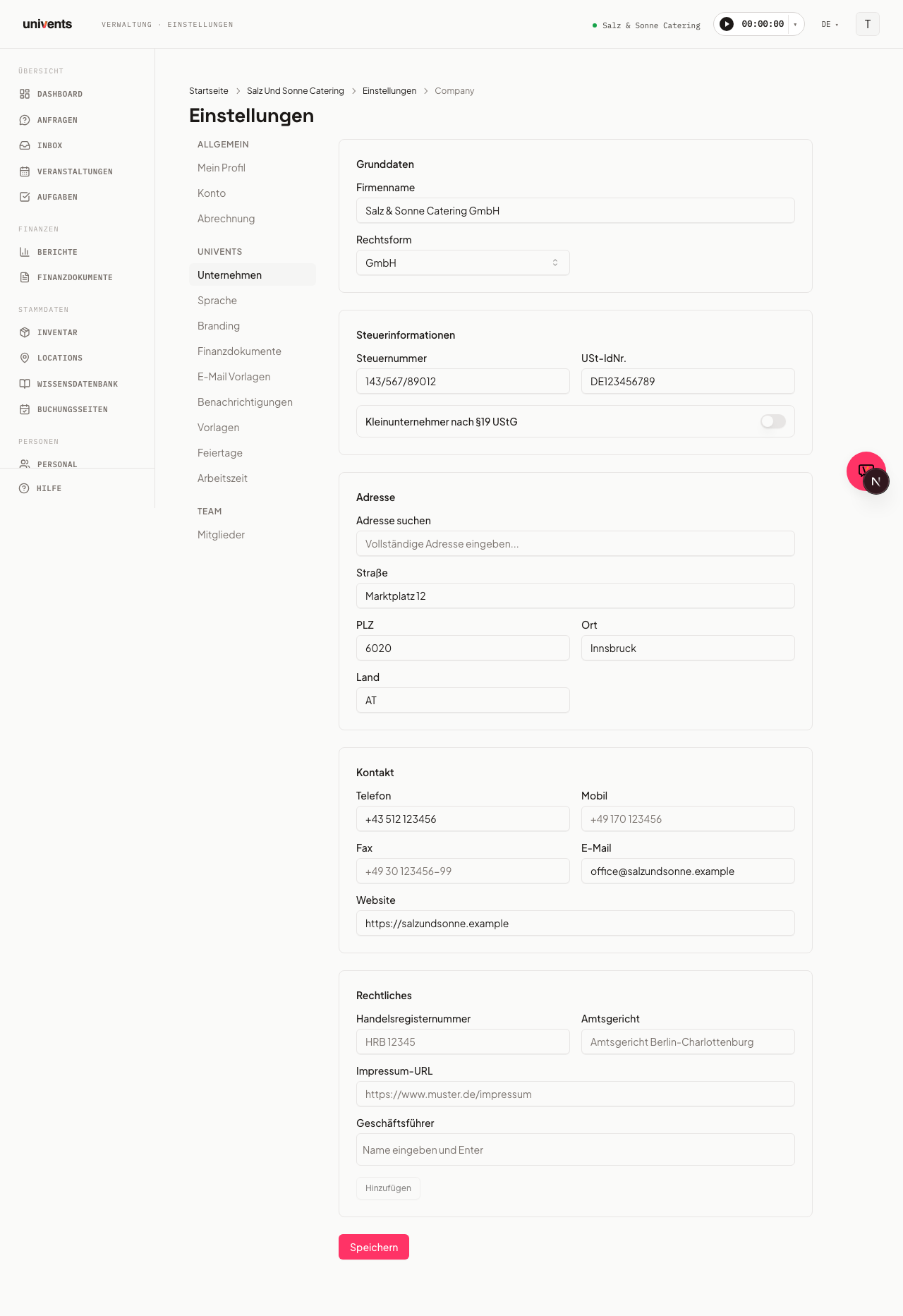
Opening the page
- Click Settings in the left navigation.
- In the sidebar, find the Univents section — select Company.
- The page shows a form with eight sections: Basic Information, Tax Information, Bank Details, Bookkeeping, Customer Reviews, Address, Contact, and Legal.
Basic Information
In the Basic Information section you enter the two most important details:
- Company Name — the full legal name of your business, e.g. "Muster GmbH". This name appears on all outgoing documents.
- Legal Form — choose the appropriate option from the dropdown: GmbH, UG (haftungsbeschränkt), GbR, OHG, KG, AG, Einzelunternehmen, Freiberufler, or Sonstige.
The company name is not the workspace name. The company name here is printed on quotes, invoices and delivery notes. The name shown in the top bar, in the breadcrumbs and in the switcher between several workspaces is the workspace name — you change that under Settings > Workspace. The two may differ: "Catering Team" internally, "Muster GmbH" on the invoice.
Renaming your workspace
- Click Settings in the left navigation.
- In the sidebar, pick Workspace under General (in the settings overview it is the Workspace card).
- Enter the new name in the Workspace name field and click Save workspace.
All owners and admins with the “Edit settings” permission can change the name; everyone else sees it read-only. The web address (the short name in the URL) can still only be changed by the original owner.
The new name appears immediately in the top bar and in the workspace switcher. Your workspace address does not change — saved links and bookmarks keep working.
Tax Information
- Enter your tax number issued by the tax office in the Tax Number field (format varies by federal state, e.g. "123/456/78901").
- If applicable, enter your VAT identification number in the VAT ID field (format "DE123456789").
- If you operate as a small business under §19 UStG, enable the Small Business (§19 UStG) toggle. Univents will then issue invoices without showing VAT.
Bank Details
In the Bank Details section you store your company's Bank, IBAN, and BIC.
If you work in Switzerland, you can also store a QR-IBAN here and attach the QR payment part to invoices. See Set up the Swiss QR-bill for how it works.
Bookkeeping
In the Bookkeeping section you can enter an optional Deposit account (e.g. "1718" under SKR03 or "3270" under SKR04). Univents books received deposits and deduction line items to this account in the DATEV export.
Customer Reviews
In the Customer Reviews section you enter a public Google review link. Univents offers this link to happy customers after the event, in the portal and in the loop email. Leave the field empty to collect internal feedback only.
Address
- Use the Search Address field to find an address via autocomplete — the Street, Postal Code, City, and Country fields will be filled in automatically.
- Alternatively, you can fill in all four fields manually or correct them afterwards.
The address is used in your legal notice (Impressum), on quotes, and on invoices.
Contact and Legal
In the Contact section you store your business Phone, Mobile, Fax, Email, and Website.
In the Legal section you manage:
- Company Registration Number and Registration Court (e.g. "HRB 12345" / "Amtsgericht Berlin-Charlottenburg") — mandatory details on invoices for registered companies.
- Imprint URL — link to your website's legal notice page.
- Executive Directors — type a name and press Enter to add it as a tag. Multiple entries are supported. Remove an entry by clicking the X next to the name.
Click Save when you are done to apply all changes.
Frequently asked questions
Do I need to fill in every field? No. The only required field is the company name. All other details are optional, but more complete data ensures legally compliant documents.
I am a small business owner — what changes on invoices? When the Small Business (§19 UStG) toggle is active, invoices will not show a VAT line. A corresponding statutory notice is added instead.
Are changes applied immediately to existing documents? No. Documents that have already been created retain their saved data. New documents will automatically use the current settings.
How do I add multiple executive directors? Enter names one by one in the Executive Directors text field and press Enter after each one. You can also confirm a typed name using the Add button.