

Manage API Keys & MCP Connections
After reading this article you'll be able to create API keys for MCP clients such as Claude Desktop or Cursor, grant them the right read/write permissions, copy them, and revoke them when needed.
API keys let you connect external tools and AI assistants directly to your Univents workspace. The keys are used for MCP connections and external integrations, allowing programs like Claude Desktop or Cursor to access your events, documents, and production status on your behalf.
The video shows how you connect Univents to your own AI agent such as Claude Code via MCP, and when an API key is the better choice.
You’ll find the individual steps written out below as well.
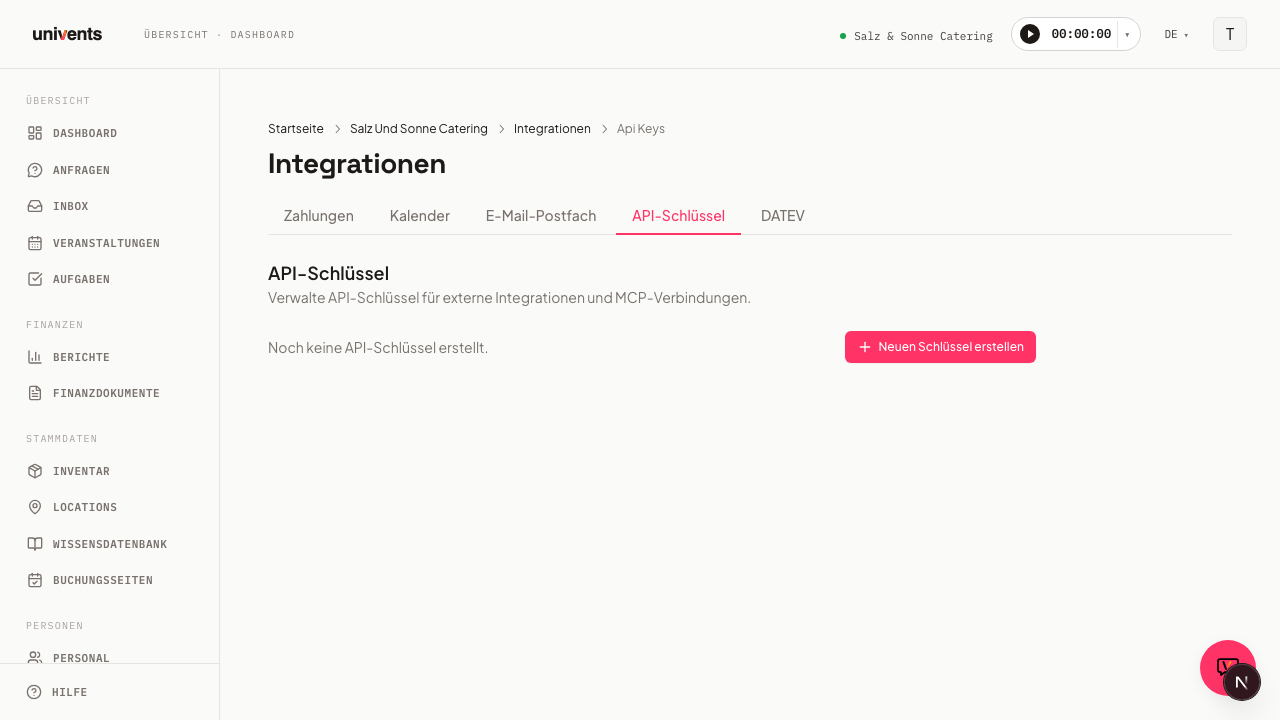
Where to find API keys
Click Integrations in the left main menu. You land on the All integrations page with every integration card. Click the Developer category on the left, or type "API" into the search field at the top, then open the API keys card.
The detail page displays all existing keys along with the button to create new ones. The ← All integrations link in the top left takes you back to the directory at any time.
Creating a new API key
- Click Create new key in the top right.
- The Create new API key dialog opens. Enter a descriptive name in the Name field, for example
Claude Desktoporn8n Workflow. - Under Permissions you'll see two columns, Read and Write, with one scope per data area (events, booking requests, booking orders & items, finance documents, contacts & companies, locations). Only
mcp:read(AI / MCP access, read) is preselected — you can add or remove any read or write scope. At least one scope must stay selected. - Need full access to the entire MCP tool catalog (read and write, using your own permissions)? Enable MCP full access separately at the bottom. Univents shows a warning and requires an expiry date (max 1 year) — this scope never runs indefinitely.
- Click Create.
- The dialog switches to the API key created view. The full key is displayed once. Copy it now using the copy icon next to it.
- Click Done to close the dialog.
The key then appears in the list with an Active badge and a prefix (e.g. uk_live_abc...).
Permissions (scopes) overview
Each scope covers one data area and is selectable as read or write independently — write does not automatically include read. If you want a tool to both read and edit an area, add both scopes.
| Scope | Access | What it allows |
|---|---|---|
events:read | Read | Query events |
events:write | Write | Create, update, delete events |
booking-requests:read | Read | Query booking requests |
booking-requests:write | Write | Create and edit booking requests |
booking-orders:read | Read | Query booking orders & items |
booking-orders:write | Write | Create, update, delete booking order items; convert booking requests into orders |
finance-documents:read | Read | Query finance documents & line items |
finance-documents:write | Write | Create, update, delete finance document drafts (only while they haven't been sent or finalized) |
contacts:read | Read | Query contacts & companies |
contacts:write | Write | Create, update, delete contacts & companies |
locations:read | Read | Query locations |
mcp:read | Read | AI / MCP access, read-only |
mcp:full | Read + Write | Full MCP tool catalog with your own permissions — requires an expiry date |
MCP full access covers considerably more ground than the individual scopes above: the full tool catalog spans events, inquiries, schedules, and staff, through finance documents, supplier orders, contacts, contracts, and function sheets, all the way to inventory, tasks, reports, imports, translation, and recurring events. For contacts, the connection can change every field you can change in the app (address, numbers, tags, additional email addresses, employments, account manager, custom fields) with your permissions; deleting requires an explicit confirmation.
Setting up the key in an MCP client
The generated key is stored in the respective tool as a bearer token or API key. The exact steps vary by application:
- Claude Desktop: Open Settings, navigate to "MCP Servers", and add the Univents server with the key as the
apiKeyparameter. - Cursor: Enter the key in the MCP configuration area under "Tools & Integrations".
- n8n / Make: Use the key in an HTTP node as an Authorization header in the format
Bearer <key>.
Once the connection is established, the key list will show Last used: with the date of the most recent request for that entry.
Revoking or deleting a key
Both actions are available directly on each entry in the key list:
- Revoke: Disables the key immediately. It remains visible in the list but receives a Revoked badge and can no longer be used for requests. Useful when you want to block a compromised key but still keep the name for tracking purposes.
- Delete (trash icon): Removes the key entry completely from the list.
A revoked or deleted key stops working immediately. Connected MCP clients must be reconfigured with a new key.
Connecting Claude as a standalone connector
Besides API keys, there is a second, more direct way to connect Claude to Univents: the Claude connection card (category AI) under Integrations. This method is independent of the API key — it does not generate or copy a key; instead you grant access directly inside Claude via sign-in.
- In Claude (Claude Desktop or claude.ai), open the connector settings and add Univents as a custom connector.
- As the connection address, enter the URL shown on the Claude connection card's detail page under Set up a new connection.
- Claude redirects you to Univents. Sign in there and grant access to the workspace you want to use.
- The connection then appears in the Claude connections list with the application's name and the date it was connected.
On the detail page you manage each connection individually:
- Change workspace switches an existing connection to a different one of your workspaces, without having to set it up again in Claude.
- Disconnect revokes access immediately — the application then has to ask for permission again in Claude.
Key differences from an API key:
- The connection is bound to you personally, not to a shared key visible to everyone. Only you see and manage your own Claude connections.
- Claude acts with your own permissions in the workspace — there are no separately selectable read/write scopes like with an API key.
- This connection is available from the Scale plan upward and can be tried out during your trial. Without the right plan, the page shows a notice with an upgrade link.
For other MCP clients (Cursor, n8n, your own automations), the API key remains the right approach — it works anywhere a bearer token can be stored.
Which plan you need
API keys and MCP connections are part of the Scale plan. During your trial you can try them out in full — the trial shows the complete feature set.
When the trial ends, or you move to a plan without API access, this happens automatically:
- Every API key of the workspace is deactivated. The list then marks them as Deactivated by plan change.
- Connected AI assistants (Claude connections) are disconnected and have to ask for permission again.
- Requests to the interface are rejected until access is restored.
If you subscribe to Scale later, old keys are not reactivated — that is deliberate. Create a new key and store it in your tool.
Frequently asked questions
Can I view a key again after closing the dialog? No. The full key value is shown only once at creation time for security reasons. Afterwards only the prefix is visible in the list. If you have lost the key, simply create a new one and revoke the old one.
How many keys can I create? There is no fixed limit. Recommendation: one key per connected tool, so you can revoke individual connections as needed without disrupting others.
Can an API key create or change data, or is it read-only? Both are possible. Besides the read scopes (*:read, mcp:read), most data areas also have their own write scope (*:write), and MCP full access (mcp:full) grants full read and write access to the entire MCP tool catalog. Only if you select exclusively read scopes when creating the key will it be unable to create, modify, or delete any entries.
Why doesn't my AI client change a document's status right away? Marking a document as paid, cancelling it with a credit note, settling it or cancelling a numbered document runs in two steps over the interface: the first call only returns a preview with the document number and amount (requires_confirmation) and changes nothing. The action only runs when the client repeats the same call with confirmed: true. That way a good MCP client shows you beforehand what will happen and asks. Your own automations that trigger these status changes directly need to send the second call with confirmed: true.
When should I revoke a key instead of deleting it? Revoke is the better choice when you want to quickly interrupt an active connection while keeping the entry as a reference. Delete makes sense when the key is no longer needed and you want to keep the list tidy.
What is the difference between an API key and a Claude connection? An API key is a bearer token with fixed read/write scopes that you store in any MCP client. The Claude connection is a personal sign-in directly inside Claude, with no visible key, and it acts with your own permissions in the workspace. Both work independently of each other — which one you use depends on the connected application.