

Documents & Drive in an Event
After reading this article you'll be able to create, upload, share, and save all document types as templates from the Documents tab of any event.
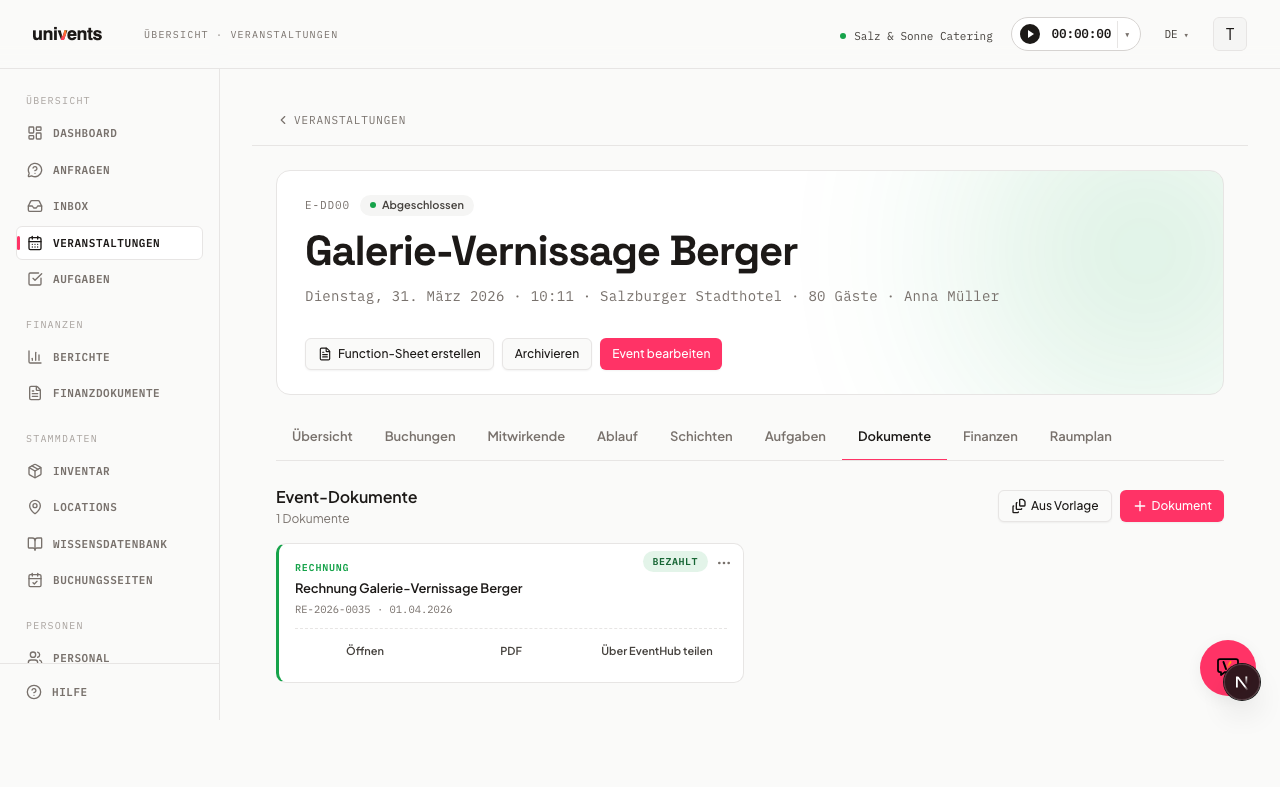
The Documents tab of an event keeps all your paperwork in one place: quotes, invoices, contracts, delivery notes, whiteboards, function sheets, rich-text documents, and uploaded files — displayed in a card grid under the heading Event Documents.
The video shows how to create whiteboards and free-text documents in an event, upload and share files and add photos to the gallery for the customer portal.
You’ll find the individual steps written out below as well.
The document grid at a glance
Each card shows the type, title, short reference, and date, along with a coloured left border that identifies the document type at a glance:
- Blue: Quote
- Coral: Contract
- Green: Invoice
- Stone grey: Delivery Note
- Purple: Whiteboard
- Yellow: Function Sheet
- Neutral: Document or Upload
When more than one document type is present, a filter bar appears with type buttons (All, Quote, Invoice, etc.) that let you narrow the view to a single type. The filter bar is only shown when at least two different types exist.
Creating a new document
Click the + Document button in the top-right corner to open a dropdown listing all available types:
- Select the type you need (e.g. Quote, Invoice, Contract, Delivery Note, Whiteboard, Function Sheet, Document, or Upload).
- The new document is created immediately and opens in the appropriate editor.
- For Upload, a dialog appears where you enter a title and select your file.
If a booking already exists for the event, quotes, invoices, and delivery notes are pre-filled with the booked line items automatically.
Creating from a template
Use the From Template button to reuse saved templates:
- Click From Template and choose the document type (Quote, Invoice, Delivery Note, Whiteboard, Document, or Contract).
- A list of saved templates for that type is displayed.
- Click the template you want — the document is created and opened immediately.
To save an existing document as a template, open the three-dot menu on its card and select Save as Template (available for quotes, invoices, delivery notes, whiteboards, and rich-text documents).
Actions on document cards
Each card shows direct action buttons along the bottom edge and a three-dot menu in the top-right corner. The available actions depend on the document type.
Finance documents (Quote, Invoice, Delivery Note)
| Action | Description |
|---|---|
| Open | Open the document in the editor |
| Open the PDF in a new tab (if available) | |
| Share via EventHub | Copy the portal link to the clipboard |
| Save as Template | Save the document as a template for future events |
| Create New Version | Create a new quote based on the current version (quotes only; from the Quotes plan — on the free plan the click opens a notice with a 14-day trial) |
| Archive | Move the document into the archive: it disappears from the list, stays in the archive and can be restored from there (quote, delivery note and invoice drafts). A quote that was already sent becomes void instead and stays visible in the list |
| Delete | Remove a quote or delivery note that is still in Draft status |
| Share | Invite contacts or team members as Viewer or Editor |
Create new version means: your current booking state. The new version adopts the state of your bookings — rows whose booking has been deleted in the meantime drop out (including their sub-rows), and quantities changed after the previous version was sent come along with their new value. Prices and discounts stay exactly as you set them in the quote; a booking price changed later does not leak into the quote. If a row reads “1 × 14 Pers.” while the booking only knows the quantity 14, the row stays unchanged in the new version; creating the new version shows the message “Please check: <position names>” naming exactly these rows — accepting a change request shows the same message. In the customer portal, your customer changes the second quantity on such a row instead of the “1”: people, place settings and similar quantities. For a billing quantity — hours, kilometres or days — the quantity stays as it is. The version you already sent stays untouched.
Uploads
| Action | Description |
|---|---|
| Edit | Change the upload title |
| Download | Download the file |
| Share | Invite contacts or team members |
| Delete | Remove the upload |
Contracts and Function Sheets
| Action | Description |
|---|---|
| Open | Open the document in the editor |
| Open the PDF (if available) | |
| Share | Invite contacts or team members |
| Delete | Remove the document |
Rich-text documents
| Action | Description |
|---|---|
| Share | Invite contacts or team members |
| Save as Template | Save the document as a template |
| Delete | Remove the document |
In a rich-text document's editor, you can switch between Portrait and Landscape in the top-right corner — handy for wide tables or run-of-show plans. The orientation is saved per document and affects the print/PDF view. When you save a document as a template, the template keeps the chosen orientation.
Letting the client edit documents you wrote yourself: if you share a rich-text document as Editor, the contact can open, edit and save it in the portal — an Edit button appears next to the document there. Only the content is edited; the title and attachments stay with you in the back office. A Viewer can only open the document. Uploaded files cannot be edited regardless of the share level — they are downloaded instead.
Archive: finding documents again and restoring them
As soon as there are archived documents, the Archive (count) toggle appears in the Documents tab next to Show replaced. It lists all archived and deleted documents of this event — quote drafts, rejected or expired quotes, delivery notes and invoice drafts — each with its date under Archived on ….
- In the event’s Documents tab, switch to Archive (count). Close archive takes you back to the normal list.
- Open Restore from the card’s three-dot menu and confirm the prompt.
- The document is back in the normal list.
Positions that were deleted together with the document come back too. Positions you had removed individually before stay gone. A restored draft is reconciled with the current state of your bookings: positions of deleted bookings drop out, changed quantities are taken over.
Not restorable: A quote you had already sent and then archived — archiving marks it void, and it stays in the list as a void document. Replaced quote versions cannot be brought back either. Documents that already carry a number stay out as well: issued invoices and credit notes (an invoice is cancelled with a credit note), down-payment and interim invoices. The same applies when another active document now carries a document’s number. And documents of a deleted event do not appear in the archive at all.
A note when restoring: If the event already has an active document of the same type — a delivery note, for example — the confirmation tells you so beforehand, so quantities are not counted twice. If a draft comes back without positions, the message says that too.
It works in the AI chat too: “Show me the archived documents of this event” or “Restore the quote …”.
Whiteboards
Whiteboards are ideal for floor plans, seating charts, or run-of-show diagrams. You can create multiple whiteboards per event. The three-dot menu on a whiteboard card offers the following actions:
| Action | Description |
|---|---|
| Open | Open the whiteboard in the canvas editor |
| Duplicate | Create a copy of the whiteboard within the same event |
| Save as Template | Save the current whiteboard state to the template library |
| Export as PNG | Download the whiteboard as a PNG image |
| Share | Invite contacts or team members as Viewer or Editor |
| Delete | Remove the whiteboard |
Function Sheets
Function sheets consolidate all information needed to run an event: contributors, shifts, run-of-show timelines, and bookings. When you create a function sheet, a configuration dialog opens automatically so you can set title, layout and filters. The sheet always shows the current state of the event data. More in Creating & Using the Function Sheet and Function Sheet Layouts. A completed function sheet can be exported as a PDF and shared with your team via a share link.
Tip: If a quote is already linked to the event, you don't have to assemble a function sheet by hand — the Plan from quote button on the event's detail page can generate a first draft using AI. More on this in Creating an Event via the Wizard.
Uploading files (Uploads tab)
The Uploads tab shows all uploaded files for an event in a dedicated view. Drag files into the upload zone or click Upload File to open a file-picker dialog and select one or more files. All common formats are accepted — PDFs, images, Office documents, ZIP archives, and more.
Frequently asked questions
Can I upload multiple files at once? Yes. In the Uploads tab you can drag several files into the upload zone at the same time, or select multiple files at once using Upload File.
Can I see when someone else is working in a document? No. Rich-text documents don't show a live indicator of who else is in the document with you. The editor shows in the top right who last changed the document and when, so you can tell whether someone worked in it before you. Important: if your client edits the same document in the portal while you have it open in the back office, the later save wins — there is no check in that direction. Inside the portal it is different: anyone saving without having loaded the latest version is told that the document has changed in the meantime and reloads instead of overwriting silently. Still agree on who is editing a document.
How do I share a document with a client? For finance documents (Quote, Invoice, Delivery Note), the Share via EventHub action in the card's action row copies the portal link directly to your clipboard. For all other document types, Share in the three-dot menu opens a dialog where you can invite contacts or team members as Viewer or Editor.
Where does a share for a team member end up? In the employee portal under Files, in the Shared with you section — not in the customer portal. The share email takes them there, both with a login and through their personal portal link without sign-in. So you can see who you are picking, team members in the list carry the Staff badge — crew with their own login just like contacts your workspace keeps as employees; pure customer contacts carry Contact. Documents, uploads and whiteboards all appear there. If the share is Edit, they change a document they wrote themselves right in the portal; with View it stays read-only. Saving at the same time overwrites nothing silently — anyone who has not loaded the latest version is told so and reloads.
Can my client edit a document I wrote myself? Yes, if you invite them as Editor. In the portal's Documents tab an Edit button then appears next to the document and opens the same editor you know from the back office; changes are saved right away. As a Viewer they can only look. What your client changed is visible in the back office the next time you open the document.
What happens when I delete a finance document? A dialog asks how to handle the associated booking line items: Delete document only (line items remain in the booking), Detach document and line items (line items are kept as standalone bookings), or Delete everything (the document, line items, and all booking references are removed). This option is only available for quotes and delivery notes that are still in Draft status.