

AI Assistant: chatting with Univents
Open the in-app chat assistant, ask questions about your events and team, and get tasks done using natural language.
The Univents Assistant is a chat window built right into your account. It knows your events, your team, and your inquiries, answers questions in plain language, and can take care of tasks for you when you ask. That saves you from clicking through lots of menus.
(from Growth) Reading your own data — events, invoices, and documents — is part of the Growth plan. On a smaller plan the assistant still answers and finds the help articles, but the context search across your events is missing there; questions about your own numbers it cannot answer then.
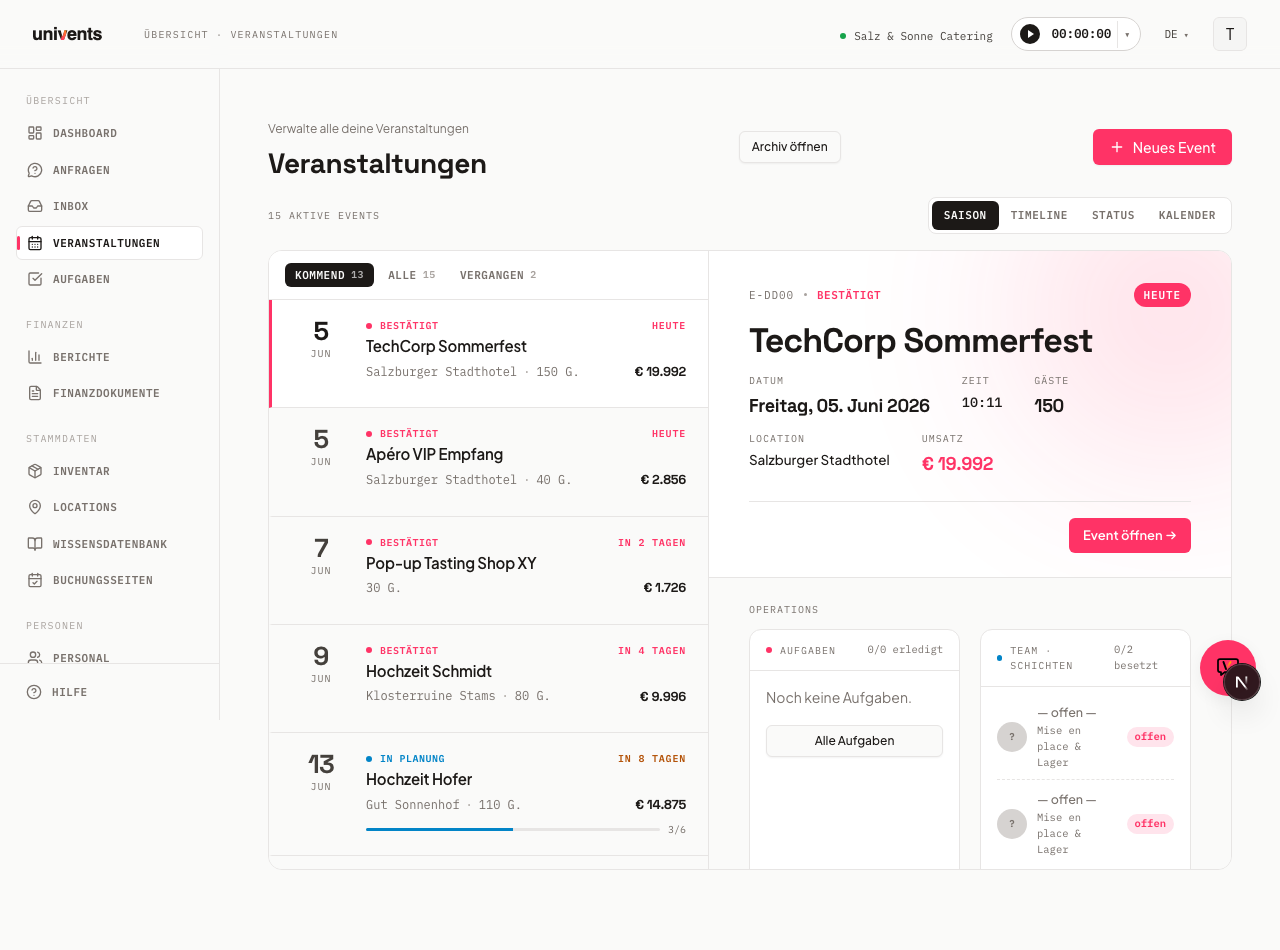
In the video you ask the assistant questions about your own data, have it create a schedule from free text, and see what that costs and how to top up your AI credit.
You’ll find the individual steps written out below as well.
Opening the assistant
The assistant lives as a round icon in the bottom-right corner of your screen. Here's how to start a conversation:
- Click the round chat icon in the bottom right (Open Univents Assistant).
- The chat window opens. The first time you open it, you'll see a short greeting and a few example questions.
- Type your question into the Ask me anything… (Enter to send) input field and press Enter to send it.
To close it, click Close (the X) at the top right of the window, or press the Esc key. Note: the assistant is currently only available on desktop, not on mobile. The window stays open while you work, so you can ask a new question at any time.
Asking questions and using examples
You don't need to memorize any commands, just write the way you'd speak. When the conversation is still empty, the assistant greets you and shows three clickable suggestions under For example:
- Which events are today?
- Create a quote with the Wedding template
- Who's available next week?
Clicking one of these suggestions drops the text straight into the input field, where you can tweak it or send it right away. The assistant also takes into account which page you're currently on: the current section is shown at the top of the window. So if you ask a question while you have an event open, the assistant usually knows which event you mean without you having to name it again.
While the assistant works, it shows a small label above its answer for each working step, for example Search contacts or Add line item. A check mark means the step worked, a cross means it failed.
Which language the assistant replies in
The assistant always replies in the language you use Univents in — if your interface is in English, it answers in English, even when your data or individual messages are in German. The labels for its working steps appear in that language too. You change your interface language with the switcher in the header.
If you want a single answer in another language, just ask, for example “answer in German”. Names, numbers and amounts from your data stay exactly as they are.
What the assistant can do
The three examples above are just a taste. The assistant covers virtually every area of Univents — here's an overview of what you can use it for:
| Area | Examples |
|---|---|
| Events | "Which events are this week?", "Create a new event" |
| Inquiries | "Show me open inquiries", "Create a quote from this inquiry" |
| Schedules | "Create a schedule for event XY" |
| Staff & crew | "Who's available next week?", "Assign staff member XY to the shift" |
| Finance documents | "Create an invoice from the quote", "How many invoices are overdue?", "Create an invoice for Anna Huber for the September class fees", "Set the service period to September" |
| Supplier invoices | "Which supplier invoices are on this event?", "Fix the invoice number on the Metro invoice" |
| Supplier orders | "Send out the order to the supplier" |
| Contacts | "Create a new contact", "Add the VAT ID to Hotel Seeblick", "Give Max Muster the tag VIP", "Who has ordered the meatloaf platter before?" |
| Contracts | "Send the contract for signature" |
| Function sheets | "Create a function sheet for the event" |
| Inventory | "Create a new product", "Adjust the stock level" |
| Tasks | "Create a task for the team" |
| Reports | "How was revenue last month?", "Show me the top customers" |
| Imports | "Import this spreadsheet of contacts" |
| Translation | "Translate the quote into English" |
| Recurring events | "Extend the recurring event series by three months" |
The assistant also covers further areas, such as locations, booking pages, automation rules, and your workspace settings.
Changing tags for a whole category
You do not have to look after tags product by product: “Give every product in the Drinks category the tag Organic” adds the tag to all of them, “Remove the tag Organic from the Drinks category” takes it away again, “Set the tags of the Drinks category to Organic, Regional” replaces them, and “Clear the tags of the Drinks category” removes all of them. Changes across a whole category are shown on a card for confirmation first — replacing and clearing as well.
Shifts from the chat — with or without a price
When the assistant creates or changes a shift, it can include a price line — for example “8 hours of service staff from the product list”. The shift then appears under Open items and is billed like any other: with the unit, unit price, discount and VAT rate of the product.
Without a price line it creates the shift anyway — and tells you explicitly that no price has been set yet. You can then add the price in the chat (“add 8 hours of service staff to Saturday's shift”) or later directly on the shift. A shift without a price is missing from the invoice in the end.
Finding customers by product (reverse search)
You remember a dish but not who ordered it? Just ask the assistant:
- "Who has ordered the meatloaf platter before?"
- "Which customers had breaded schnitzel on a quote?"
- "Show me every customer who booked coffee catering, sorted by revenue."
The assistant searches all quotes, invoices and delivery notes in your workspace — including line items you typed in freehand and never linked to a catalogue product. You get back the customers with the number of documents (quotes and invoices counted separately), the quantity ordered, net revenue, and the date of the most recent document. Handy for targeted repeat offers: "Who had this last year but not yet this year?"
Two things worth knowing:
- Older wordings are found too. If a product was renamed in the meantime, the search still finds the older documents, because it also matches through the product in your catalogue.
- You need access to finance documents. The answer comes from your quotes and invoices. Without that permission the assistant tells you so instead of showing an empty list.
Invoices and quotes without an event
Not every invoice belongs to an event: classes, lessons, consulting or a monthly bill are charged directly to a contact. The assistant can do that too:
- “Create an invoice for Anna Huber for the September class fees.”
- “Create a quote for Müller Ltd without an event.”
- “Create the monthly invoices for September: Anna Huber €120, Tom Berger €90.”
The assistant looks up the contact, creates the document as a draft and, if you like, adds the line items right away. For several customers it creates one document per customer. If the contact doesn’t exist yet, it creates it first when you ask. Nothing is sent until you explicitly want it and confirm the confirmation card.
Good to know: invoices, delivery notes and credit notes without a prior quote are not part of every plan. If your plan doesn’t include them, the assistant tells you instead of trying again and again. Quotes work on every plan. Without the chat, you do the same directly on the contact with Create invoice.
Editing the header of a document
Everything you enter at the top of a document in the editor, the assistant can also change by chat — on one document or on several in a row:
- Document name, recipient and document date: “Send the quote to Anna Huber instead of Tom Berger”, “Set the invoice date to 30 September 2026”.
- Service period: “Set the service period to 1 to 30 September 2026 on all five draft invoices.” If you only name days, the document shows only the dates — exactly as when you enter them in the editor. With a time (“from 6:30 pm”) your workspace’s time zone applies.
- Person in charge, validity or payment term, and header discount: “Lena is in charge”, “The quote is valid for 14 days”, “Give 5% off the whole document”.
- Internal notes, “Only show total”, “To company / To private person”, the schedule in the PDF and the template applied on acceptance.
- Invoices only: due date, early payment discount and the small business rule.
If you change the recipient and the document has no header discount yet, the assistant applies the new customer’s default discount — like the editor.
The same locks apply as in the editor: a sent, accepted or issued document stays locked. Internal notes are the only exception — as in the editor, you can still add to them there. When the assistant changes the header, an already created PDF is discarded and created again the next time you open or send it.
Editing, reordering and deleting line items on a document
On a draft, the assistant can not only add line items but also change and reorder them:
- Change: “Set the quantity of Buffet Standard to 135”, “The unit price for travel is €45”, “Give that line a 10% discount.” You can change quantity, unit price, label, description, discount, tax rate, units and category.
- Category: “Set the category Dance classes on all line items.” This also works right when adding a line item. The assistant picks from your product categories — the same choice as in the editor. Without one, a new line item takes the category of its product, as before.
- Reorder: “Move travel and beer tables to the end.” The assistant reorders a whole section.
- Delete: “Take the napkins off.”
A few things that save you work:
- The name is enough. You don’t have to look a line item up — just call it what it says on the document. If the name matches several rows (“buffet” with three buffet lines), the assistant asks and shows you the matches to choose from, instead of guessing.
- The document number is enough. “On ANG-0042, change the quantity to …” works directly; you don’t have to open the document first.
- It quotes the new figures. After the change it tells you the new line total and document total — the ones actually saved, not its own arithmetic.
Deleting affects this document only
Ask the assistant to remove a line item and it removes it from this document only — exactly like the X in the line-item editor. The linked booking item and the same line on other drafts of the same event stay where they are.
If you really want all of it gone, say so explicitly (“from the booking too”, “from every document”). The assistant then shows you a confirmation card listing the affected documents first and waits for you to Confirm.
When a change reaches further
Some line items are connected: an item that came from a booking often also appears on a delivery note, and the components of a package are recalculated when you change the package quantity. The assistant tells you when a change reached other documents. If it cannot confirm what happened, it says that too — rather than claiming nothing else was touched.
Sent documents stay locked
On a sent quote, an accepted order or an issued invoice the assistant changes nothing, not even the order of the lines. It explains the route instead: create a new quote, or correct the invoice with a correction or credit note. It only creates a new draft if you ask it to.
One more thing: adding, changing and deleting line items requires permission to edit finances. With read-only access to finances the assistant says so; viewing documents still works.
Editing contacts by chat
Everything you change in the contact form can also be changed by the assistant for you, in the chat and through an external connection such as Claude Desktop:
- Master data, address and numbers: "Add VAT ID DE123456789 to Hotel Seeblick", "Set Max Muster's phone number to …", customer, debtor and creditor numbers, payment term and all other fields.
- Tags: "Also give Max Muster the tag VIP" adds the tag and keeps the existing ones. It can remove single tags the same way.
- Additional email addresses: add and remove them.
- Linking people and companies: create an employment, change the position, remove the link. Setting a parent company is still done in the company structure.
- Account manager and custom fields: set the account manager, fill in custom field values, and create, change and delete custom fields.
- No automatic emails: switch automatic emails off for a contact or allow them again.
The assistant has exactly your permissions. What is locked for you in the app, such as wage fields without permission or an account that has to be removed first, is locked in the chat too, and it tells you what is in the way. Deleting (a contact, an additional email address, an employment, a custom field) is only carried out after you confirm it on a card. If the assistant changes the main email address of an existing contact, it first shows a card with the old and the new address and only saves after your click. Importing contacts and creating invoices from a contact work as before (see Importing contacts).
What the assistant may do depends on your role
The assistant never has more permissions than you do. It is a second way to operate Univents, not a shortcut around your permissions — in the chat and through an external connection (Claude, for example) alike.
Two levels count separately here:
- Viewing and reporting needs view permission for the area in question. Without it the assistant says so openly instead of showing an empty list.
- Creating, changing, deleting or sending something needs the same create, edit or delete permission you would need to click it in the app. If you may only view an area, the assistant tells you the permission is missing — it does not carry the action out on your behalf instead.
This covers, for example, granting or revoking app access, seating plans and function sheets, bulk messages to crew or customers, sending and replying to emails from the mailbox, quotes created from an email, and custom holidays.
If someone should be able to do more through the assistant, you change that person's role under Settings → Roles, not the assistant.
Asking “where do I find …?”
If you are looking for a particular area, just ask — for example “where can I change the line items” or “where do I set the VAT rate”. The assistant gives you the menu path in a single line and links the help article the answer came from underneath. It then offers to take you there; nothing happens until you say yes.
If the documentation does not cover the path, it says so plainly and offers to navigate you to a related area instead. It never guesses — an invented menu path would cost you more time than an honest answer.
Complete lists: the assistant says what it has not seen yet
When you ask about a lot of records — “how many products do I have?”, “list every item under €1” — the assistant loads them page by page rather than all at once. It knows the exact total while doing so, and tells you when it has only seen part of it: it then names how many entries are still missing, or loads them, instead of taking the first page for the whole set.
In practice that means:
- “That’s all of them” only comes once it really has loaded all of them.
- “There is no such product” only comes once it has been through every page — before that, it keeps loading.
- If you want a real total, just ask for it (“how many are there in total?”). The number comes from the database, not from an estimate.
If you filter while doing so (by a category or a search term, say), the total refers to exactly that filter.
What the assistant will not claim
The assistant answers only from what it has actually read — from your data, or from a source it backs up with a number such as [1]. Where it has neither, it says so and offers to look it up, instead of producing a plausible guess. That covers three cases in particular:
- Numbers and quantities. Why a position carries a certain quantity, how many records exist, what something costs — it looks that up.
- “Does feature X exist?” Whether a setting, an automation action or a field exists is something it checks, rather than confirming or denying it from memory.
- Formats and legal matters. Which e-invoicing format is produced, which deadline applies: with a source, or not at all.
An honest “I don’t know — shall I check?” is deliberate here. An invented number costs you more time than a follow-up question, and in case of doubt there is no way to tell that it is wrong.
The same principle applies to deleting: if a product was already deleted, it says “was already deleted” instead of showing an error. If it finds nothing for an id, it does not try the next one — it looks for the right record.
Dictating by voice
If your browser supports it, you can speak your question instead of typing it. A microphone icon then appears next to the input field.
- Click the microphone (Start voice input).
- Allow the browser one-time access to your microphone if it asks.
- Speak your question, the spoken text appears in the input field as you talk.
- Click the button again (Stop voice input) to end the recording.
Any text you've already typed stays put, the dictation is simply appended to it. You can then correct the text and send it with Enter as usual. If no microphone appears, your browser doesn't support the feature, so just type your question instead.
Attaching images and files
Next to the input field you'll find a paperclip. Use it to attach an image (a screenshot, for example), a PDF, a Word document, or an Excel sheet to your message — the assistant sees the content and can work with it, for instance turning a list in the image into tasks.
Good to know: the assistant keeps the most recently attached images in view — so you can still refer to a screenshot a message later ("now turn that into tasks"). If you attach many images one after another, the three most recent stay visible; older ones it can no longer look at, and it will say so rather than guess — just attach the image once more. For PDFs, Word, and Excel files, the text stays available for the whole conversation.
Choosing a model: Simple or Complex
Above the input field you'll find the Model switcher with two options: Simple and Complex.
- Simple is the default and fast enough for most questions and tasks.
- Complex uses a more powerful model suited to harder tasks — the label right next to the button flags a higher cost per message as a result.
Your choice applies for the current conversation: as long as you stay in the same conversation, the setting sticks, even if you navigate to a different page in the meantime. A new conversation always starts back on Simple. While an answer is streaming, the switcher can't be used.
When your AI credit balance runs out
Both questions and actions from the assistant consume your workspace's AI credits — Complex consumes more than Simple. If the balance is empty, the assistant shows the message AI credit used up. Top up your balance to keep using the assistant. For how to check your balance, top it up, or set up automatic top-ups, see AI Credits & Usage.
Confirming actions
The assistant doesn't just answer questions, it can also get things done, for example sending a document or recording a payment. So that nothing happens unintentionally, it asks before such steps. A card appears with a heading describing what it plans to do, a short summary, and the details.
- Confirm runs the action.
- Cancel discards it, and nothing happens.
Deleting, too, for example a contact, an additional email address, an employment or a custom field, is asked about first, and nothing is deleted without your confirmation.
After you confirm, the card shrinks down to a short line. Using Details, you can expand it again to see exactly what happened and when. If a confirmation sits too long, it expires (Confirmation expired — please enter again); just enter your instruction again.
Large jobs: the assistant pauses instead of stopping
For jobs that take many steps — “create these 40 items”, say, or “clear out the test products” — the assistant works through them one step at a time. Two limits can come up along the way:
- It has reached the limit of 16 work steps per message.
- It is approaching the time limit for a single message.
In both cases it does not stop silently. It writes a note into the chat and pauses. Just type weiter (“continue”) and it picks up exactly where it left off. It never redoes steps it has already completed.
Everything the assistant did up to the pause stays in the conversation, so you can always see how far it got. If a very large job does stop, it says so in the chat and suggests working in smaller parts instead of coming to a silent halt. If it has already carried out steps and only the summary is missing, it says explicitly that you should not send the message again — just ask it what has been done. Sending it twice would create the same items, tasks or line items twice.
If you reload in the middle of a job
The conversation is saved continuously while the assistant works, not only at the end. If you reload the page in the middle of a long job or close the tab, everything up to that point is still there when you reopen the conversation. An interrupted job no longer leaves you with an empty chat.
One job per conversation
Within a conversation, the assistant only ever works on one thing at a time. If you send a second message while a job is still running — from a second tab, say, or right after Stop answer — it is not accepted, and you get: Another request is still running in this conversation. Please wait until it finishes, then send your message again.
That is deliberate: two simultaneous jobs in the same conversation could carry out the same instruction twice — deleting or creating the same products twice, for example. Your message stays visible in the conversation, so you can copy it from there and send it again once the running job has finished.
If you want to ask something else in parallel, start a new conversation with the pencil icon — you can keep working there right away.
Finding earlier conversations
Your conversations are saved, so you can return to an old thread at any time.
- Click the speech-bubble icon at the top of the window (Show conversations).
- The Conversations view shows all your previous threads with title and date.
- Click an entry to reopen that conversation.
If you'd like a fresh start, click the pencil icon at the top (Start a new conversation). While an answer is in progress, you'll see the Answering… indicator, and the send button turns into a stop button: with Stop answer, you can interrupt an answer in progress at any time.
Tips
- Be specific: The more precise your question, the more precise the answer. Instead of "Show me events," try "Which events are this week?"
- Use the context: Open the relevant event or inquiry first, then the assistant can refer to it directly.
- Check confirmation cards: For actions like sending documents, read the summary briefly before you click Confirm.
- Check the amounts on documents: When the assistant adds line items, it enters the unit price and the quantities separately (e.g. 1 × 3 people × 3 hours × €39.92). For products billed per person or per hour, take a look at the line total before you send: the quantities come from your event, so if the guest count or duration there differs from what you agreed, the line item is calculated with those.
- Follow the sources: For questions about Univents features or your knowledge base, the assistant marks every backed-up statement directly in the text with a small numbered citation like [1]. Tap or hover over it for the text excerpt; for help articles, clicking it opens the article in a new tab. More on this in AI Answers with Source Citations (Knowledge Base).