
AI Answers with Source Citations (Knowledge Base)
Understand how the Univents Assistant backs up its answers with numbered source citations right in the text, when it honestly says it doesn't know, and how to verify every statement with a click.
The Univents Assistant doesn't answer questions about Univents features or your knowledge base out of thin air. It draws on your knowledge base and the official help articles, and it places small numbered source citations directly in the answer text so you can trace every statement back to its origin.
What the source citations are for
When the assistant answers a question about Univents or your own documents, it looks for relevant passages in the documents you've stored and in the Univents help articles. If it finds something, it attaches a small numbered marker like [1] right after the statement it supports. That way you can see at a glance which sentence is backed by which source, instead of having to guess afterwards what's grounded and what isn't.
This matters most when it comes to money, contracts, or workflows. Instead of blindly trusting an answer, you tap or hover over the marker and read the original passage yourself. The source citations make the answer transparent and verifiable, without you having to search for long.
How to read the source citations in the text
Every backed-up statement can carry one or more small numbers in square brackets, for example [1] or [1][2] when several sources together support one statement.
- Read the Univents Assistant's answer in the message bubble.
- Tap a marker, or hover over it with your mouse — the source appears with a short text excerpt.
- If the source is a help article, clicking it opens the article directly in a new tab.
- If the source is one of your own documents or a note from your knowledge base, you'll see the text excerpt but no direct link — you'll find the original passage in that document in your knowledge base.
When it can't find anything, it says so honestly
If the assistant can't find anything relevant to your question, either in the Univents documentation or in your knowledge base, it answers openly:
"I don't have any information on that in the Univents documentation or your knowledge base."
It doesn't guess from old training knowledge, and it doesn't invent a source just to deliver an answer. If your knowledge base only covers part of your question, it answers only the backed-up part and names the gap instead of filling it in from memory.
Answers without a source citation carry a note
If an answer about Univents features or your knowledge base happens to carry no source citation, the assistant additionally marks it with the note "Not sourced". That way you can see at a glance where it's worth double-checking before you rely on the answer.
Opening the assistant and asking a question
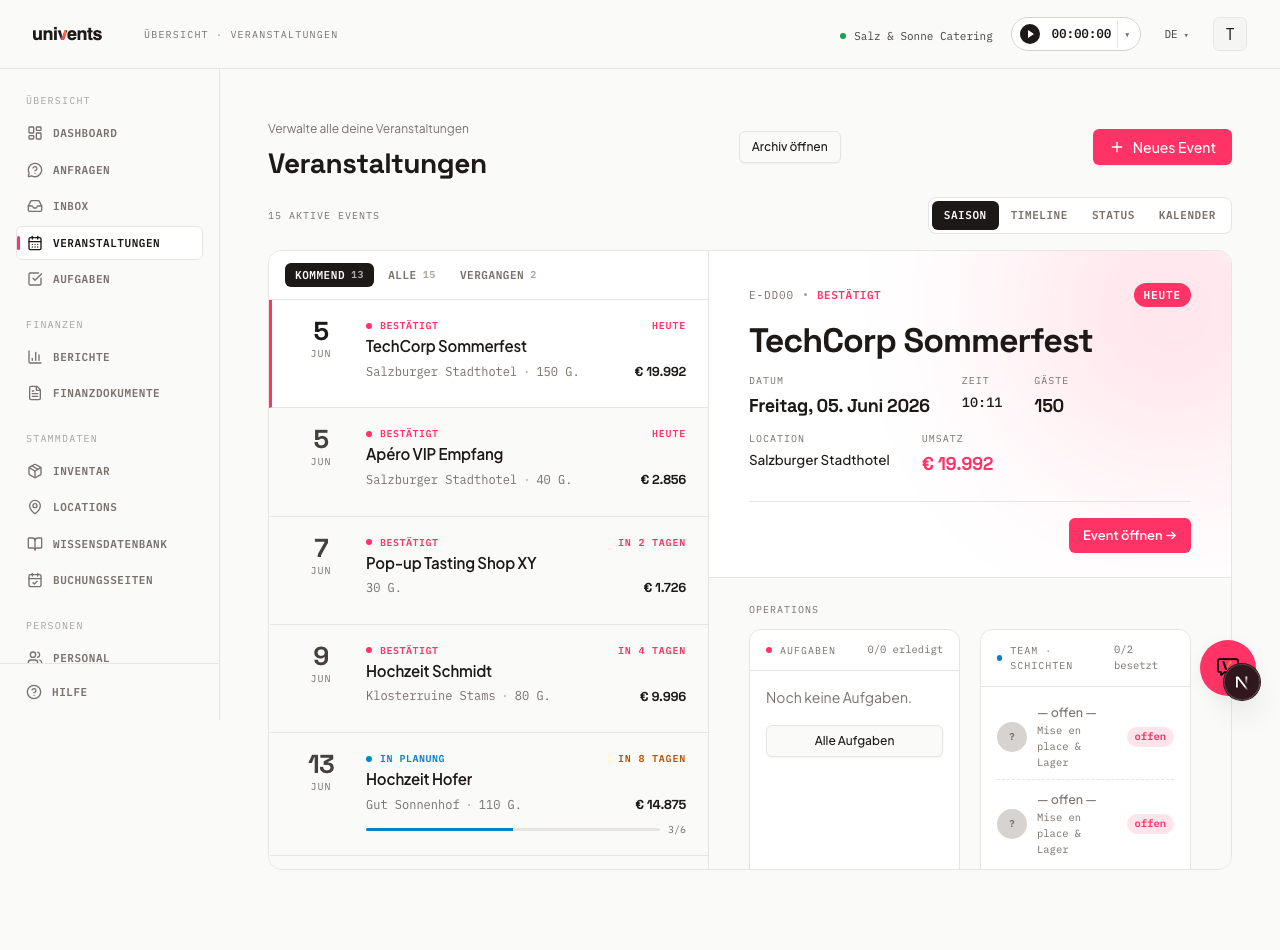
You'll find the assistant as a round button in the bottom right of the app. Selecting Open Univents Assistant expands the chat window.
- Click the assistant button in the bottom right.
- Type your question into the field labeled Ask me anything… (Enter to send).
- Confirm with Enter and wait for the answer.
- Check the source citations in the answer text — or the "Not sourced" note if there aren't any.
For a fresh start, use Start new conversation at the top. Selecting Show conversations switches to the list of your earlier chats, and Back to chat returns you to the conversation. In an empty chat, the assistant also suggests a few example questions that you can tap directly.
Adding your own content as a source
The assistant can also draw on your own documents. That's what the AI Knowledge Base in your Knowledge Base is for. Documents uploaded there are analyzed automatically, remain permanently available to the assistant as context, and can later show up as a source as well.
- Open the Knowledge Base in your account.
- Upload a document via Choose file (PDF, DOCX, XLSX, TXT, MD, or CSV, max. 10 MB).
- Wait until the status changes from Analyzing to Ready.
Only once a document has the status Ready can the assistant use its knowledge. The assistant now also reads your documents through an overall summary, which makes it better at overview questions like "What's in my uploaded documents?" instead of only finding individual passages. The cleaner and more specific your documents are, the more accurate the answers and their associated sources become.
Questions about your own workspace data
The source citations apply to questions about Univents features and your knowledge base. If you instead ask about your own workspace data — for example "Which events are this week?", "How many invoices are overdue?", or "Show me the Huber family's contact" — the assistant continues to answer that directly from your system, without a source citation. No citation is needed there, because the answer comes straight from your own data.
Frequently asked questions
Why do some answers have no source citation at all? Either the assistant didn't find a relevant passage in your documents or the help articles for that question — in which case it marks the answer "Not sourced" — or you asked about your own workspace data, where no source citation is needed in the first place.
Can I rely on the source citations alone? They show you what a statement is based on. For legally or financially sensitive topics, you should still read the linked passage carefully.
A source citation can't be clicked. What does that mean? That's normal for your own documents and notes from the knowledge base — they don't have a public link, but you'll still see the text excerpt. Every citation from a help article can be clicked and leads straight to the article.