

Table reservations that know your events
Guests book a table on your website, your team handles phone bookings and walk-ins in the same day list. Events and blocked times block the tables automatically – nothing gets double-booked.
7-day free trial · no credit card · live in minutes
- Berger family · 4 ppl7:00 pmConfirmed
- Walk-in · 2 ppl7:15 pmSeated
Online reservations in three steps
From floor plan to first guest – without a second system.
Take over your tables
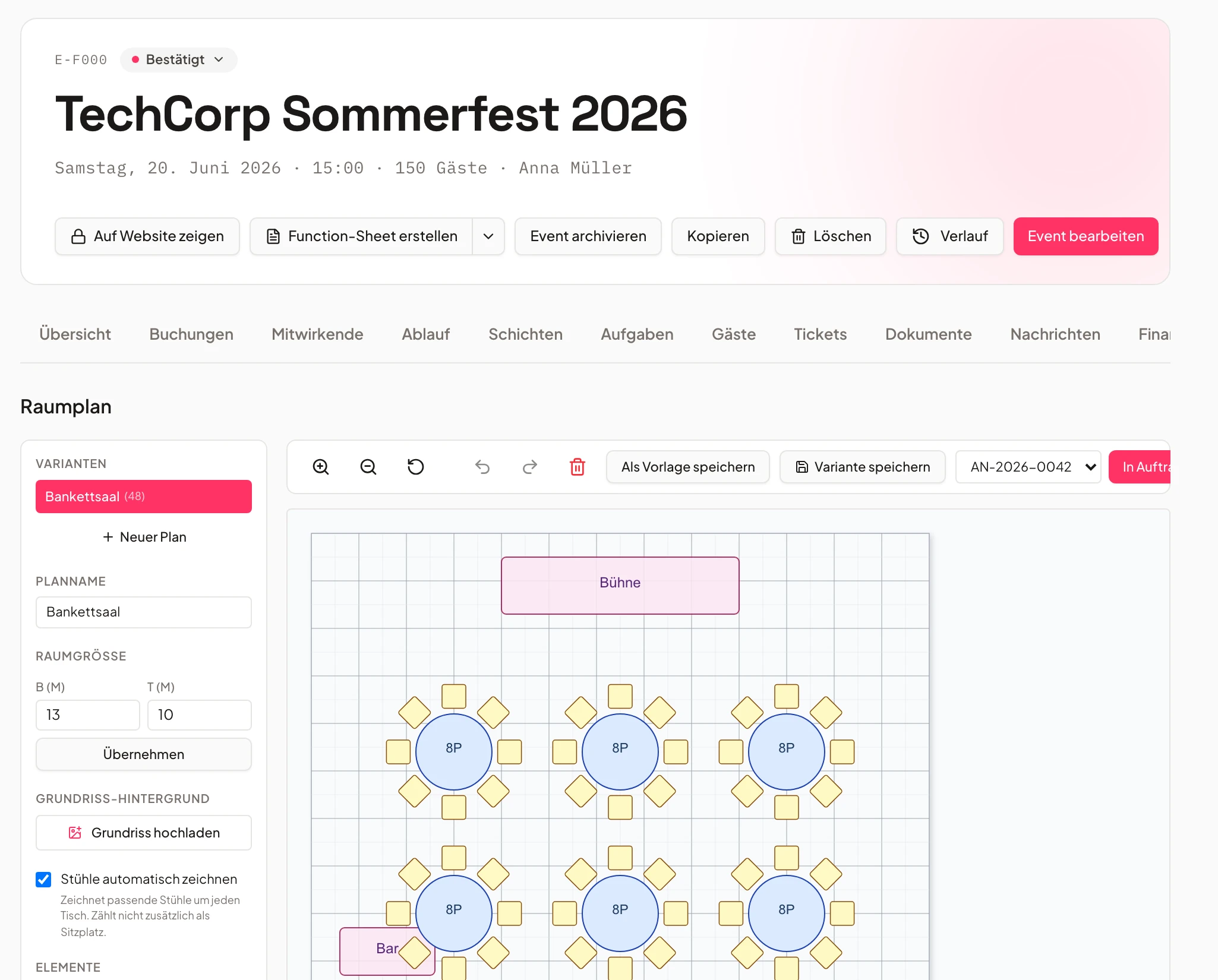
Univents turns every table in your floor plan into a bookable table – with the seats already there. Without a floor plan, you add tables by hand.
No second table list.
Set service hours
Lunch and dinner per weekday, with a last start time, dwell time by party size and a buffer for resetting tables. Add exceptions such as company holidays one by one.
Guests only see times that are really free.
Embed the widget
Copy the embed code into your website or link the reservation page directly. Guests get an instant confirmation with a calendar file.
Reservations even at night and on closing days.
Book online in four steps
Party size, date, lunch or dinner, time – done.
The widget on your website only shows start times when a suitable table is free. After name and email, the reservation is confirmed – automatically or once you approve it.
The confirmation email includes a calendar file and a link where guests can view their reservation and – if you allow it – cancel it themselves. Univents can send a reminder 24 hours before.
- Only free times are offered
- Confirmation with calendar file
- Self-cancellation and reminders configurable
- 1Choose party size and date
- 2Lunch or dinner, time
- 3Confirmation with calendar file
The day list for your service
Phone, walk-in and online – all in one list.
See all of the day’s reservations as a list or as a timeline with one row per table. Enter phone bookings with the same rules as online, walk-ins in two clicks.
Any team member marks arrived, finished or no-show right at the table. “Finished” before the planned end frees the table immediately, and you can print the day list as a PDF.
- List or timeline per table
- Walk-in in two clicks
- No-shows are counted on the contact
- Novak · 2 ppl · Table 46:30 pmArrived
- Weber · 6 ppl · Table 2+37:30 pmConfirmed
- Walk-in · 3 ppl · Table 78:00 pmSeated
Tables from your floor plan – events block them too
One venue for restaurant and events.
Tables come from your venue’s floor plan. Define combinations like table 2 + 3 for six to eight people once; the smallest suitable table is always assigned first.
If the room is booked for an event or a blocked time is set, the tables there are automatically taken. Univents rules out double bookings, even when two guests book at the same moment.
- Tables and seats from the floor plan
- Combinations for larger groups
- No double booking next to events
A fixed price instead of a fee per guest
€49 per month or €490 per year – on any plan from Core.
Table reservations is an add-on module. Add it to your plan under Settings → Billing; it is billed on the same subscription and in the same interval.
There is no fee per guest for reservations. You can try the module free for 7 days first; cancellation always takes effect at the end of the term.
- €49 per month or €490 per year
- No fee per guest or reservation
- Try it free for 7 days
- Monthly€49
- Yearly€490
- Fee per guest€0
Frequently asked questions
How much does table reservations in Univents cost?
Table reservations is an add-on module for €49 per month or €490 per year (plus VAT), regardless of your plan. It is not included in any plan and can be added from the Core plan up. There is no fee per guest or per reservation.
How do I book the module?
Under Settings → Billing you’ll find the “Add-on modules” card. Add table reservations to your existing subscription there – at the monthly price for monthly billing, at the yearly price for yearly billing. “Reservations” then appears in the sidebar.
Can I try table reservations first?
Yes. You can try the module free for 7 days. Afterwards your reservations stay readable; new reservations and the widget need the booked module.
How do reservations get onto my website?
Copy the embed code from the settings into your website or link the reservation page directly. Guests choose party size, date, lunch or dinner and time and get an instant email confirmation.
Can reservations and events collide?
No. Events and blocked times in your venue automatically block the tables there. Even if two guests try to book the same table at the same moment, only one gets it – the other sees the next free times.
What about large groups?
You decide from how many people a group doesn’t reserve but sends an inquiry via your booking page. The inquiry lands in your inquiries and is linked to the reservation.
Can guests cancel themselves?
If you allow it: via the link in the confirmation email, up to a deadline you set before the visit. Your team can cancel or move any reservation in the day list.
What happens if I cancel the module?
Cancellation takes effect at the end of the paid term; until then everything keeps running. Afterwards your reservations stay readable and can still be marked arrived or no-show and cancelled. New reservations and the widget are then blocked.
Ready to get started?
Try Univents for free and see how simple event management can be.
Univents newsletter
Product news and practical tips for event and catering businesses. Roughly once a month, no more.