

Define Working Time & Break Rules
After reading this article you will be able to configure statutory break, rest period, and maximum daily working time rules for your workspace so that time tracking applies them automatically or warns on violations.
In Univents you decide whether and how time tracking automatically deducts breaks and warns when rest periods or daily maximum hours are breached. Without active rules every recorded break value remains unchanged — you only enable the checks when you need them.
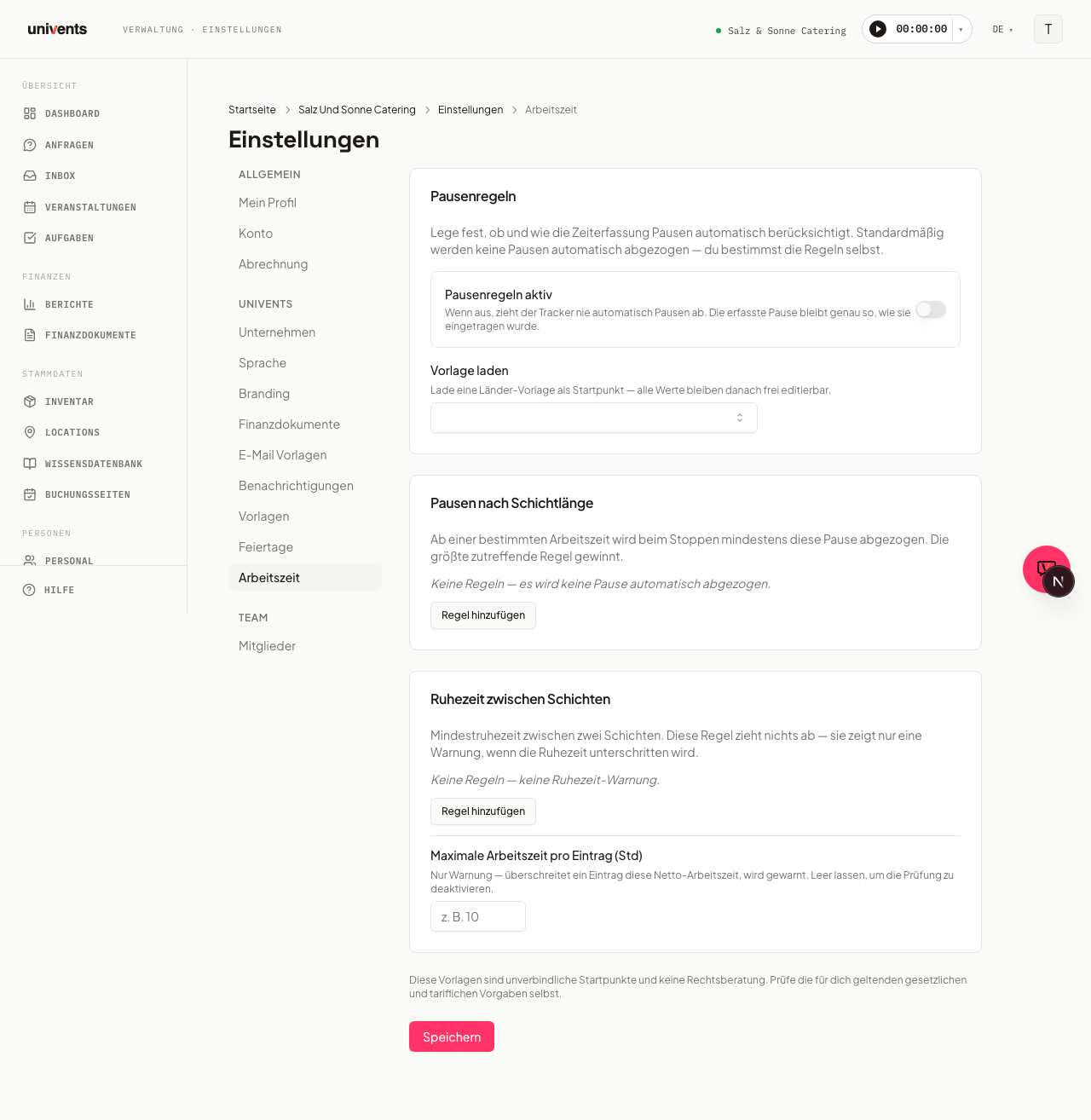
Where to find the settings
- Open your workspace Settings (gear icon in the left navigation).
- Select Working Time in the sidebar menu.
- The page shows five sections: at the top the Wage visibility card, then Break Rules (master toggle + template), Breaks by Shift Length, Rest Between Shifts including maximum daily hours, and the Shift Policies card.
If your plan doesn't include the staff module, you only see the Wage visibility card; the break and shift rules sit behind the upgrade notice below it.
Wage visibility
The Wage visibility card at the top decides who may see hourly rates and wage costs. It applies to the staff list, the personnel file, templates, the pay overview, the payroll export, reports and the AI assistant. Choose one of three options:
- Everyone with staff access
- Admins only
- Only owners and people with pay visibility — under Pay visibility you pick the people who, besides the owner, may see pay. They also receive the notifications about shifts and vacation requests.
Changes take effect as soon as you select them. Only an admin can change this card. The same card also holds Time tracking and approvals — see Who may see and approve working hours? below.
Enabling break rules and loading a template
Rules only take effect once the master toggle is switched on.
- Enable Break Rules Active. While this toggle is off, the tracker never automatically deducts breaks — even if you have rules configured.
- Optional: Open the Load Template dropdown and select a country from the list, for example Germany (ArbZG), Austria (AZG), or Switzerland (ArG). The template fills all three rule sections with statutory reference values as a starting point.
- All values remain freely editable after loading a template.
Configuring breaks by shift length
This section defines from how many working hours a minimum break is automatically applied. When a shift is stopped, Univents raises the recorded break to the minimum value but never reduces it.
- Click Add Rule to create a new row.
- Enter the threshold in the From Working Time (h) field — the number of hours from which the rule applies (e.g.
6for shifts over 6 hours). - Enter the minimum break in minutes in the Break (min) field (e.g.
30). - Add further rules if you want to tier by multiple thresholds. The highest matching rule always applies.
- Click Remove to delete an individual row.
Rest between shifts and maximum daily hours
This section contains warning rules that do not deduct any value but display a warning when a limit is undercut or exceeded.
Rest period:
- Click Add Rule under the Rest Between Shifts section.
- Enter the minimum rest time in hours in the Min. Rest Time (h) field (e.g.
11for 11 hours between two shifts). - If a new shift starts before the configured rest period has elapsed, a warning appears in time tracking.
Maximum daily hours:
- Enter a value in the Maximum Working Time per Entry (h) field (e.g.
10). - Leave the field empty to disable the check.
- This value also triggers a warning only — nothing is deducted.
Saving changes
Click Save to apply all rule changes. The settings take effect immediately for all new time tracking entries in the workspace.
Shift policies
Below the break and rest period rules you'll find the Shift Policies card with three toggles that take effect immediately when switched — no separate save is needed here:
- Shifts can be declined — when this toggle is off, the decline button is hidden in both employee portals (Employee Portal & Shifts); sick notices are unaffected and remain always possible.
- Approve time entries automatically — when this toggle is on, completed time entries are confirmed immediately, without the manual approval step in Time Tracking & Leave Management.
- Auto-accept assigned shifts — when this toggle is on, assigned shifts count as accepted right away; employees no longer need to confirm the assignment in the Employee Portal (Employee Portal & Shifts).
Frequently asked questions
Do the rules apply to everyone in the workspace? Yes, the configured rules apply workspace-wide to everyone who records working hours.
What happens if I have multiple break rules configured? The rule with the highest break value that matches the actual shift length always applies. Lower rules are not added together.
Can I adjust the values from a template afterwards? Yes. Templates are starting points only. All fields remain freely editable after loading a template.
Are historical entries changed retroactively? No. Rule changes only affect entries that are created or stopped after saving.
A note on legal validity: The included templates are non-binding starting points and do not constitute legal advice. Check the statutory and collective bargaining requirements applicable to your business yourself or consult a qualified professional.
Who may see and approve working hours?
In the working-time settings, Time tracking and approvals controls who sees the "Time tracking" and "Time approvals" tabs in the staff area:
- Everyone with staff access (default, unchanged)
- Admins only
- Only owners and people with pay visibility — the people you named under Pay visibility in the same card
Approving and rejecting is limited to the same group. Everyone still records their own hours in the staff portal as before.