

How do I download the app?
After reading this article, you'll know how to install Univents on your smartphone as an app and sign in on any device.
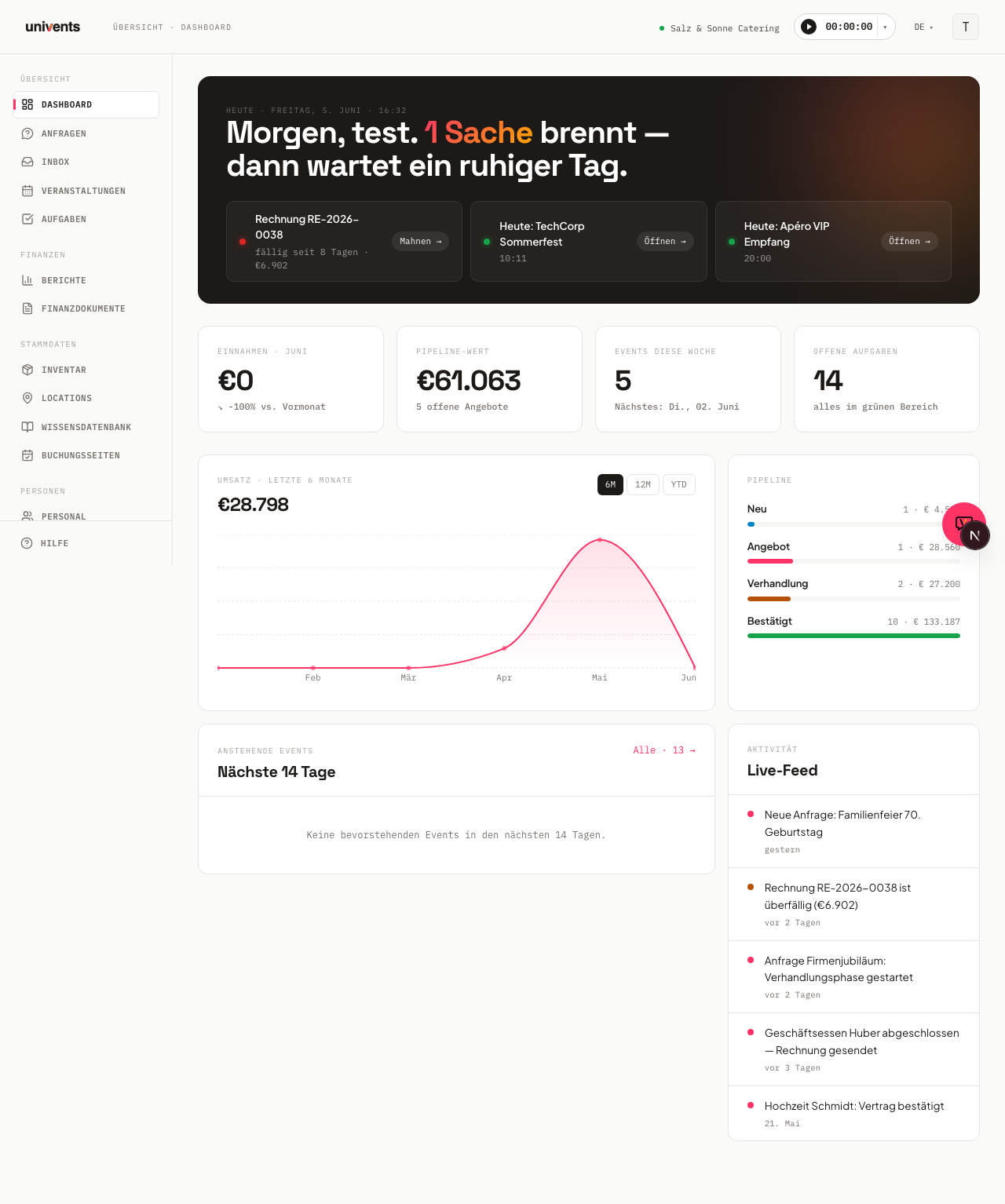
Univents is a web app that runs directly in the browser on any smartphone or tablet. There is no App Store download. Instead, you can save the page to your home screen once, so it feels and behaves just like a native app.
Install on iPhone or iPad (Safari)
Safari is the only browser on iOS through which you can add a web app to your home screen.
- Open Safari and go to univents.app.
- Tap the Share icon (box with an arrow pointing up) in the centre of the bottom bar.
- Scroll down in the menu and tap Add to Home Screen.
- Adjust the name if you like, then tap Add in the top right.
- The Univents icon now appears on your home screen. The next time you open it, the app launches in full-screen mode without a browser address bar.
Install on Android (Chrome)
- Open Chrome and go to univents.app.
- Tap the three-dot menu in the top right.
- Select Install app or Add to Home Screen.
- Confirm by tapping Install.
- The Univents icon appears on your home screen. When opened, the app launches in full-screen mode without browser chrome.
Install on Desktop (Chrome or Edge)
Univents can also be installed as a standalone desktop app on PC or Mac.
- Open Chrome or Edge and go to univents.app.
- Click the Install icon in the address bar (small screen icon with a downward arrow), or open the browser menu and select Install Univents.
- Confirm the dialog by clicking Install.
- Univents will now open in its own window and appear in your taskbar or Dock.
Signing in
On any device: open Univents, enter your email address and password, then tap Sign in. If you have forgotten your password, click Forgot password? and follow the instructions sent to you by email.
You will remain signed in on that device until you actively sign out.
Notifications
In-app notifications appear directly inside Univents and keep you informed about new enquiries, tasks, and team activity. They are visible within the app as soon as you are signed in.
Browser push notifications (which pop up even when the tab is closed) are not currently available. All relevant alerts arrive as in-app notifications.
Frequently asked questions
Do I need to reinstall the app when updates are released? No. Univents updates automatically. Every time you open it, you are running the latest version. If an update is ready, the app displays a prompt with the Reload and update button.
Which browsers are supported? Chrome, Edge, and Safari in their current versions are recommended. Firefox also works, but does not support home screen installation on iOS.
Can I use Univents on multiple devices at the same time? Yes. You can sign in with the same credentials on as many devices as you like. Data is synchronised in real time.
Is there a dedicated view built specifically for phones? Yes. Alongside the full interface you install here, there's a separate, streamlined mobile app view for admins, with a daily overview, event lookup, inquiry decisions, and quick task capture. Read more in Univents on your phone: the mobile app view.