

Roadmap & Submitting Feature Requests
After reading this, you'll know how to submit feature requests and bug reports in Univents, vote on existing suggestions, and track implementation progress on the roadmap.
The Univents roadmap is where you collect ideas, report bugs, and see at a glance what the team is currently working on. Every logged-in user can create posts and vote — the more votes a request receives, the more it influences prioritisation.
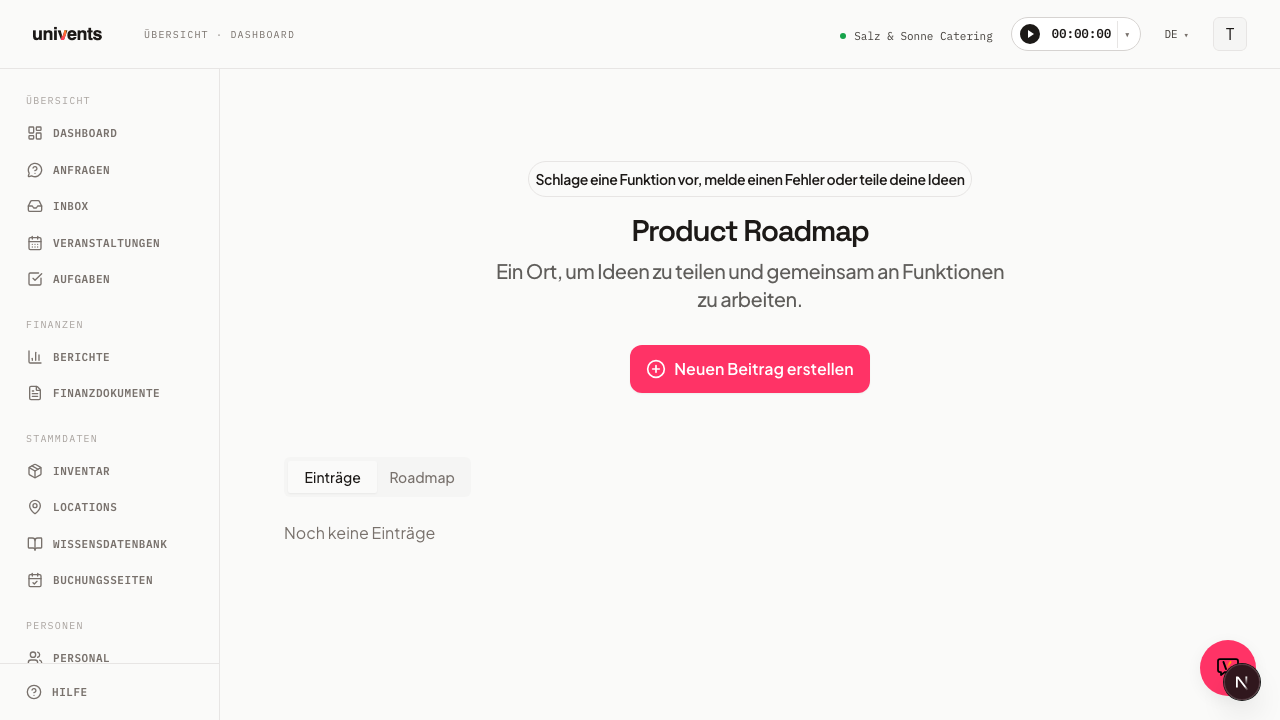
Opening the Roadmap
The roadmap is accessible directly from your workspace:
- Log in to Univents.
- Select Roadmap in the left navigation panel.
You land directly on the board — a Kanban view with five columns (Open, Under Review, Planned, In Progress, Live) showing every publicly released post from the entire Univents customer base. On smaller screens the columns appear as swipeable tabs instead; the In Progress tab is open by default.
Before Submitting: Search for Existing Posts
Before submitting a new request, it's worth checking whether it already exists:
- Use the search field above the board (placeholder Search the roadmap…) — it searches the title, description, and tags of every public post.
- Use the tag badges right below it to narrow the board down to a specific topic. The All badge clears the filter again.
Voting on Posts
Found a post that matches your own request? Vote for it instead of creating a duplicate:
- Open the post's card in the relevant column (clicking the title or description opens the detail view).
- Click the Vote button (upward arrow icon).
Only one vote per user per post is allowed. Once cast, a vote cannot be withdrawn — the button then reads Voted and no longer responds to further clicks. Whether the total vote count is visible alongside your own vote depends on a setting maintained by the Univents team — not every account shows vote counts publicly.
Submitting a New Post
- Click Submit a request at the top.
- In the Type field, select the appropriate category:
- Feature — you would like a new capability in Univents.
- Improvement — an existing feature should work better.
- Bug — something is not working as expected.
- Question — you are unsure whether something is possible.
- Enter a short, descriptive Title.
- In the Description field, explain your request in as much detail as possible — context helps the team understand the need.
- Click Submit.
Your Submissions
A newly submitted post is not publicly visible at first. It appears in the Your submissions section above the board — marked Under Review — and is visible only to you. In this state, the post cannot yet be voted on, either by you or by anyone else.
Only once the team approves your post does it disappear from Your submissions and appear publicly in the matching column of the board — now visible and votable for the entire Univents customer base.
Understanding Implementation Statuses
Every public post sits in exactly one of the board's five columns:
| Column | Meaning |
|---|---|
| Open | Newly released, not yet evaluated further. |
| Under Review | The team has seen the post and is evaluating it. |
| Planned | Implementation has been approved and is scheduled. |
| In Progress | Development is actively underway. |
| Live | The feature is live or the bug has been fixed. |
If the team decides not to implement a post, it is closed and disappears entirely from the public board — there is no separate, permanently visible "Declined" column.
Frequently Asked Questions
Can I vote for the same post more than once? No. One vote per user per post is allowed. Clicking the button again has no further effect — a vote, once cast, cannot be withdrawn.
The "Submit a request" button doesn't appear or doesn't respond — why? The button is only available to logged-in users. Make sure you are signed in.
Where do I see my request before it's public? In the Your submissions section above the board, as long as it still carries the Under Review badge. Only once the team approves it does it become part of the public board.
My request already exists as a post — should I submit a new one anyway? No. Vote for the existing post instead of creating a duplicate. This consolidates votes on one post and shows the team its true weight more clearly.
Can I leave a comment on a post or ask follow-up questions? No, there is currently no comment field on the roadmap. Add any additional context directly in the Description field when you submit.
How quickly does the team respond to new posts? There is no fixed SLA. Posts with many votes tend to be prioritised for review sooner.