

Accept, reject, or convert an enquiry into an event
After reading this article you will know how to accept an enquiry and activate the event, how to decline it with an optional reason while deciding whether the customer gets a rejection email, and how to archive or reactivate enquiries.
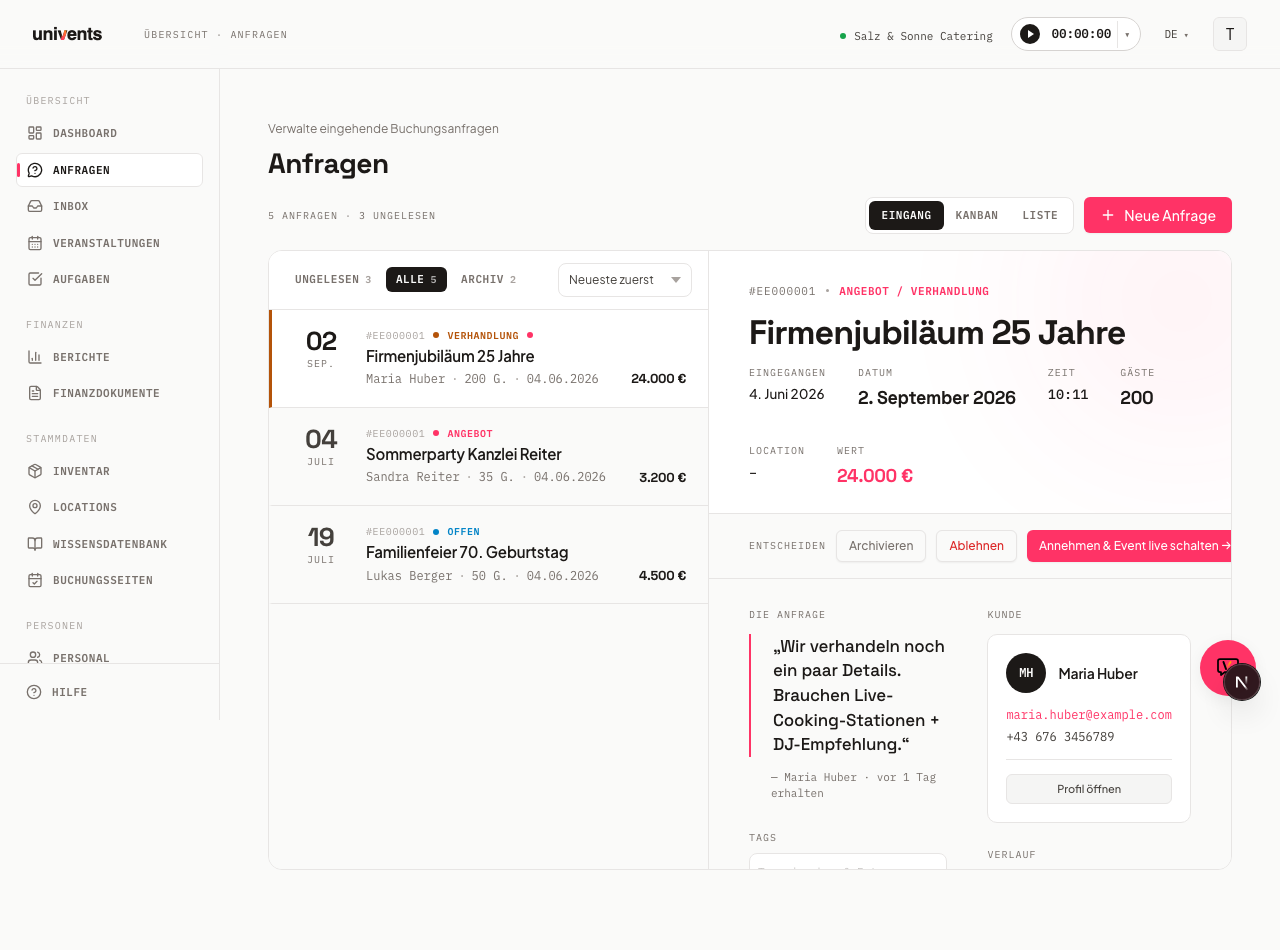
In the Inbox you handle every incoming enquiry directly in the split panel: the list on the left, the detail view on the right. The action buttons appear in the bar directly below the detail view header, in the Decide section.
When you drag a card into the Accepted column, Univents first opens the pre-filled event form — exactly like clicking Accept & set event live →. You check the date, venue, guest count and everything else there, and only your Save accepts the inquiry. If you cancel or close the window, nothing happens: the card stays in its original column. Every other column change in the kanban still applies immediately.
Accept an enquiry and go live
A new enquiry has the status Open. Once you have decided to go ahead with the event, click Accept & go live →.
- Open Enquiries in the navigation.
- Select the desired enquiry in the left-hand list. The detail view opens on the right.
- In the Decide bar, click Accept & go live →.
- The enquiry moves to the status Accepted. The associated event is now active and you can open it via the Open event button next to the title of the enquiry — in the inbox at the top right of the detail view, in the open enquiry dialog at the bottom of the footer bar with the other actions.
The event behind the enquiry already exists before you decide — otherwise the calendar and the events overview would have nothing to show. Until then it sits in the Planning column; accepting moves it to Confirmed, so the board shows that something happened.
After acceptance, a Quote / Invoice card appears in the Documents section, from which you can navigate directly to all financial documents for the event.
On the Scale plan the owner can require that enquiries are only accepted after an approval. In that case Accept & go live → does not perform the step right away — you request the approval instead; the article Approvals for quotes, invoices and inquiries explains how that works. Automatic acceptance after payment on the booking page is exempt and needs no approval.
When the quote is created
Univents creates the draft quote as soon as the enquiry arrives — not when you accept it. That matches how the work actually runs: an enquiry comes in, you send a quote, the customer says yes, and it becomes an event.
The draft is created for every new enquiry, no matter which way it arrives: booking page, enquiry email address, or entered by hand. It already contains the booked items, provided any were submitted.
Worth knowing:
- Exactly one draft is created per enquiry.
- The draft is never sent to the customer automatically. You send it yourself once it is ready.
- Accepting no longer creates any further document — neither a second quote nor a delivery note.
- The production list for the kitchen is still created automatically on acceptance.
- An online-paid booking still produces an invoice, never a quote.
- If your booking page has its own document setting (send a quote directly, or create an invoice), that setting still applies.
- If the booking page is set to Do not create a document automatically, its enquiries produce no draft at all. Every other route — enquiry email address, entered by hand — still creates one.
You create the delivery note when you need it, in the documents area of the event. Previously it was created automatically on acceptance — for multi-day events even one per day — and most of those stayed unused drafts.
Date clash warning
If an enquiry overlaps in time with other open enquiries or events, the enquiry shows a notice directly — in the inbox below date, time and venue, in the Kanban and list views at the top of the detail view.
- The comparison goes by time of day: an enquiry from 6 to 11 pm and an event from 11 am to 3 pm on the same day are not a clash. If one date ends exactly when the other starts, that is not a clash either.
- The notice shows the number and lists every entry with name, date, time from–to and venue. Clicking one opens the enquiry or the event.
- Only in the same room: bookings in a different venue are not a clash and do not show up. Entries in the same venue are marked same room.
- No room given: if the other booking has no venue, it shows up with “no room given”. If the enquiry itself has no venue, every booking at the same time counts — the notice says so at the top. When in doubt, Univents warns.
- For entries in the same venue, the venue’s setup and cleaning time (in the venue settings) also counts: if fewer minutes than stored lie between two dates, they count as a clash. If a match only clashes because of that time, it says so.
- No time given: if an enquiry only has a date, the whole day counts. The notice says so (“no time given”), so it is clear why a morning booking shows up. Events without an end count for six hours from their start.
- Multi-day enquiries and events count for their whole duration.
- Cancelled, deleted and archived events as well as templates do not count.
The notice always appears, whether or not you switched on the calendar overlay under Settings › Status columns.
Date conflict detected
If there are such entries on the enquiry's date, Univents shows a warning dialog before accepting — on the Accept button in the inbox, in the enquiry window from Kanban and list, and when you drag a card into the Accepted column in the Kanban. It checks exactly the same entries as the notice above — including events and multi-day dates, not only enquiries on the exact same date.
- The dialog shows the number and lists the entries.
- Click Accept anyway → to accept the enquiry despite the overlap.
- Click Cancel to return to the detail view without any changes.
The warning is informational, not a hard block. You decide whether a double booking is permissible for your venue.
Decline an enquiry
If you do not want to accept an enquiry, click Decline.
- In the Decide bar, click Decline.
- A dialog appears with the title Decline enquiry? and a note that this action cannot be undone. Optionally, you can provide a reason.
- Enter a reason for declining in the text field if needed (e.g. "Date already taken"). The reason stays internal.
- Use the checkbox Send rejection email to the customer to decide whether your customer gets a rejection by email. It is ticked by default; below it you see the address the email goes to. Untick it and Univents declines the enquiry silently — for example when you've already told the customer on the phone.
- Click Decline to confirm, or Cancel to go back.
The enquiry moves to the status Declined and is automatically moved to the Archive segment of the inbox view.
Instead of the checkbox, the dialog shows a note when no rejection email is possible: when the enquiry's contact has no email address, or when you've turned off the rejection template under Settings → Email templates. That's also where you adjust the text of the rejection email.
The same applies in the Kanban: drag a card into the Rejected column and the same dialog with reason and checkbox opens. Only Decline moves the card; Cancel leaves it in its column. On your phone, too, declining asks with the same checkbox.
Archive or reactivate enquiries
Archiving is possible regardless of status and helps you keep the inbox tidy.
- Archive: Click Archive in the Decide bar. The enquiry disappears from the All view and is only visible under Archive. The status remains unchanged.
- Reactivate: Open the Archive segment in the left panel, select the enquiry, and click Reactivate. The button is available for enquiries archived manually and for accepted enquiries — for a declined enquiry, Univents deliberately does not offer it (see below).
Accepted and declined enquiries are also moved to the Archive segment automatically. What Reactivate actually does depends on how the enquiry got there:
- Archived manually: Reactivate only changes visibility. The enquiry is visible under All again, and its status stays unchanged.
- Accepted: Reactivate asks for confirmation first, because it undoes the acceptance. Once you confirm, the enquiry moves back to Open and can be accepted or declined again. Its event stays in place and remains active, and the customer receives no email.
- Declined: Univents offers neither Reactivate nor Archive for a declined enquiry in the archive. The reason: declining an enquiry also cancels its event — accepting the enquiry again would not automatically bring that event back.
Frequently asked questions
Can I reopen a declined enquiry? Not directly from the archive: Univents offers neither Reactivate nor Archive for a declined enquiry there. The reason: declining an enquiry also cancels its event, and accepting the enquiry again would not automatically bring that event back.
What happens to the event if I reactivate an accepted enquiry? Nothing. Reactivate asks for confirmation first, because it undoes the acceptance; once you confirm, only the enquiry's status changes to Open so you can accept or decline it again. The event that has already gone live stays unchanged, and the customer receives no email.
Where do I find the enquiry after acceptance? In the Archive segment of the inbox, because accepted enquiries are considered decided. You can find the associated event via Open event button next to the title of the enquiry, or directly under Enquiries in the navigation.
Does the customer get an email when I decline? Only if the checkbox Send rejection email to the customer is ticked — it is by default. Untick it and the customer gets nothing. If you accidentally decline the same enquiry twice (for example in two tabs), only one rejection still goes out.
What happens to the reason for declining? The reason is stored internally and is visible in the enquiry history. It is not automatically sent to the customer unless you send an email via Send email in the detail view.
Can I also see conflicts in the Kanban view? Yes. When you open an enquiry in the Kanban or list view, the date clash warning appears at the top of the detail view. When you drag a card into the Accepted column and there is a clash, the same confirmation dialog as in the inbox appears first. Cancel leaves the card in its column; Accept anyway → then opens the event form (see above).