

Creating contract templates
After reading this, you'll be able to create, rename, and delete contract templates, and select a template when creating a new contract.
Contract templates store a fully written contract text that you can apply to any new contract with a single click. Recipients, signatures, and placeholder values are never saved in a template — each template contains only the title and the body text.
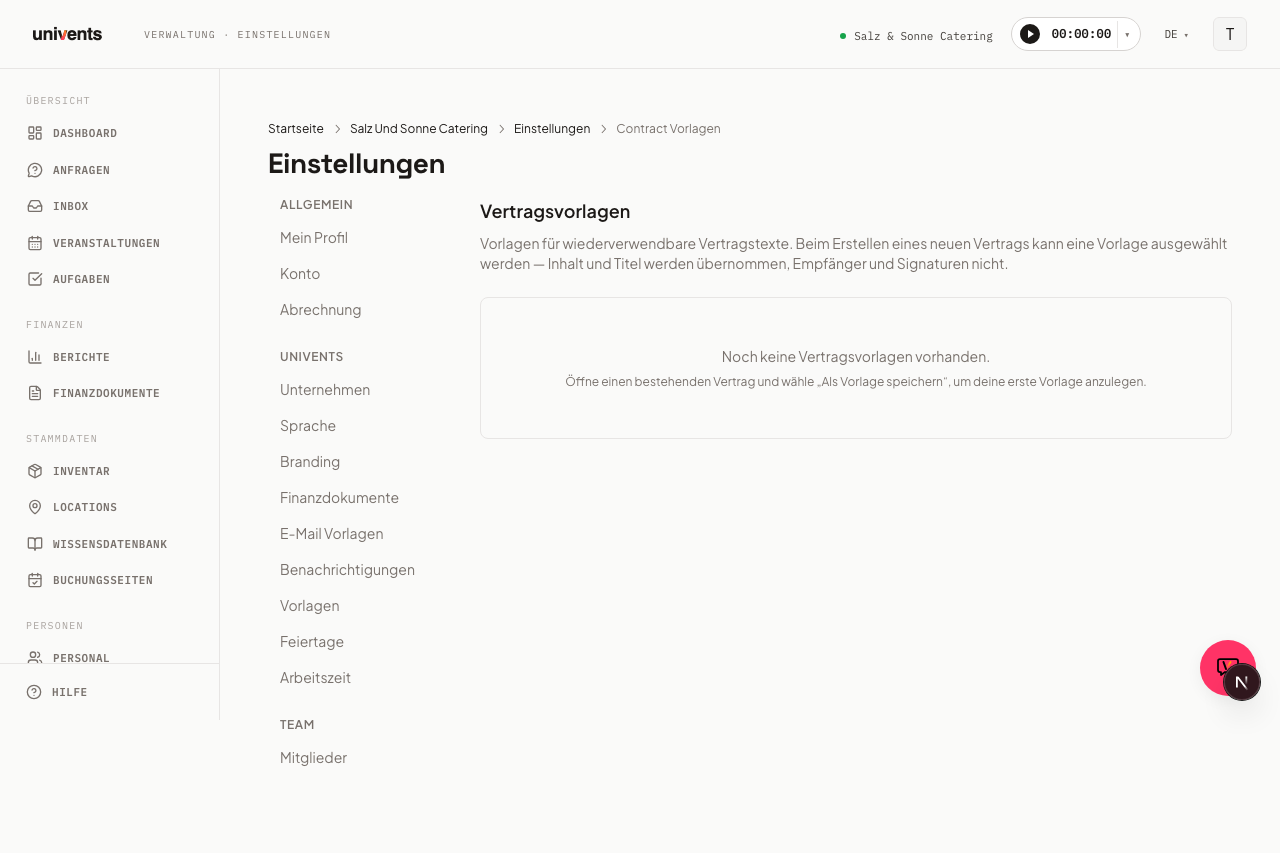
Opening the templates overview
- Go to Settings in the left navigation bar.
- Click Templates in the settings menu.
- Scroll down on the templates page to the More Templates section and click Contract Templates.
You will see the list of all saved contract templates, sorted by creation date (newest first). If no template exists yet, the page shows a hint explaining how to create your first one.
Creating your first template from an existing contract
Contract templates are created directly from within a contract, so you avoid typing the same text twice:
- Open an event and switch to the Documents tab.
- Click a contract card to open the contract editor.
- Write or revise the contract text in the editor.
- Select the Save as template option in the editor.
- Enter a Template name in the dialog (e.g. "Standard Catering Contract") and click Save template.
The new template is immediately visible in the templates overview and can be selected when creating new contracts from that moment on.
Creating a template directly in the templates hub (without an existing contract)
You don't have to create a contract in an event first — a contract template can also be authored directly from the templates overview:
- Click New Template at the top of the templates page.
- Select Contract from the menu, under Documents & Finance.
- In the Create contract template dialog, enter a Template name and write the contract text directly in the embedded editor.
- Use Insert placeholder to insert one of the six available placeholders at the cursor position — the same ones used in the contract editor inside an event, see Create, manage & sign contracts.
- Click Save template.
Here too: the template contains only content and placeholders — no signature, no recipients. Placeholders are filled in only once the template is later applied to a real contract.
Clicking an existing contract template in the templates overview opens the same dialog in Edit contract template mode — there you change the name and contract text directly.
Applying a template when creating a new contract
- Open an event and switch to the Documents tab.
- Click the From template button and select Contract as the document type.
- In the Create new contract dialog you will see all available templates as well as the option Blank (no template).
- Select the desired template and click Create contract.
The title and body text of the template are copied into the new contract. Later changes to the template do not retroactively affect contracts that have already been created.
Renaming a template
In the templates overview under Settings > Templates with the filter chip Contract you can edit the name of an existing template:
- Click the row of the template in the list.
- In the dialog you change the field Template name.
- Click Save template.
Deleting a template
- In the templates overview open the row menu More actions and choose Delete.
- Confirm in the confirmation dialog by clicking Delete.
Contracts that were already created from this template remain unchanged — deleting a template does not affect any existing documents.
Frequently asked questions
Can I edit a template's body text directly in the templates overview? Yes. Click an existing contract template in the templates overview — the Edit contract template dialog opens with the same editor used when creating one, letting you change the name and contract text directly.
Are recipients and signatures saved in the template? No. Templates contain only the title and the contract text. Recipients, signatures, and placeholder values must be filled in again after the contract is created.
Can I create a template from a contract in any status? Yes. You can save a draft, a sent, or a fully signed contract as a template. Only the text matters — the status of the source contract is irrelevant.