

How do I get started with quote & invoice templates?
After reading this, you'll know whether you need an item template or a finance document template, and where to find the detail article for the next step.
Univents has three different template concepts for quotes and invoices: the item template, the finance document template, and the document template. All three save you typing on your next document, but they work in different ways. This article helps you pick the right concept for your case — for the detailed steps, we link to the matching article.
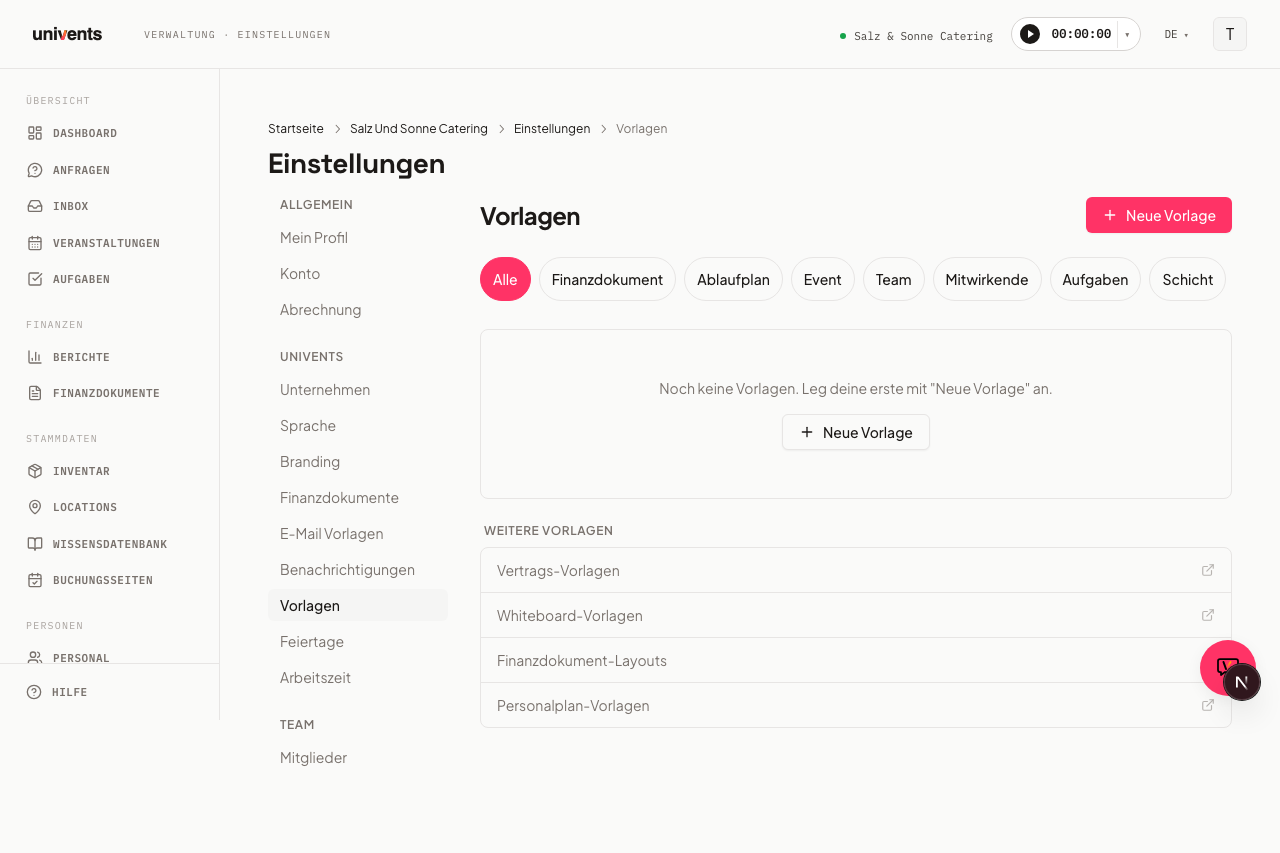
Where to find all three template types
- Open Settings in the left navigation menu.
- Click Templates in the sidebar.
- Click New Template in the top right. The dropdown includes the entries Item template and Finance document template.
You don't create a document template through this dropdown — instead, you create one directly on a finished quote or invoice via the Save as template button. All three template types then appear as their own rows in the template hub, and you can filter them separately using the filter chips.
Item template, finance document template, or document template — what's the difference?
| Item template | Finance document template | Document template | |
|---|---|---|---|
| Contains | Just a name, description, and the positions (with sections) | A complete document: positions plus due date, clerk, and layout | An existing, fully filled-in document as a 1:1 clone preset |
| Used for | A bundle of positions you insert into any number of quotes/invoices | A whole document type you set up again for recurring cases | An already-finished document you want to reuse 1:1 as a copy for new documents |
| Requires a document type | No — usable in a quote, invoice, or delivery note alike | Yes — you choose the document type it applies to when you create it | No — it inherits the document type and all header data from the source document |
| Created via | Settings > Templates > New Template, or directly from a document via Save as item template | Settings > Templates > New Template | Directly on a finished finance document via Save as template |
Quick example: item template
You often sell a "Beverage package" made up of four fixed positions. Instead of retyping them every time, you save them once as an item template and insert them into any new quote or invoice via Insert positions from template — regardless of the document type. You can also create an item template directly from an existing document: Save as item template in the positions table saves the current set of positions without leaving the editor.
Full steps: Creating and using item templates
Quick example: finance document template
For weddings you always write a quote with the same standard positions, the same validity period, the same clerk, and the same layout. Instead of setting all of that up again each time, you create a finance document template called "Quote – Wedding" that bundles positions, due date, clerk, and layout into a single step.
Full steps: Creating and using finance document templates
Quick example: document template
You have an already-finished quote that you want to reuse 1:1 as a template for future documents — including all positions and header data, exactly as it currently stands. Instead of building a finance document template from scratch, you click Save as template on the finished document. When creating a new document, you select it via New Document > Templates > Use and get a full 1:1 copy of the header and positions.
Full steps: Creating and using finance document templates
And what will my PDF look like?
Neither the item template nor the finance document template decides how your PDF is styled. Colors, logo, and which sections appear in the document are controlled separately by a layout. A finance document template can reference a layout — but you manage the layout itself independently.
Full steps: How do I create layouts for finance documents?
Frequently asked questions
Do I have to choose one of the template types? No. You can use all three in parallel — for example, a finance document template as the base for recurring quotes, item templates for individual position bundles you insert into very different documents, and a document template for an already-finished document you want to clone 1:1.
Where do I find templates I've already saved? Under Settings > Templates. The template hub lists item templates, finance document templates, and document templates together, with filter chips to narrow down by type.
I previously created an "item template" with a due date, clerk, and layout — what happened to it? That template is now correctly called a finance document template and appears in the hub under that name. Your existing templates were kept — only the label was corrected.
Which template type do I need if I just want to insert a recurring menu as positions? An item template is enough. You can set the due date, clerk, and layout separately in the document itself if needed.