

Set up branding (logo, colors)
After reading this, you'll be able to upload your workspace logo, favicon, and color palette so that documents and public pages reflect your brand.
In the Branding section you define how your workspace appears to the outside world: your logo shows up on quotes, invoices, and public booking pages, and your colors set the accent tones in the customer portal and on PDFs.
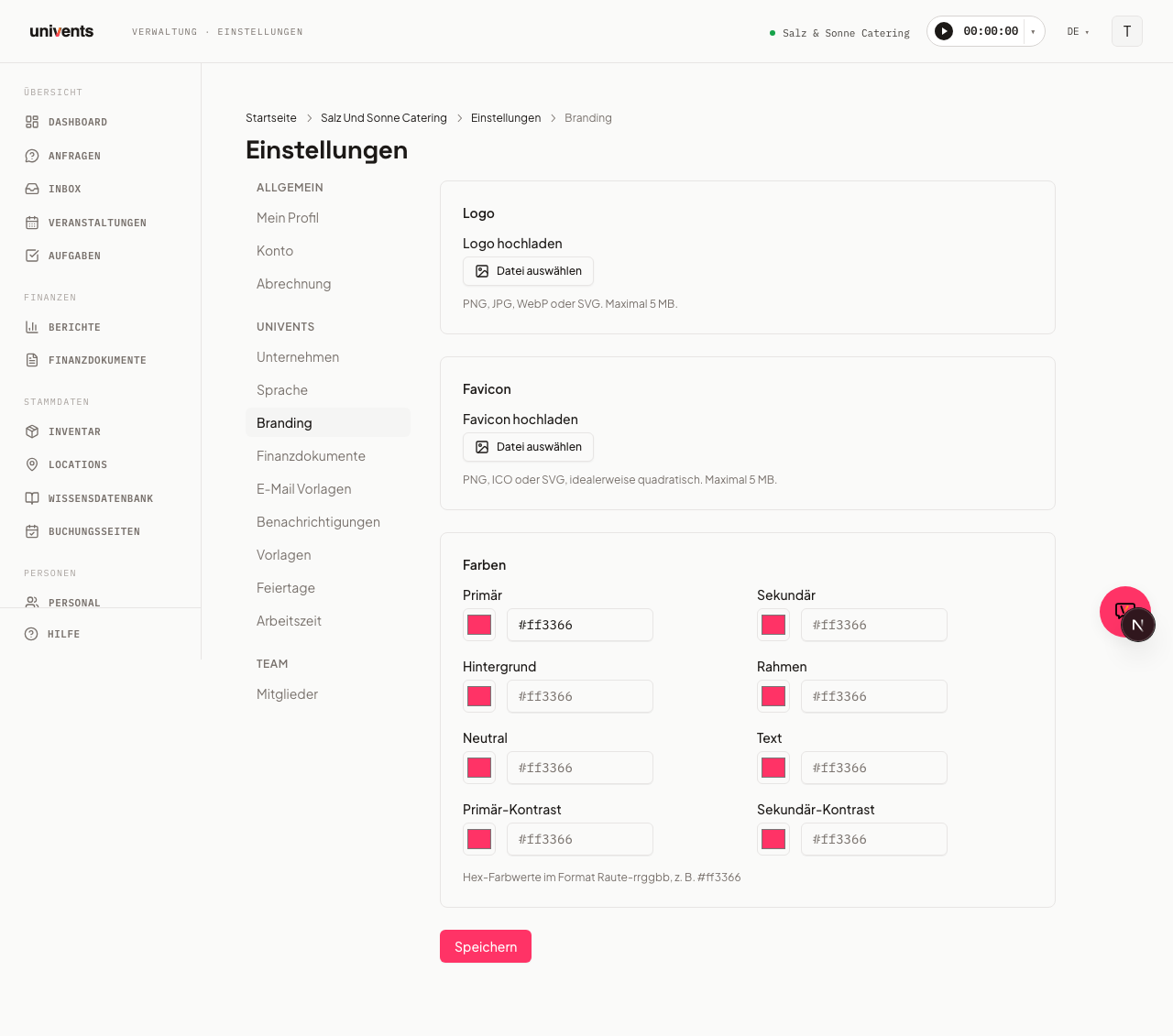
Opening the branding settings
- Click Settings in the left navigation bar.
- Select Branding in the sidebar.
The page is divided into five sections: Logo, Favicon, Default cover image in the customer portal, Colors, and Email signature & footer.
Uploading a logo
The logo appears on financial documents (quotes, invoices, delivery notes) as well as on public booking pages.
It also appears in the header of your automatic emails — always in its natural aspect ratio there, including in Outlook. A wide or tall logo is therefore not stretched or squashed.
- Click Choose File in the Logo section.
- Select a file in PNG, JPG, WebP, or SVG format (maximum 5 MB).
- After the upload a preview appears. To swap the file, click Replace. Click Remove to delete the logo again.
SVG is the best format to use since it scales without quality loss and stays sharp on high-resolution displays.
Uploading a favicon
The favicon appears in the browser tab when customers open your public booking page.
- Click Choose File in the Favicon section.
- Select a file in PNG, ICO, or SVG format, ideally square (e.g. 64 × 64 px), maximum 5 MB.
- After the upload the preview shows the small icon. Use Replace to swap it out, or Remove to take it back off.
Default cover image in the customer portal
In the Default cover image in the customer portal section, click Upload image to add a photo (JPEG, PNG or WebP, max 5 MB, ideally 1920 × 1080). It appears in the customer portal on the card and at the top of the overview of every event without its own cover image. If the event's venue has a photo, that photo is shown instead. An event's own cover image always takes precedence.
Setting colors
In the Colors section you can store up to eight color values as hex codes (format: #rrggbb, e.g. #ff3366).
| Color field | Usage |
|---|---|
| Primary | Main accent color, buttons, highlights |
| Secondary | Second accent color for contrast |
| Background | Background surfaces in the customer portal |
| Border | Dividers and outlines |
| Neutral | Neutral surfaces and badges |
| Text | Default text color |
| Primary Contrast | Text color on primary surfaces (e.g. white on a dark button) |
| Secondary Contrast | Text color on secondary surfaces |
Each field offers two input methods: a color swatch (click to open the browser's native color picker) and a text field for entering the hex code directly. Both are kept in sync.
Setting up the email signature & footer
In the Email signature & footer section you set the text that's appended to every system email (e.g. quote and invoice delivery, notifications).
- Email signature — appears at the end of every system email. You can use placeholders like
{{sender_name}}and{{company_name}}, which are automatically replaced when the email is sent. Allowed HTML: bold, italic, and links. - Email footer (legal) — small, grey legal text below the signature, e.g. for imprint details or an unsubscribe note.
Saving your changes
Click Save at the bottom to apply all changes (logo, favicon, colors, and email signature & footer) in one step. A confirmation briefly appears in the top right. Changes take effect immediately for new documents, system emails, and public pages.
Frequently asked questions
My logo looks very small on the PDF — what should I do? Use an SVG or a high-resolution PNG file (at least 400 px wide) wherever possible. JPG files can appear blurry if the source image is small.
Which color value is required? Only Primary has a preset value (#ff3366). All other fields are optional. Fields left empty fall back to the system default.
Where can I see the colors in action? The primary color appears as the main accent on booking pages and as the header color on PDFs, provided no custom PDF layout has been configured. You can set up custom PDF layouts under Settings > Templates via the Layout template filter chip.
Does the workspace logo also apply to individual booking pages? Yes, it is used as the default on all booking pages. Individual adjustments per page are available in each booking page's own settings.