

Whiteboard & Seating Plan in an Event
After reading this, you'll be able to create whiteboards in an event, edit them, save them as templates, share them with contacts, sketch seating ideas using the AI assistant — and know when to use the scaled floor-plan editor in the event instead.
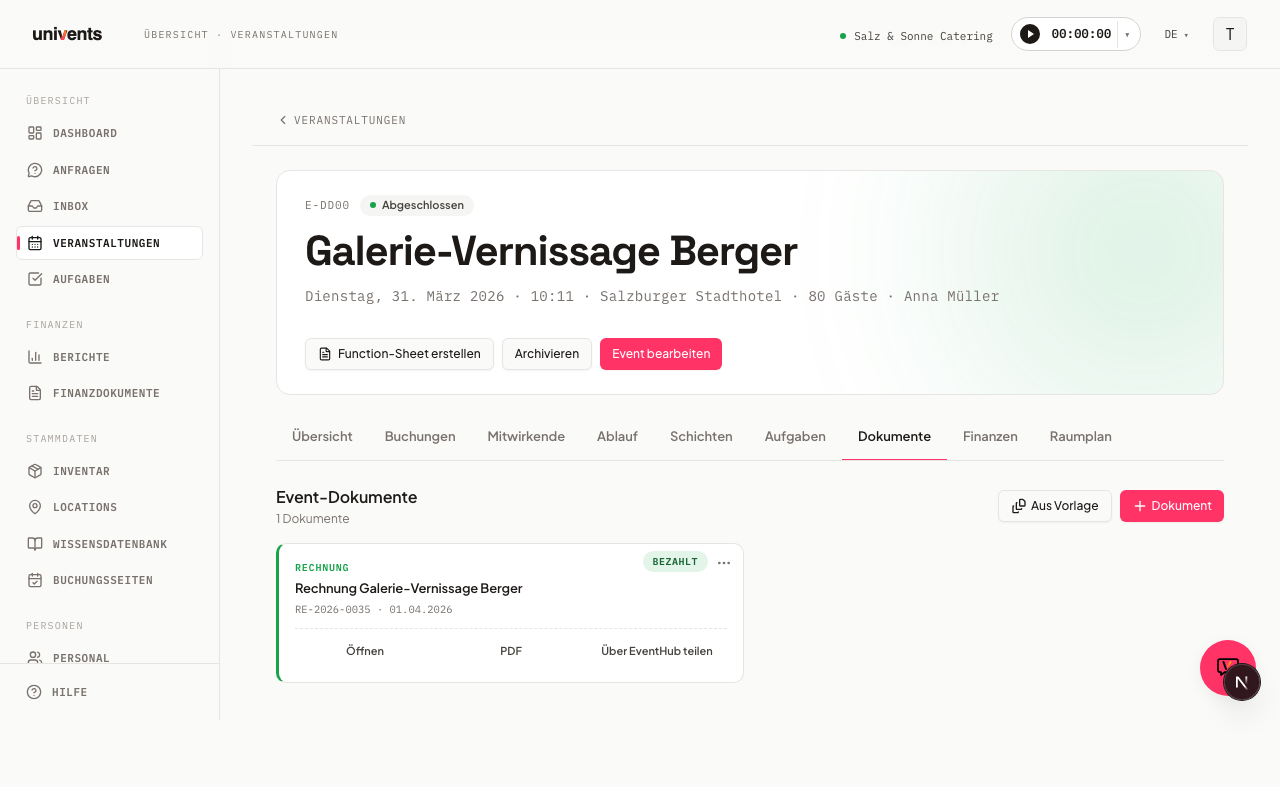
In the Documents tab of any event you can create as many whiteboards as you like — for seating plans, floor plans, decoration layouts, or freehand sketches. Every whiteboard saves its state automatically and can be named, shared, and exported independently.
The video shows how to set up the floor plan, tables and table numbers in the floor plan editor, save arrangements as a building block and assign the plan to a location.
You’ll find the individual steps written out below as well.
Creating a whiteboard
- Open the event you want and switch to the Documents tab.
- Click the Document button (top right, with the plus icon).
- Select Whiteboard from the dropdown.
Univents immediately opens the canvas editor for the new whiteboard. The default name is "Whiteboard" — you can rename it directly inside the canvas (see below).
Alternatively, you can start a whiteboard from a saved template: click From template (top right, next to the Document button), select Whiteboard from the dropdown, and pick the template you want from the list.
Working in the canvas
The canvas is powered by Excalidraw and gives you tools for freehand drawing, shapes, arrows, text, and images.
- Rename: Click the whiteboard name in the top-left corner. A text field opens — type the new name and confirm with Enter or click elsewhere. The name is saved to the server immediately.
- Auto-save: Changes to the canvas are saved automatically after a brief pause. The status indicator in the top right shows Saving... while saving is in progress and Saved once it is complete.
- Back to the overview: The Back button (top left, next to the name) takes you back to the Documents tab of the event. Your drawing is already saved.
- Export as PNG: Click Export as PNG to download the current canvas as a PNG file. The filename is derived automatically from the whiteboard name.
AI assistant for seating plans
While you are working in the whiteboard canvas, the in-app chat panel shows a Whiteboard Assistant section with ready-made suggestions, for example:
- "Generate seating plans for N guests"
- "Load floor plans from templates"
- "Create flowcharts"
- "Save the current plan as a template"
Click a suggestion to send the corresponding request directly to the chat assistant. The assistant can place elements on the whiteboard — after AI-generated changes you can reload the canvas to make all elements visible.
Managing whiteboard cards
Every whiteboard appears as a card in the Documents tab. The three-dot menu (top right on the card) offers the following actions:
- Open — open the canvas editor
- Duplicate — create an identical copy in the same event
- Save as template — save the current state as a reusable template (available in future events via From template)
- Export as PNG — download the whiteboard as a PNG file without opening the canvas
- Share — invite contacts or team members as a viewer or editor
- Delete — permanently delete the whiteboard (confirmation required)
Sharing a whiteboard
Share in the card menu opens a dialog. First choose the access type:
- As Viewer — the recipient can only view the whiteboard
- As Editor — the recipient can edit the whiteboard
Then search for a contact or team member. Once selected, that person automatically receives a token link by email. Existing shares are shown in two lists (Viewers and Editors) and can be revoked individually.
Floor plan: the real seating-plan editor
The whiteboard is great for freehand sketches and quick brainstorming — for a scaled, genuinely measurable seating plan with tables and chairs, use the event's own Floor Plan tab instead (in the tab bar next to Finance).
Placing elements
The Elements panel gives you the following building blocks:
| Element | Editor label |
|---|---|
| Round table (with a Seats value) | Round Table |
| Rectangular table (with a Seats value) | Rectangular Table |
| Seating item | Chair |
| Room boundary | Wall |
| Column | Pillar |
| Permanently installed furniture | Fixed Furniture |
| Temporary furniture | Temp. Furniture |
| Standing area (with Width, Depth and m² per person) | Standing Area |
The canvas shows a meter grid (0.5 m snapping) that placed elements align to, so the plan stays to scale. Under Room Size you set the Room Width (m) and Room Length (m). As soon as you place tables, Univents keeps a live count of Total Seats — so you can see right away whether the plan matches the expected guest count.
Table numbers
Click a table and you will find the Table number field on the right under Properties. Whatever you enter there — “Table 1”, “Head table”, “A3” — is drawn directly on the table, so it also shows on the printed plan and in the order confirmation. Leave the field empty and the table keeps showing just its seat count.
Where the automatic chairs go
With Draw chairs automatically switched on, Univents draws as many chairs around each table as the table has seats. They follow a fixed rule: the long sides first, the ends only once no further chair fits along the long sides. A rectangular table with 6 seats therefore shows 3 and 3 along the long sides — and keeps that even when you make the table narrower. Only when the long sides are genuinely full does Univents seat someone at the head or foot.
A square table has neither head nor foot: there Univents spreads the seats evenly over all four sides.
A Chair as its own element is meant for seating without a table, such as a row of chairs at a ceremony or a talk. Univents draws no chairs on a standing area — it stands for places without seating, at a standing reception for instance.
Positioning elements more finely than the grid
Dragging with the mouse snaps every element to the 0.5 m grid. For finer steps, click the element and move it with the arrow keys: one press moves it 0.5 m, holding Shift moves it 10 cm.
What Total Seats adds up
It counts what you placed: every table with the seat count from its properties (a new round table brings 8, a rectangular one 6 — both editable under Seats), plus every individually placed Chair, worth one seat. A standing area brings the number of people Univents works out from its Width, Depth and the m² per person (20 × 12 m at 0.5 m² per person is 480 people) — and shows that number right on the plan. The automatically drawn chairs deliberately count for nothing, otherwise every seat would be in there twice.
So if you place chairs by hand around a table that already brings 6 seats, the total shows 6 plus the number of your chairs. If the number looks too high, an element is usually sitting underneath another one: new elements are inserted top left with a small offset, and after enough clicks in a row two of them end up exactly on top of each other. Pull the elements apart for a moment — then you can see what is really in the plan and remove the duplicate with Del.
Floor-plan backdrop
Via Upload floor plan you add an image — for example, the venue's actual floor plan — as a backdrop behind the plan, with adjustable Opacity. Remove backdrop hides it again. Images up to 8 MB are allowed.
Variants and templates
For a single event you can create several Variants of the same room, for example for different seating layouts. Save Variant stores the current state. Save as Template makes it reusable account-wide. If the linked location already has its own floor plans, you can pull one in directly via From location template (see Creating & making the most of event locations).
Editing: undo, multi-select, locking
Use Undo (Ctrl+Z) and Redo (Shift+Ctrl+Z) to correct changes. Select several elements together and copy (Ctrl+C), paste (Ctrl+V), or remove them as a block (Del). Lock position stops an element from being moved by accident.
Adding the plan to an order confirmation
Via Add to Order Confirmation you pick an existing finance document (quote or order confirmation) and embed the current plan into it as a PNG snapshot. Univents warns you beforehand that the snapshot is then permanently embedded in the document. If there's no suitable finance document yet, create an order confirmation first.
Frequently asked questions
Can I reuse whiteboards from other events? Yes — save a whiteboard via Save as template and use it in the next event via From template in the dropdown. Whiteboard templates are also listed under Settings > Templates behind the Document filter chip and the Whiteboard tag: clicking the row opens the whiteboard, and More actions deletes the template.
What happens if I close the browser before saving? The canvas saves all changes automatically after a short period of inactivity. Watch the status indicator — once Saved appears, your data is secure.
How many whiteboards can I create per event? There is no fixed limit. Each whiteboard is displayed as its own card in the Documents tab and can be named, shared, and exported independently.
Whiteboard or floor plan — which one do I use? For freehand sketching, moodboards, or a rough idea, the whiteboard in the Documents tab is enough. As soon as you need a concrete, scaled seating plan with individual tables, chairs, and a real capacity count, use the Floor Plan tab instead — only there does Univents keep a live seat count and let you add the plan straight into an order confirmation.