

Calendar Sync Setup (Google / Outlook / iCloud)
After following this guide you will have connected Google Calendar, Microsoft Outlook, or iCloud to Univents, selected the right calendar, and optionally mapped locations so that events sync automatically.
Calendar sync lets Univents push your events automatically to your existing Google, Outlook, or iCloud calendar. That way you see them right alongside your private or business appointments. Open inquiries stay out by default — but you can choose to show inquiries from specific columns of your inquiry board as tentative entries in the calendar (see Tentative inquiries in your calendar).
The video shows how to connect a calendar under Integrations, sync events and set a separate calendar per location.
You’ll find the individual steps written out below as well.
Connect a calendar
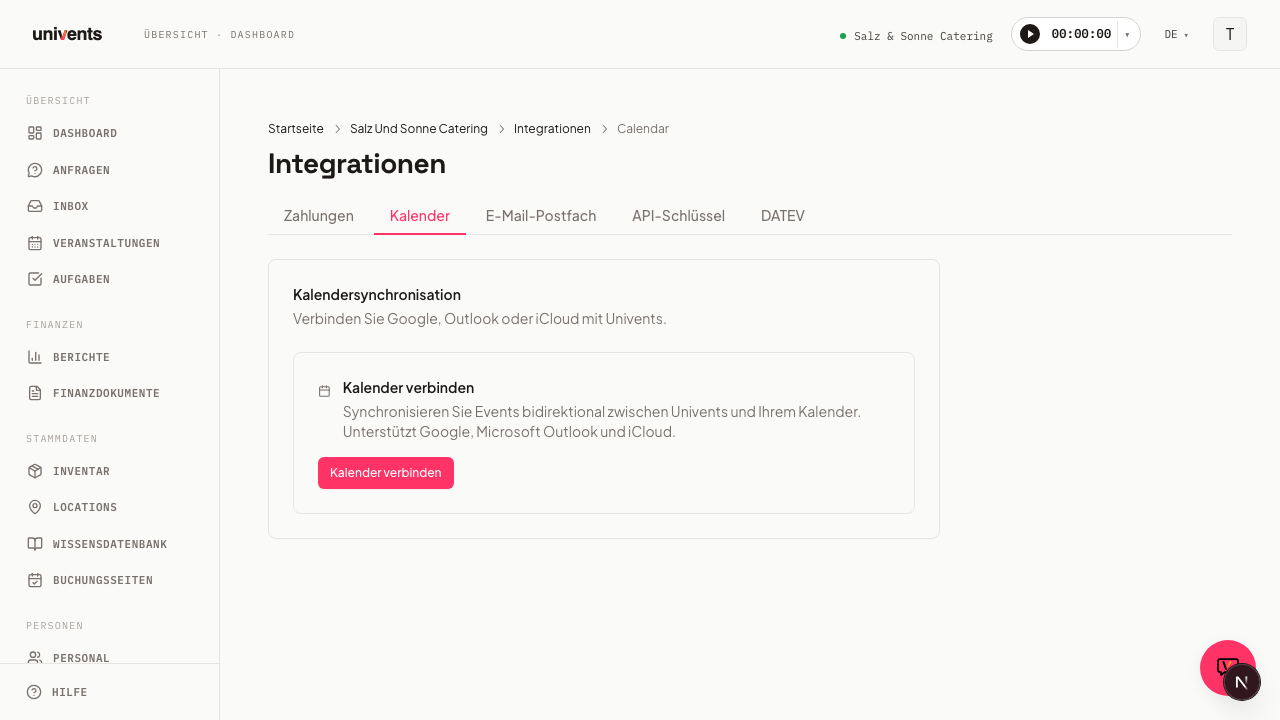
You reach the Calendar Sync page via Integrations in the left sidebar. You land on the All integrations page; click Email & calendar in the CATEGORIES bar on the left, or type "calendar" into the search field at the top, then open the Calendar card. The ← All integrations link in the top left takes you back to the directory.
- Open the Calendar card under Integrations.
- Click Connect calendar.
- You will be redirected to a sign-in window from your calendar provider. Univents supports Google Calendar, Microsoft Outlook, and iCloud Calendar.
- Sign in with the account you want to use and grant the requested permissions.
- After signing in you are automatically returned to Univents. The new connection appears in the list with the status badge Connected.
How many calendars can I connect? One shared calendar for the whole workspace — Univents writes everyone's events into it. On top of that, every account with administrative access can connect their own calendar ("Connect my calendar"): the same events land there too, just in your personal Google or Outlook calendar. Nobody but you sees your personal calendar, and only you can disconnect it.
When a slot is taken, the matching button disappears and a short explanation takes its place. To use a different calendar, disconnect the existing one first. Reconnect on an existing row always works — even when both slots are taken.
Team members without administrative access subscribe to their shifts as a calendar feed in the employee portal instead.
Select a calendar
After connecting, Univents displays all calendars available in your account.
- Under the connected account, click the Select calendar dropdown.
- Choose the calendar that events should be written to. Primary calendars are marked accordingly in the list.
- The selection is saved immediately.
If the dropdown shows no calendars, check whether the connection is still active (badge Connected). If the badge reads Connection expired — reconnect, you need to re-authenticate once before the calendar list becomes available again.
Shared mailboxes and room calendars (Microsoft 365)
Univents always connects one mailbox. After that, exactly those calendars that belong to this mailbox are available for selection. A calendar that was merely shared with the mailbox still belongs to the original account — so it does not show up in our list, even if it is visible in Outlook.
This mostly affects room and resource mailboxes ("Studio 1", "West Hall"), because in Microsoft 365 those usually cannot sign in at all.
Three ways forward, depending on your setup:
| Situation | What to do |
|---|---|
| You want to keep it simple | Create the calendars you need inside one mailbox that can sign in (e.g. events@company.com) and connect that single mailbox. The Locations and calendars card then lets you assign each location its own calendar from this mailbox. |
| The calendars sit in a colleague's regular mailbox | The colleague connects it themselves via Connect my calendar — it becomes their personal calendar. Via Locations and calendars you can then assign this personal calendar to individual locations, just like the shared one. |
| They are genuine room or resource mailboxes | Your IT gives the mailbox its own account with a password (enable sign-in, assign a licence). You then connect it like any other mailbox. |
Ask your IT for two things:
- Allow sign-in for the calendar account (set a password, account not blocked).
- Exempt the account from particularly strict sign-in policies. Otherwise Microsoft ends the connection again after a short while and you have to reconnect regularly.
Read access is not enough: Univents creates and updates appointments, so the account needs write permission on the calendar.
Locations and calendars
By default, events from every location go to every connected calendar — the shared one and any personal ones. If you run multiple locations and want a different calendar for each, you can set that explicitly.
- Scroll to the Locations and calendars card on the calendar page. It lists one row per workspace location with its current sync state.
- Click Edit on the location you want to change.
- Choose one of three options:
- All calendars (default) — events from this location go to every connected calendar.
- Specific calendars — tick the connections you want (the shared one and/or individual personal calendars). For each ticked connection you can also choose a specific calendar under Calendar in this account instead of that connection's default calendar.
- Do not sync — events from this location are not sent to any calendar.
- Click Save.
The location's row then shows which mode is active.
The location entered on the event is what counts — if several locations are entered on one event, all of them count.
Tentative inquiries in your calendar
Want to spot double bookings early, even before an inquiry is accepted? Then let inquiries from specific columns of your inquiry board appear as tentative entries in the connected calendar.
- Open the Calendar card under Integrations and scroll to the Tentative inquiries in your calendar card.
- Tick the columns whose inquiries should appear in the calendar — for example only the column that holds inquiries with a quote already sent. The columns carry the same names as on your inquiry board.
- Click Save.
How a tentative entry behaves:
- It appears in the calendar with Tentative: in front of the name, for example “Tentative: Smith wedding”. The prefix uses your workspace's content language (under Settings).
- When you accept the inquiry, the same entry becomes the regular appointment — without the prefix and without a duplicate.
- When you reject the inquiry, archive it or move it to a column that is not ticked, the entry disappears from the calendar again.
- Only inquiries that already have an event with a date can appear in the calendar.
- You can only pick open columns. The columns for accepted and rejected inquiries are not offered — accepted inquiries reach the calendar anyway, rejected ones never do.
- If no column is ticked, nothing changes: an inquiry only reaches the calendar once you accept it.
When you change the selection, Univents updates the affected upcoming inquiries within the next few minutes — inquiries from newly ticked columns are added, inquiries from unticked ones disappear.
Anyone who can edit settings can change this. You can also read and set the selection in the AI chat.
What the calendar entry contains
Every appointment Univents pushes to your calendar contains, below your own description, a block with the key details from Univents:
- Project planner — the person entered as project planner on the event (only if someone is entered),
- Schedule — the items from the Schedule tab with their times, for example “18:00–19:00 Reception”. With more than 30 items, the last line says how many more there are. If the schedule spans several days, each line starts with the date.
The appointment deliberately contains no link back to Univents: room and team calendars are often visible to staff who have no Univents access.
The block starts with “=== Univents ===” and ends with “=== /Univents ===”. When the project planner or the schedule changes, Univents updates the appointment within the next few minutes.
Appointments that are already in a calendar get the block with their next change — or right away when you click Transfer all upcoming events now.
Editing in Outlook or Google: text you change above the Univents block is copied into the event's description in Univents. Changes inside the Univents block are not copied back — the block is rewritten with the next sync. So always maintain the schedule and the project planner in Univents.
Transfer existing events
If you imported events from Excel or changed the target calendars of your locations, you can catch up on the events you already have with one click.
- Open the Calendar card under Integrations.
- Click Transfer all upcoming events now. Underneath the button you find the note After an import, or when you changed the target calendar per location.
Univents queues all running and upcoming events and pushes them within the next minutes. Cancelled events stay out; open inquiries are only included if their column is ticked under Tentative inquiries in your calendar. Events that are already in a calendar are updated and, if needed, move to the right target calendar.
The success message tells you how many events were queued; if everything is already transferred or queued, it says so.
New events you import from Excel no longer need a manual catch-up: as soon as a calendar is connected, Univents pushes them automatically.
Notice when multiple calendars are connected
If you connect a second calendar connection — for example your personal calendar in addition to the shared one — without having mapped any location yet, Univents shows the Multiple calendars connected dialog. You have two options:
- Map locations first — closes the dialog and takes you to the Locations and calendars card so you can set up the mapping.
- Enable all — I understand — confirms that events should continue to go to all connected calendars.
Which events reach the calendar?
Everything that is a real booking in Univents — drafts, options, confirmed and invoiced events. Deliberately not pushed:
- open inquiries — unless their column is ticked under Tentative inquiries in your calendar; then they appear as “Tentative: …”,
- rejected inquiries — they only live on the inquiry board,
- cancelled events — whether cancelled via the status or via the “Cancelled” column on the board.
Change the status and the calendar follows: an accepted inquiry appears, a cancellation disappears, and undoing the cancellation brings the entry back.
See other appointments as “Busy”
Appointments from the calendars you have assigned to a venue under Integrations → Calendar (card Locations and calendars) appear in the calendar under Events as a grey, hatched Busy block — with the time and the name of the venue. The connection’s default calendar and personal calendars are left out. While planning you can see at a glance when a room is already booked, without checking your calendar separately.
- Venue calendars only. The connection’s default calendar is often the mailbox of the person who connected it — their appointments don’t belong in the team view. It is therefore never read, not even if a venue uses exactly that calendar as its target. If you want to see bookings for a room, give it its own calendar.
- Titles and details stay private. Univents only shows that and when something is booked — never the title, attendees or description. Hovering over the block shows exactly this note.
- No duplicates: events that Univents itself transfers to the calendar appear only once — as an event.
- Cancelled appointments, appointments marked as free in Outlook or Google, and invitations the room has declined don't block anything and don't appear.
- If a calendar can’t be read — for example because the connection has expired or the provider isn’t responding — a note below the calendar says “Not all calendars could be read”. A gap then doesn’t necessarily mean “free”; check it directly in Outlook or Google. If the same calendar account is connected in several workspaces, Univents reads no appointments from it for security reasons and shows the same note.
- In the month view, each day shows at most two blocks and the rest as “+N busy”. The week and day views show all of them.
- The blocks can't be clicked and don't turn into events. The legend below the calendar explains the block.
- New appointments from the calendar appear after a few minutes.
Sync manually
Univents syncs events automatically whenever they are created or updated. You can also trigger a sync at any time manually:
- Open the Calendar card under Integrations.
- Click Sync now.
- After the sync completes, Univents shows how many external events were detected.
The date and time of the last sync are displayed below each connection.
Disconnect a calendar
- Click Disconnect on the desired connection.
- The connection is removed immediately. The events Univents added to your calendar are deleted from your external calendar in the process. Your other appointments are not touched.
Frequently asked questions
Which calendar providers are supported? Currently Google Calendar, Microsoft Outlook, and iCloud Calendar.
How many calendars can I connect at the same time? One shared calendar for the whole workspace, and on top of that every account with administrative access can connect their own personal calendar. Team members without administrative access subscribe to their shifts as a calendar feed in the employee portal instead.
What happens when a connection expires? Univents shows the badge Connection expired — reconnect. Click the button to sign in again. Your calendar selection and location mapping are preserved.
Can I connect the same calendar to multiple accounts? Yes. You can connect the same Google or Outlook account across different Univents workspaces. For the Busy view, however, Univents doesn’t read appointments from such an account (see the section above).
Are external events from my calendar imported into Univents? No. Univents doesn't create events from your calendar appointments. Appointments from your venues’ calendars do show up in the calendar under Events as Busy — without titles or details (see the section above).
What happens if I delete a transferred appointment in Outlook or Google? The event in Univents stays — only the copy in your calendar is deleted. If you change the event in Univents afterwards, Univents creates the copy in the calendar again. To really remove an event, delete or cancel it in Univents; it then disappears from the calendar too.
What happens to my calendar when my trial or subscription ends? Calendar sync is part of your plan. After your trial or subscription ends, the calendar stays connected for another 30 days. After that, Univents disconnects it automatically — exactly as if you had clicked Disconnect yourself: the events Univents added are deleted from your calendar, your other appointments are not touched. As long as a subscription is running, even if a payment is currently pending, nothing happens. If you later subscribe to a plan with the calendar feature, simply connect the calendar again under Integrations.