

Inbox: Reading, Replying & Linking Emails in Univents
After reading this you'll be able to read incoming emails in the Univents inbox, reply to them directly, and link conversations to enquiries, events, or contacts.
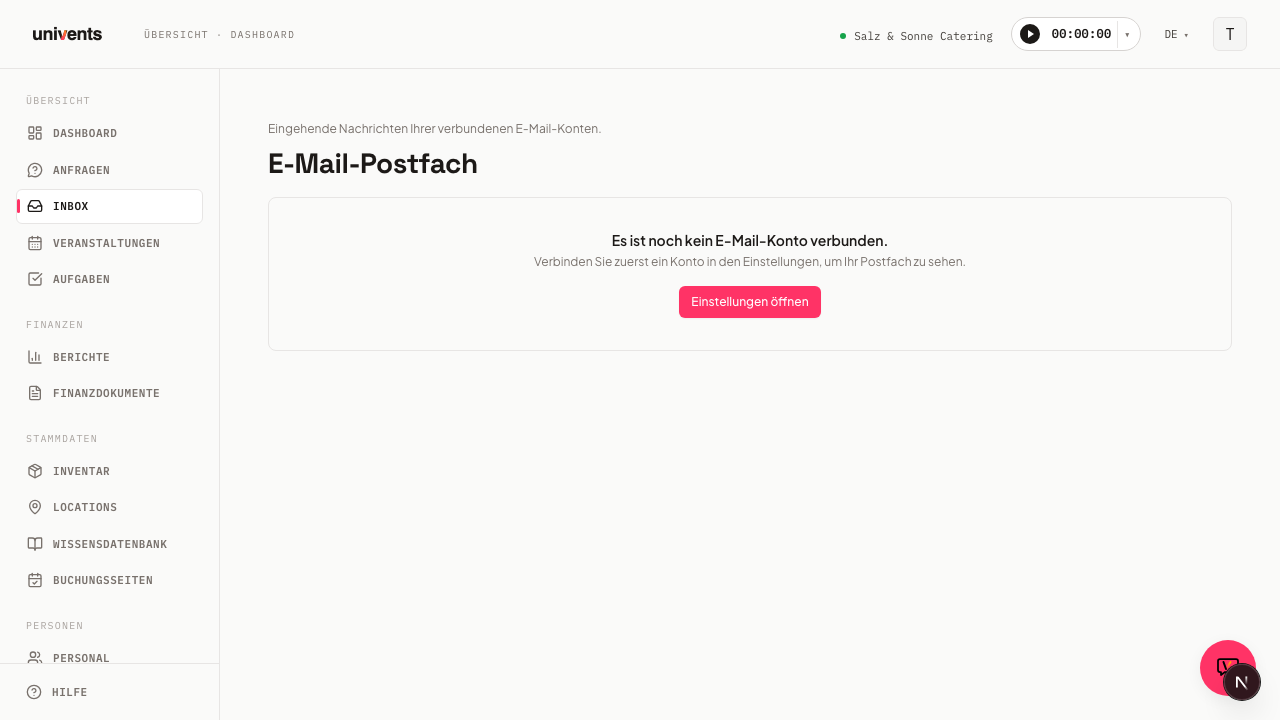
The email inbox in Univents mirrors your connected mailboxes directly inside the app. You can read customer enquiries, follow-ups, and booking confirmations without switching tabs — and link any conversation to an enquiry, an event, or a contact.
The video shows how AI turns a customer email in the inbox into a quote and creates the contact and inquiry along the way.
You’ll find the individual steps written out below as well.
Inbox overview
The inbox opens as a split view: the thread list on the left, a preview of the selected conversation on the right. Four tabs at the top let you switch between views:
- Inbox — all current, non-archived threads
- Snoozed — threads you have put aside
- Archived — conversations you have filed away
- Customers — customer list with activity timeline
If several mailboxes are connected, a mailbox selector sits below the tabs. The default is All mailboxes — every row then shows which mailbox the message arrived in. Pick a single mailbox and the list shows only its messages. The selection is part of the page address, so you can bookmark it. The selector is not shown in the Customers view.
Below the tabs there is a search field (sender, subject, content) and filter chips: Unread, Attachment, Today, Customers, Open Events, and Open Enquiries. Chips can be combined. Use Clear filters to reset all selections.
New emails appear automatically — no manual refresh needed. When you first connect a mailbox the initial sync can take up to 24 hours.
Reading and replying to a conversation
- Click a thread in the list. The preview opens on the right.
- The most recent message is expanded. Click Show full message to load the complete content. Older messages in the same thread are collapsed behind Show {{count}} older messages.
- To reply, click Reply in the action bar. The composer opens as a column alongside the thread — you can continue reading the message history while you write.
- Fill in Subject, To, and your message. Optionally add further recipients via Add CC.
- Click Send to dispatch the reply through your connected mailbox. The sent message then appears as an outgoing message in the thread.
If you prefer to reply in your external mail client, the envelope icon in the action bar opens a mailto: link directly in Outlook or Apple Mail.
Generating an AI reply draft
If the AI reply generator is enabled for your workspace, the reply composer also shows a Generate draft button (with a sparkle icon).
- Open a thread and click Reply to open the composer.
- Click Generate draft. Univents drafts a reply based on the conversation and replaces the message text in the composer with it.
- The generated text is marked with the AI draft badge. You can freely edit it before sending.
- A success toast shows the cost of the generation. If the monthly budget is used up, you'll see Monthly AI budget reached instead.
You turn the feature on and set tone and budget under Integrations > Email inbox, in the AI reply generator section: the Enable AI reply generator switch, Tone (Formal, Casual, or Warm + personal), and Monthly budget (cents) — default 1000 cents = €10/month. Below that you can see how much of the budget has already been used this month.
Linking a thread to an enquiry, event, or contact
Links ensure the email thread is visible in the detail view of the enquiry, event, or contact.
- Open the thread and click the chain icon (Link) in the action bar.
- A dialog with three tabs opens: Enquiry, Event, Contact.
- Select the relevant tab and type at least two characters into the search field to filter results.
- Click the entry you want — it becomes highlighted.
- Click Link. The link then appears as a coloured chip below the sender name in the thread row.
The link covers the whole conversation — every email in the thread is attached to the chosen item afterwards, older ones and later replies included. If the conversation is already linked you get a note instead of an error, and nothing else happens.
Existing links are shown in the info popover (the button with the i icon at the far right of the action bar). It also contains direct links to the linked item.
Seeing linked emails inside the event
An email linked to an event shows up there under Messages on the Email tab. The list shows sender, subject, preview text and timestamp; unread mail is counted on the tab.
The whole conversation comes along. One link is enough for the entire conversation: every further email in the same thread — the customer's reply and your own reply sent from the inbox — shows up here by itself, with no need to link it again.
Replies still happen in the inbox, not inside the event: Open thread takes you into the conversation, Reply opens the same conversation with the reply box already open.
Four things are included automatically:
- Emails on the related inquiry. When the first request arrives by mail it is linked to the inquiry — the event only exists once you accept it. Those emails appear in the event marked "from inquiry".
- Sent emails that belong to this event or its inquiry.
- System emails — automatically sent emails to customers, partners, speakers, or suppliers, for example when an inquiry was accepted or rejected, a contract went out for signature, a change request was answered, a document was shared, or a portal invitation was sent. These rows are labelled "Automatic" with the template name, for example "Automatic: Quote sent" — the same name as under Settings → Email templates. If the template has no name there, the label reads "System email".
- Automation emails — sent by one of your automation rules via the "Send email" action. These rows are labelled "Automation: <rule name>".
System emails and automation emails show recipient, subject, preview text, and timestamp like the other rows, but no Open thread link, since they don't come from an inbox thread. Internal emails to your team (such as shift reminders, vacation decisions, mentions, or one-time codes) deliberately don't appear here — that's not customer communication.
You still only see what you are allowed to see. The list only shows emails from mailboxes you have access to — a colleague's personal inbox stays private, even when the email belongs to the same conversation. If the team should see everything in one mailbox, set its visibility to Per Workspace (Default) — see How do I connect my email inbox?.
Remove link detaches the whole conversation from the event again — every email of the thread at once. The emails themselves stay in the inbox. System emails and automation emails can't be removed separately; they're attached directly to the event.
Sent emails on the inquiry, the contact, the overview and in the lists
You see the same automatic emails in more places — with the same label:
- On the inquiry: In the detail of an inquiry (in the inbox view and in the board or list detail), Sent emails lists the emails you sent to the inquiry yourself plus the system and automation emails of its event that went to this inquiry's customer (the address from the form or an address of their contact) — for example the acknowledgement, the quote that went out, or the acceptance or rejection. Newest first.
- On the contact: The Emails tab of a contact lists every automatic email of your workspace that went to one of their addresses — main, additional, billing, or orders address. If the email belongs to an event, a link takes you straight there. This works without a connected mailbox, too.
- On the event overview: The Recently sent card shows the last three emails — written by you or sent automatically — with recipient, time, and occasion. Show all emails opens the Email tab under Messages. As long as there is no email yet, the card doesn't appear.
- In the lists: inquiries (board, list and inbox view), the contact list and the event list show a small envelope with the date of the last email sent. Hover over it to see the occasion, recipient and time. Without an email, nothing appears.
If an event's acknowledgement already went to the same address in the last 30 minutes — for example because your booking page replies automatically — an automation doesn't send it a second time. All other emails, such as invoices or messages, always go out. More in Actions of an automation.
Creating a contact or enquiry directly from a thread
If no contact is linked to the sender yet, the action bar shows the Create contact from sender button. A dialog opens with the sender's name and email address already pre-filled — save the contact with a single click.
Once a contact exists, or if no enquiry link is present, the Create enquiry button appears. The form pre-populates the subject and sender details from the email.
If you'd rather keep your contacts in sync with your inbox automatically instead of creating them one by one from threads, set up Contact sync — see How do I connect my email inbox? for details.
Letting AI create a quote from an email
With AI quote from mail in the action bar of an open conversation, Univents turns the customer's email into a contact (if the sender isn't one yet), an enquiry and a draft quote in a single step. You can follow the progress right on the button; once the draft is ready, open it with Open quote. You also get a notification — even if you have left the inbox in the meantime. Creating the quote uses AI credits.
From the email, the AI takes:
- Positions from your inventory. It picks matching products — found via your tags and via product names that appear in the email. Prices always come from your inventory, never from the AI.
- Service period and guest count, if the email mentions them. Both are also entered on the event.
- Place: if the email names one of your locations, it is set as the event's Location, and the products linked to it as Required — the room rent, for example — are added to the quote automatically, exactly once. A location with a one-word name (such as “Garden”) only counts when the email names the place exactly like that. If the place does not clearly match exactly one location, it is kept as text on the event and you pick the location yourself. A location that is already set is never overwritten.
Under Notes, Univents lists what the AI had to assume or could not match — a missing date, for example, or a place without a matching location. Check the draft before sending it: it is never sent automatically.
Archiving and snoozing threads
- Archive: In the open conversation click Archive in the action bar (next to Reply) or press
e. The thread disappears from the inbox and appears under Archived. An Undo link in the success notification restores it immediately; in the Archived tab the same button reads Restore. - Also works in your mail client: Archiving doesn't just tidy up Univents — it tidies up your connected mailbox too. In Outlook the conversation moves to the Archive folder; in Gmail it leaves the inbox (the "Inbox" label is removed, but it stays findable under "All Mail"); other mailboxes get moved to their archive folder where possible. Nothing is ever deleted. Click Restore and the email comes back to the inbox in your mail client as well. If the connection to your mailbox is briefly down, Univents still archives it right away — the mirror to your mail client catches up automatically once the connection is back.
- Snooze: Press
hto open a selection menu with quick options: Later today, Tomorrow morning, Next week, and Custom date… for a free date input. The thread disappears from the inbox until the chosen time and then resurfaces automatically. - Bulk actions: Hover a row — a checkbox appears where the sender initials were. Tick it and every row shows its checkbox. Alternatively press
xto add the currently focused thread to the selection, or holdShiftand click a second row to select a range. Press⌘ ato select all visible threads. The toolbar above the list then offers Mark read, Mark unread, and Archive for the entire selection.
Tagging mail with labels
Labels are colored markers you name yourself — for example “In progress”, “Waiting on customer”, “Done”, or a per-account-manager name label. They let you move handled mail out of sight without archiving it.
Build the label catalog. In the filter bar click Manage labels (or the label icon on a thread row → Manage labels). In the dialog you give a name, pick a color from the palette, and save with Add label. Existing labels can be renamed, recolored, or deleted here. The catalog applies to the whole workspace.
Apply a label to a thread. Every list row and the detail view on the right carry a label icon. A click opens the picker — tick the labels that fit. Several labels per thread are allowed; the selection is saved right away. In the list, labels show as colored chips (with many labels, the first two plus a “+N” hint); in the detail view they appear in full under the subject.
Filter by label. As soon as at least one label exists, the filter bar shows the Filter by label picker. Pick a label and the inbox shows only threads carrying it; All labels clears the filter again.
Delete a label. When you delete a label that is still attached to mail, Univents first shows how many mails it will be removed from and asks you to confirm. Only after confirmation is the label removed from the catalog and from every thread. The mails themselves stay unchanged.
Labels are internal and only take effect inside the Univents inbox — they are not written back to your real mail client. Assigning, archiving, and snoozing are unaffected.
Frequently asked questions
The inbox is empty even though the account is connected. When you first connect a mailbox, Univents synchronises the selected time window (default: last 90 days). This can take up to 24 hours. A banner in the inbox shows the progress. You can adjust the sync window in the email integration settings.
Can I send new emails from Univents, not just replies? Currently the inbox only supports replying to existing threads. To send a new outgoing email, use your regular mail client as usual.
Where do I find the linked emails for an enquiry or event? In the detail view of every enquiry and every event there is an Email threads section listing all linked conversations — one row per conversation, showing its newest message.
Can I use keyboard shortcuts? Yes. Open the full shortcut menu with ?. Key shortcuts: j/k move forward/back, r reply, l link, e archive, h snooze, c create enquiry.
Does the email also disappear from Outlook or Gmail? Yes. Archiving in Univents also removes the email from the inbox in your connected mailbox — in Outlook it lands in the “Archive” folder, in Gmail it just loses the inbox label and stays findable under “All Mail”. Nothing gets deleted, and Restore brings it back to the inbox everywhere.
I don't see a "Generate draft" button in the composer. The AI reply generator is disabled by default. Turn it on under Integrations > Email inbox in the AI reply generator section.