

Create & configure booking pages
Create as many booking pages as you like, configure them across eight sections, switch them active or inactive at any time — and know how blocked days, booked rooms, selected room time windows and a room's turn-around time affect a booking.
Booking pages let your customers inquire about or book events directly online. You can create as many pages as you like — for example one per occasion, customer group, or location — and set up each page across eight clearly organized sections.
In the first video you set up a booking page from start to finish — design and link, capacity, released products, delivery radius, prices, custom questions and the English version.
What the finished page looks like for your customers is shown in the second video: the three designs inquiry, stepper and web shop, clicked through from the guest’s side until the inquiry lands in your inbox.
You’ll find the individual steps written out below as well.
Creating and managing booking pages
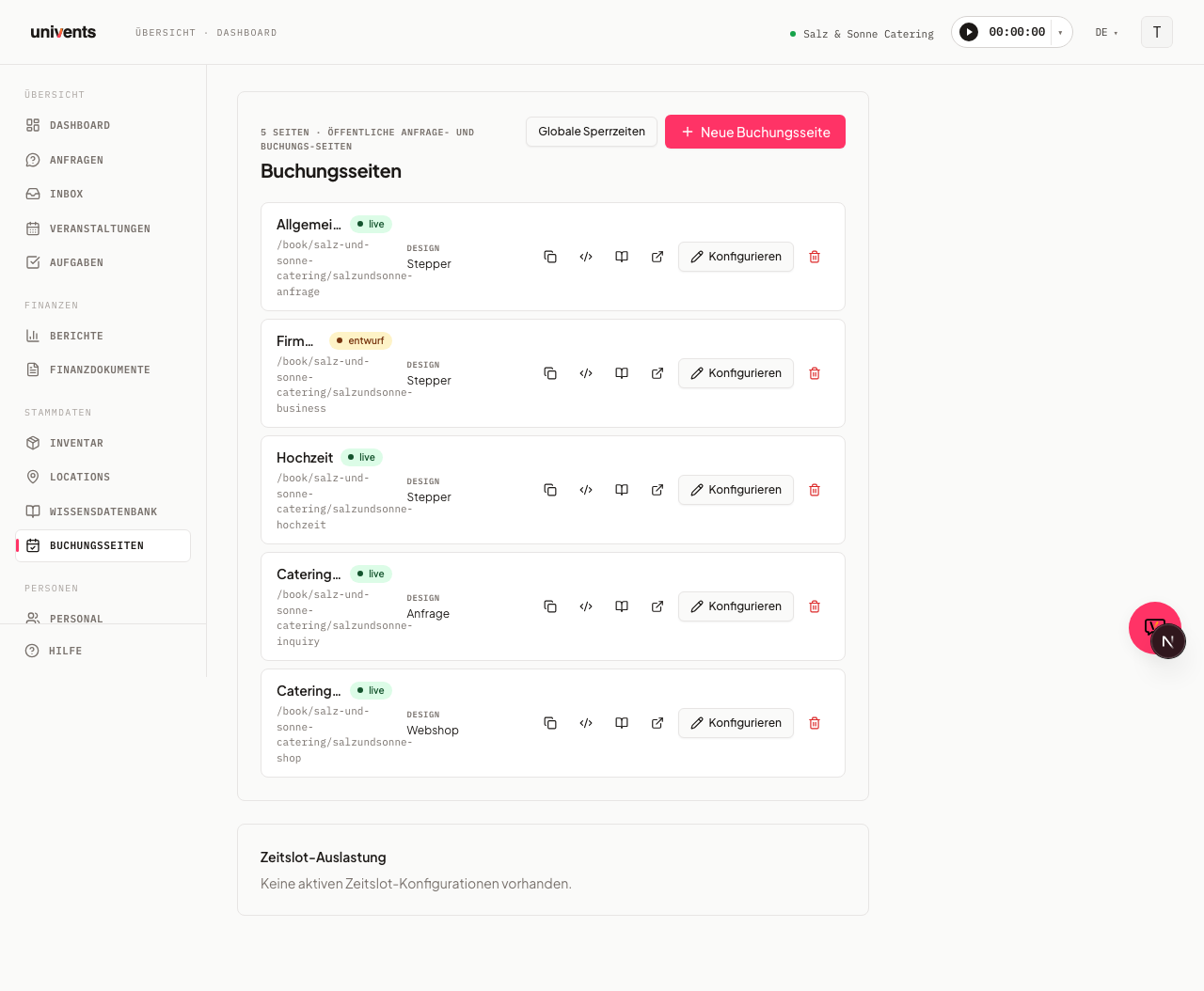
You'll find your booking pages in the settings under Booking Pages. All existing pages are listed there one below the other, each with its name, status, design, and public URL.
- Click New Booking Page at the top right to create a page.
- Use the Configure button to open an existing page for editing.
- Use the status dot next to the name (showing live or draft) to switch a page active or inactive with a single click.
Every row offers additional icon actions with tooltips: Copy booking link, Copy embed snippet, Open embed instructions, Open live preview, and the trash icon to delete. Use the Global Blackout Periods button to block booking across all pages for a specific time frame, for example during company holidays. Blockouts for a single room are managed on the room itself (see Creating and getting the most out of event locations).
Section 01 Details
The editor opens as a large window with a section bar on the left. The first section, Details, contains the page's basic settings.
- Logo: Upload a logo that applies to this page only. If you leave the field empty, the workspace logo is used automatically.
- Hero image: The large cover image at the top of the webshop and on ticket pages. You'll find the recommended size and format for the hero image and the logo in Image sizes for products, webshop & locations.
- Name and Description: Used to tell your pages apart internally.
- Design: Choose between Stepper, Webshop, Inquiry, and AI chat. The webshop suits simple ordering processes, while the stepper design guides customers through the inquiry step by step. With the AI chat, visitors describe what they need in a chat and send a finished inquiry at the end (see “AI chat on the booking page”).
- URL slug: Determines the path of the public address. Below it you'll see the finished preview URL.
- Legal links: Under Imprint URL, Privacy policy URL, and Terms URL you enter the matching pages. These links appear in the footer of every booking page — without them, the legal footer stays empty. They're required in the DACH region.
- Email Notifications: Enter addresses, or use Add contact to select existing contacts who should be notified of every new booking.
- Automatic Confirmation Email: When this toggle is on, the customer automatically receives a confirmation email when their inquiry is received. The default template names the requested date, the written-out weekday and the guest count and contains a button that lets the customer follow the inquiry online. Maintain your own texts under Settings → Email templates (see Editing email templates).
Section 02 Inquiries and Section 03 Bookings
In Inquiries you control how many bookings can happen at once and how much lead time is required.
- Concurrent inquiries allowed: The maximum number of open inquiries per day before new ones are declined.
- Max. parallel events: How many events may run in parallel across the whole workspace. This limit covers all venues together. A per-venue limit goes on the venue itself (field Parallel events, see Creating and using event locations). The check uses the real time in your workspace time zone; parties past midnight are recognized, and starting right after another event is fine (your page’s buffer time applies). A request without a time is only rejected if the day has no free window of at least 4 hours left. Ticket requests on a ticket sale page are exempt from this limit.
- Buffer time between events and Minimum lead time: In hours and in days, respectively.
- Block the whole day when an event is booked: If the venue already has an event on a day, the whole day can no longer be requested – even if a few hours would still be free. The toggle is off by default; then a day stays selectable as long as a free window of at least 4 hours remains (see below).
- Limit orders to delivery radius: Enable the option and enter a Delivery address and Delivery radius (km). The radius is a circle around the origin address — it checks the straight-line distance, not the driving route.
- Calculate travel cost: Can be enabled independently of the delivery radius — the driving distance in kilometers is calculated automatically from the customer's address (via Google Maps: the route by car, not the straight line). For it to have an effect you need a product on the page with billing model "per kilometer" (as a preset or selectable product); the calculated distance fills that product's quantity. Your customer already sees the kilometers in the price preview, and exactly this distance is then stored as Distance (km) on the event. If Google can't find a route, the page falls back to the straight-line distance — the booking still goes through. Both toggles — delivery radius and travel cost — can be enabled independently or together; as soon as either one is on, the shared Origin address (delivery & travel) field appears.
- Location chosen = no event address needed: If your guest picks one of your locations on the inquiry page or with the “Location first” design, the Event address is no longer required – even with a delivery radius or travel cost enabled. The delivery area is not checked then, since the event takes place at your location. Travel is then 0 km, even if the guest still enters an address: a “per kilometer” product drops out of the cart, the inquiry and the quote entirely. Without a chosen location the address stays required.
- Inquiry naming: Overrides your workspace's naming template for events created from this booking page. Leave it empty to inherit the workspace default.
In Bookings you define what can be booked:
- Pre-filled products are automatically added to every inquiry.
- Selectable products can be added by the customer.
- Category instead of individual: If you switch Pre-filled products or Selectable products to Category, every active product in the selected categories appears automatically, including ones you add later. Take individual ones back out under Excluded products, for example a seasonal menu that has ended. They then no longer appear on the page and cannot be booked. A product you also picked under Individual stays on the page.
- Linked locations determine which rooms are available to choose from. With Allow multiple event location selection, the customer can combine several rooms.
- Products of a location (“Location first” design): products you set as Available on a linked location appear for selection automatically as soon as the guest picks that location — you don't need to add them under Selectable products as well. Required products are booked automatically when the location is chosen. For all other designs, only the page's product list counts.
- Location rent before sending: your customer sees the Required products of the chosen location, such as the room rental, before sending. In the stepper and with “Location first” they are lines in the cart. In the webshop, the inquiry form and the AI chat they appear in the price overview as a line of their own, Room rental, with amount and calculation (for example “€100.00 × 16 hrs.”), and count towards the total — so the overview states the same amount as the inquiry later on. They are priced at the catalogue price with the billing model of the product; “per hour” uses the booked hours (on multi-day events the hours of each day). Price rules and discount codes do not apply to this line, and it does not count towards the page's minimum order value. With Show prices switched off, no amount appears for the rent either.
As soon as your page links rooms, double-booking protection is active automatically. A room is taken by a firm booking — an accepted or confirmed event. An open inquiry does not hold the room: several inquiries can be open for the same room at the same time. How many are allowed per day is governed solely by the Concurrent inquiries allowed setting of your booking page. If you want to allow several events at the same time in one room, enter the number on the room itself, in the Parallel events field.
Three things that often come up:
- What gets checked is the time period, not the calendar day. If a room is firmly booked from 10am to 2pm, it stays bookable from 6pm on the same day — a guest can inquire about the same room on the same day at a different time. Only bookings that overlap an existing one are declined. Parties that run past midnight (for example 7pm to 3am) are recognised correctly.
- The buffer time counts too. The value from Buffer time between events (Inquiries section) applies before and after every firm booking. With a two-hour buffer, a room taken from 10am to 2pm is therefore blocked from 8am to 4pm. To allow back-to-back bookings, set the buffer time to 0.
- If the room carries a turn-around time of its own, the larger of the two applies. When a room has a value under Turn-around and cleaning time (minutes) (see Creating and getting the most out of event locations), the larger of the two values takes effect — not the sum. Two hours on the page and 30 minutes on the room therefore mean two hours; with a page buffer of 0, the room's 90 minutes still block.
- It counts across the whole workspace, not the individual page. If you offer the same room on several booking pages, a firm booking through page A also blocks an inquiry through page B. Otherwise the protection could simply be bypassed via the second route.
- Without a time of day, a free window of at least 4 hours is enough. If a guest inquires about a day only, the guest can still send the inquiry as long as a free window of at least 4 hours remains on that day.
Events you created yourself also occupy the room — as soon as they are committed. That is the case once you have set them to Confirmed or live, once your customer has accepted the quote, and for completed or invoiced events. There are two layers here: when an inquiry is submitted, only a firm booking counts — a draft or option of yours does not block submission. In the calendar and the room selection of the booking page, however, your draft or option also greys out the room (the day is blocked if no free 4-hour window remains), so guests do not pick it in the first place. Only open inquiries do not count there.
Not counted: open, declined and archived inquiries. To make a slot bookable again, cancel or move the firm event.
Exception: pages that accept automatically on payment. If your booking page accepts an inquiry automatically once it is paid, an open inquiry there still holds the room — otherwise two paying guests could get the same room.
When you accept an inquiry, other open inquiries are only declined if they want the same room at the same time and the room is then full. Inquiries for other rooms or other times stay open. The declined guests receive no email.
Blocked days and selected room time windows
Blocked days are rejected on submit. The date picker already hides blocked days — but the real safeguard sits on submit: Univents checks the blockouts again when the inquiry is submitted and rejects it as soon as a blocked day is involved. That also covers a multi-day booking where a blocked day falls in the middle of the range, and a blockout created after the page was opened. For a single day the guest sees This date is not available. For a multi-day range the message names the blocked day, for example 10/07/2026 is not available for booking. Please choose a period without this day.
Multi-day ranges end before the next blocked day. When the guest picks Multi-day event, the end-date picker greys out blocked days and only offers end dates up to the day before the first blocked day after the start date. If a Wednesday is blocked, for example, a range starting on Monday can run until Tuesday at most. If the guest then changes the start date and the chosen range would cross a blocked day, the end date is cleared again.
All three scopes are checked: the workspace-wide blockouts, the booking page’s own blockouts, and the blockouts of the rooms requested. Recurring blockouts — a weekly closing day, say — are rejected on submit as well.
You see booked and blocked rooms at the date step already. The calendar only greys out a day if one of the selected rooms is unavailable there — because events leave no free time window of at least 4 hours, or because a blockout of the room applies. An open inquiry does not grey out a day. A party that runs until 3am does not block the following day. Below the calendar, the reason names the days affected, for example “Room 2 is not available on these days (greyed out in the calendar): 10/07/2026”. If the guest selects several rooms, each one is checked, so a day stays selectable only if every selected room is free. The room picker by date knows the room’s blockouts too and no longer offers a room on blocked days. The decisive check still happens on submit — the calendar is the early warning, not the gate.
Optionally, an event blocks the whole day. If you switch on Block the whole day when an event is booked in the Inquiries section, the calendar greys out every day on which the selected room already has an event — no matter how many hours would still be free. An evening class from 5:30 pm to 9 pm then blocks exactly that day, not the day before or after; the buffer time does not count here. A multi-day event blocks each of its days, a party past midnight the following day as well. If a room may host several events at the same time, the day is only blocked once that number is reached. The room picker also shows the room as booked on such a day, whatever time the guest chooses. On submit, Univents still checks the time period as before.
A room’s selected time window becomes the event time. If your page offers a room with a product that carries a time window (see Creating & configuring products), the guest picks one of those windows while booking. That window is then the time of the event:
- It wins over the time in the form. If the guest also enters a time, the selected window still applies.
- The inquiry shows the same time. The inquiry row that lands in your inbox and the summary on the page now show exactly the time of the chosen slot — before, they showed the time from the form (or none at all) while the event was already built from the window, so the two disagreed about what the inquiry meant.
- Several rooms span a range. If the guest picks two rooms with 18:00–20:00 and 20:00–23:00, the event runs from 18:00 to 23:00. For a multi-day booking with one window per day, it reaches from the first to the last window.
- It also applies on accept. When you accept the inquiry later on, the event that is created takes over the same window.
- Open requests do not hold a room’s time slot. For time slots of a product linked to a room, only accepted requests count against the capacity per slot. Exception: pages that accept automatically after payment still count every open request. Deleted, archived and “date flexible” requests never count. Time slots not linked to a room (such as a cooking class or a tour) still count all open requests. The slot picker, the pre-check and the back office count the same inquiries.
- Without a room link nothing changes. Time windows of products that do not belong to a room on the page remain the time of the booking line, as before.
- A booked location is cleared from the selection. On pages with the Location first design the guest picks the location before the date. If they then choose a date or slot on which that location is booked, Univents removes the location from the selection and points it out (“This location is already booked on the selected date – please choose another one.”). Previously the selection stayed and the inquiry only failed at the very end.
Services per hour on multi-day bookings
When a guest books several days, services per hour and per person and hour count each day with that day's times, and the hours of all days are added up:
- Same times every day: 2 days from 10 am to 6 pm are 16 hours, not the 32 hours from the first start to the last end.
- Own times per day: If the guest enters own times for a day, those count. Day 1 from 10 am to 6 pm and day 2 from noon to 4 pm add up to 12 hours. If a day lacks a start or an end, the missing value is taken from the start or end of the booking; a day without any own times uses the start and end of the booking.
- Past midnight: A day from 10 pm to 2 am counts until 2 am on the following day, so 4 hours. Daylight saving changes are counted exactly.
- Room with a time slot: If the guest picks a time slot for a room on a specific day, that slot counts for this day. The event still covers all booked days, not just the day with the time slot.
- Single-day bookings are unchanged. If a line item has its own time slot, that slot still applies.
Exactly these times then also appear on the event under Daily times. The price overview, the product card, the summary, the incoming inquiry, the hourly room rent, answer options with a surcharge, package components and the quote you create from the inquiry all follow this rule, also with a discount code and with direct payment. Quotes, invoices and bookings you edit afterwards in the back office also use these daily times, as long as every day has times. If you later move the event, the daily times move along. If you extend it, the new days have no times until you enter them — until then, documents are calculated as before over the whole period. Univents asks, as after every date change, whether to recalculate the prices of your drafts. More under Daily times of multi-day events.
Splitting the cart per event day (webshop only)
Pages with Design Webshop have an additional toggle in the Bookings section: Split cart per day (default: off). It only takes effect for multi-day bookings: when enabled, the public page shows a day bar above the product grid (Day 1, Day 2, …), and the customer assigns each product to the currently active day — the same product can go into the cart for several days, each with its own quantity. The cart and checkout summary then group the line items by day. When you accept the resulting inquiry, Univents automatically creates one section per day in the quote ("Day 1 – 04.03.2027" etc.), which you can then edit like any other section. Without the toggle, the cart stays a single flat cart across the whole booking, as before. With the toggle on, a service per hour belongs to exactly one day and counts that day's times, without its own times the start and end of the booking on that day, never the whole event.
“Something custom? Make an inquiry” in the webshop
Next to the product catalogue, a webshop page shows a small “Custom?” block with a Make an inquiry button — meant for guests who want something the catalogue does not cover.
The block appears automatically as soon as your workspace has exactly one active booking page with the Inquiry design. The button then takes the guest straight to that inquiry form. If you have no inquiry page the block is hidden; if you have several it is hidden too — Univents will not guess which of your forms you meant.
So if you want the block on your webshop pages, create one booking page with the Inquiry design and keep it active. On embedded pages the guest stays inside the embedded area of your website instead of being thrown onto the full view.
Per webshop page you control the block in the Bookings section under Box “Custom?”: the switch Show the “Custom?” box hides it on that page, for example in a pure rental shop. Below it you can enter your own texts for the title, description and button; empty fields show the default text. You maintain translations of your own texts in the Languages section like all other page texts.
Categories in the webshop
The categories on the left of the webshop follow your category tree. When a guest picks a main category, they see the products of the main category and of all its subcategories. A main category without products of its own is therefore not empty as long as its subcategories contain something. A subcategory shows only its own products.
Section 04 Price, Order & Quote
Here you decide how prices are displayed and how inquiries are processed further.
Under Payment Processing you choose exactly one mode: Do not create a document automatically, Create quote draft automatically, Create and send quote automatically, Create and send invoice automatically, or Allow direct payments. For the two quote modes you choose a Quote template, and for the invoice modes an Invoice template. Direct payments and automatic invoice sending require a connected payment provider.
Whichever mode is selected here is the one that applies. With Do not create a document automatically, an enquiry through this page produces neither a quote nor an invoice — you create the document yourself when you need it. New pages, and pages where you never touched this setting, still create a quote draft.
In the Display Settings, several toggles are available: Apply pricing conditions, Show prices, Show prices as gross (incl. VAT, ideal for private customers), and Show pricing conditions in the description. If Show prices is off, products and the options of product questions show no amounts, and no version of the page (Stepper, inquiry form, webshop, AI chat) states an estimated total at the end or on the thank-you page — only with a direct payment is the amount to be paid shown there. With Minimum order value you set the Amount (EUR) that an inquiry must reach at minimum.
Two more toggles automate what happens after a payment: Auto-accept on payment accepts the inquiry automatically as soon as the Stripe payment is received. Apply event template on payment automatically creates the artefacts from an event template once payment comes in — for this you additionally choose an Event template.
Invoice after an online payment: When your customer pays directly on the booking page, the invoice is created after the payment and therefore does not ask for the money again: instead of a request to transfer the amount, the PDF shows a note such as “The invoice amount of €250.00 was already paid on 2026-10-19.”, the header says “Paid on” instead of “Due date”, and the e-invoice shows 0.00 as the amount due. If the invoice is higher than the amount paid, the normal payment request stays. Invoices your customer pays later via the payment link keep it as well. The email that comes with the invoice then also shows “Paid on” and “already paid” instead of “Due on”, without bank details and without a transfer request. If the request had no event yet when your customer paid, Univents creates the invoice as soon as the event exists, for example after you accept the request.
Submitting (stepper and Location first only). Under Submitting you adjust the last step of your page:
- Hide the payment step when no payment is needed: The Booking step is skipped and your guests send their inquiry straight from the Summary — where they also give their consent. This only works as long as Allow direct payments is not selected; with direct payment the payment step stays.
- Note when submitting: Your own text right above the submit button, for example “This request is non-binding – we will get back to you within 2–3 working days.” If the payment step stays visible, the note replaces the default text “You are submitting a request. We will get back to you within 24 hours.” there.
- Submit button text: Replaces the label “Submit request — we'll get back to you in 24–48h”. With direct payment the default text stays.
If you leave the fields empty, the default texts apply. You translate both texts in the Languages section.
Sections 05 to 07 Questions, Analytics, and Customer Portal
The final three sections round out the page.
- Questions: Under Standard fields you make entries such as Phone, Mobile phone, Address, Company name, or Billing address mandatory. Name and email are always required. Under Custom Questions you add your own fields via Add question or New question.
- Analytics: Enter your GTM container ID and, if needed, add Code for
<head>or Code for<body>. Conversion tracking via PostHog is active automatically. - Customer Portal: The portal link is included in every confirmation email anyway. With Enable advanced customer portal features, you unlock the editing deadline, follow-up questions, and add-on products. Using Customer can edit booking themselves and the Editing deadline (days before event), you control later changes, which you then confirm.
Languages section
When you open a page that has already been saved, Languages appears as the final section. There you additionally enable the page in English and maintain the English texts — guests then see a DE / EN switch at the top. How to go about it, and why product translations are approved one by one, is described in Offer your booking page in English.
Tips
- Changes are saved automatically in the editor. At the bottom left you'll see the status (unsaved changes or saved), and you can also click Save at any time.
- Product order: It cannot be dragged and dropped in the editor. It follows your category order (Inventory → Categories) and, within a category, the product's internal name. To push travel or beer-table sets to the bottom, give those categories a higher Order number.
- Location order: You do not set it here but under Locations via the Order button — by dragging, once for all booking pages. If you move nothing, it stays alphabetical. See Creating and getting the most out of event locations.
- Use the toggle at the bottom of the editor to switch the page between live and draft without leaving it.
- Create separate booking pages for private and business customers — for example one with gross and one with net prices.
- With Open live preview you can immediately check every change exactly the way your customers see it.
- To embed the page on your website, use Copy embed snippet and paste the code into your website builder.