

Team View in an Event (Schedule, Shifts, Communication)
The consolidated team view of an event with all four team tabs — Participants, Shifts, Schedule, and Communication — so you can coordinate crew, timeline, and communication in one place.
An event in Univents brings everything related to your team together in four dedicated tabs: Participants, Shifts, Schedule, and Communication. You access them via the tab bar inside an event record.
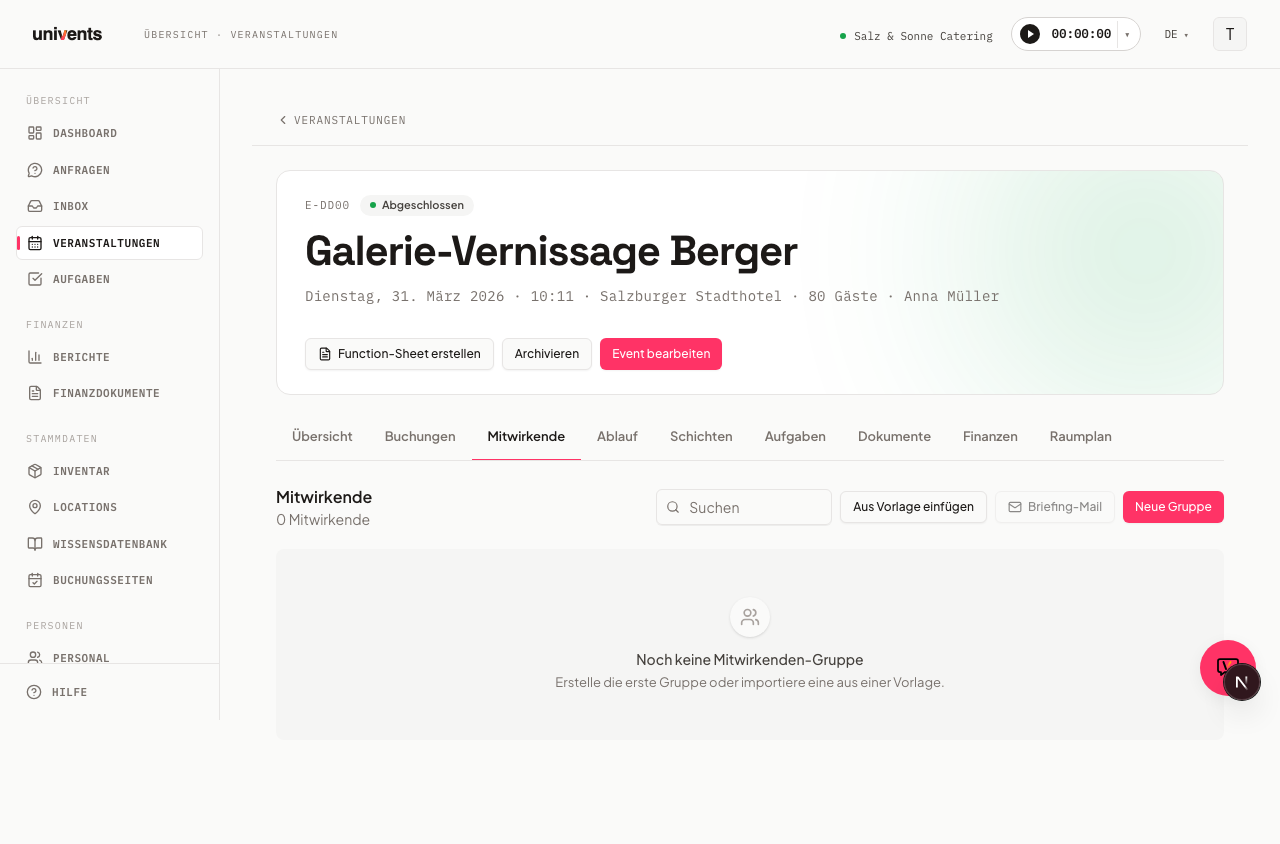
Participants Tab — Groups and Crew
The Participants tab organises your crew into colour-coded group cards. Each card represents a participant group with its associated contacts.
Creating a new group
- Open the event and select the Participants tab.
- Click New Group in the top right.
- Enter a name, an optional description, and a colour.
- Add contacts using the Link contributors search field.
- Click Save group.
Insert from template
If you regularly use the same crew composition, click Insert from Template and select a saved group template. The group is materialised with all its participants.
Save group as template
Click Save group as template on a group card to save the current composition for use in future events.
Sending mail
- Briefing mail (top right): Sends a personalised briefing email to all confirmed participants of the event.
- Mail group on each card: Sends a free-form message only to the members of that group.
Contacts without a stored email address are automatically skipped during sending. Externally linked contacts are marked with the label external on the card.
Shifts Tab — Shift Plan and Jobs
The Shifts tab displays the complete shift plan for the event. Shifts can be grouped into jobs — for example by function or location.
Tip: If a quote is already linked to the event, you don't have to build shifts and crew by hand — the Plan from quote button on the event's detail page can generate a first draft using AI. More on this in Creating an Event via the Wizard.
Creating a job and shift
- Switch to the Shifts tab.
- Click Job to create a work area (name, colour, address, required skills).
- Click Shift within the job entry to add a first shift — start and end time, required number of staff, and an optional point of contact.
- Alternatively, click Shift at the top level (without a job) to create a shift with no job grouping.
Shifts not assigned to a job appear in the Other Shifts section.
Insert from template
Use the Insert from template button to apply a previously saved job — including all its shifts — to the event.
Save job as template
Click the star button (★) in the job header to save the job along with all its shifts as a template. You can reuse it on a future event via Insert from template.
Reminder for open shifts
Click Reminder to send a reminder email to selected crew groups, templates, tags, or skills. The dialog shows the number of still-unfilled shifts and composes the send based on your selection.
Gantt timeline and gap warnings
Once shifts exist, Univents displays an interactive Gantt view of all shifts. If shifts are not fully staffed, a colour-coded warning appears with the label GAP and a detailed breakdown of the affected shifts (actual vs. target staffing).
Schedule Tab — Run-of-Show Plans and Programme Items
The Schedule tab manages structured run-of-show plans for the event. Multiple plans per event are supported — for example, one for the venue and one for the kitchen.
Creating a new plan
- Switch to the Schedule tab.
- Click Plan.
- Enter a name, an optional description, a colour, and an address.
- Click Create plan.
After saving, the detail page of the new plan opens automatically so you can start adding programme items straight away.
Starting from a template
Click Template to apply a saved plan to the event. Time entries are calculated relative to the event start. To save an existing plan as a template, click Save as template on the plan card.
Sharing a schedule
Use the Share button — on a plan card, or in the top right of the plan detail page — to add recipients (contacts or staff). They will automatically receive an email with a portal link and can view the plan in read-only mode. The card shows whether the plan has been shared and with how many people.
Communication Tab — Team, Customer, Partners and Emails
The Communication tab brings every conversation about this event together in one place.
Your team's internal notes
At the top you see the internal thread: every comment your team has left on the event and its sub-items. Type into the field to add a note. Use @ to mention a colleague — they receive a notification. Customers and partners never see this thread.
Customer, partners and email
Below it, the tabs switch between the external conversations:
- Customer — the message thread with the client. Whatever you write here appears in their customer portal.
- One tab per partner — a separate thread for each invited or confirmed partner. They read it in the partner portal.
- Email — every email belonging to the event: documents you sent plus emails you linked to it.
Unread items appear as a number on the tab itself, so you never have to click in to find out whether something is waiting.
How to write to clients and partners is covered in Communication and Collaboration with External Parties. Where to see the comments from your whole workspace on one page, and what the team chat is for, is explained in Communication: overview & team chat.
Frequently Asked Questions
Can I use a crew group across multiple events? Yes. Save the group via Save group as template and add it to another event using Insert from Template.
What happens if a shift is not fully staffed? Univents marks the affected shift in red and displays a GAP warning in the Shifts tab with the exact actual vs. target staffing. The Reminder button lets you send a targeted message to potential staff members.
Can I reuse the same job on multiple events? Yes. Save a job along with all its shifts as a template (star button ★ in the job header) and load it onto another event via Insert from template in the Shifts tab.
Where is the event chat? It is called Communication and sits as its own tab in the event's tab bar. It holds your team's internal thread plus the Customer tab, one tab per partner, and Email.
Can the customer see my internal notes? No. The upper thread is internal only. Customers see exactly what you write in the Customer tab, and partners only see their own tab.