

Univents on your phone: the mobile app view
After reading this article, you'll know what the mobile app view is, how to install it on your phone, and what you can get done with it on the go — including viewing documents and scanning check-in.
Alongside the full Univents desktop interface, there's a dedicated, streamlined view built for your phone — for when you're on the go. It gives you a glance at your day, lets you look up events, decide on inquiries, and jot down quick notes, all with your thumb. It's separate from the Staff Portal for your team — the mobile view is for you as the admin, using the same login you already have.
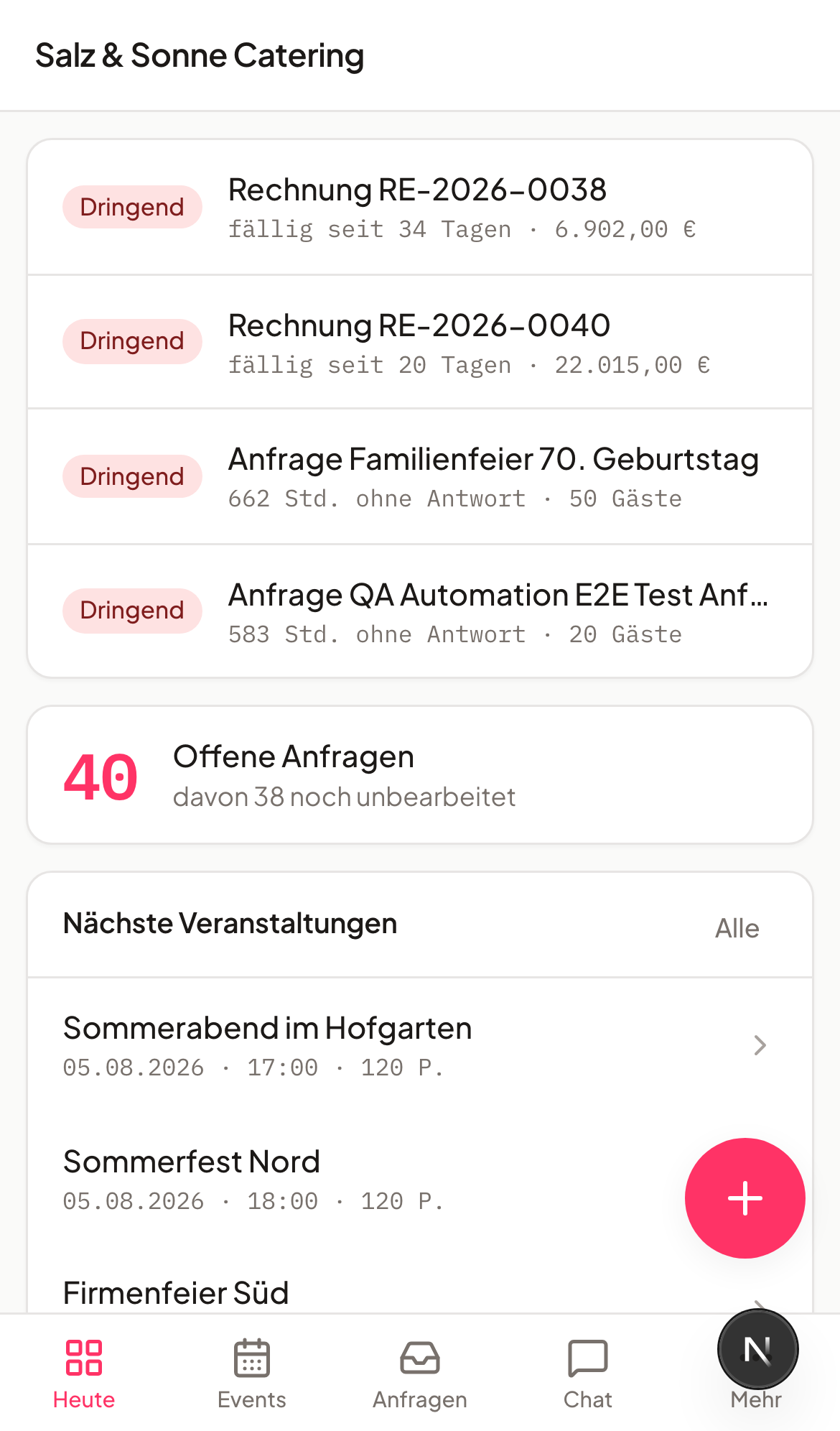
What is the mobile app view?
The mobile view runs at its own short address (univents.app/m/your-workspace) and uses the same login as the desktop interface. It's deliberately kept lean: a quick overview and the most important actions for when you're out and about, rather than the full feature depth. For finance documents, bookings, or detailed editing, you'll still switch to the desktop interface.
How to find the mobile view
There are two ways to get there:
- Direct link — on your phone, go to
univents.app/m/your-workspace. You'll find the workspace name (slug) in your computer's address bar after/home/, for examplesalz-und-sonne-catering. - Banner in the regular view — if you open the regular Univents interface in your phone's browser, a banner labeled "Univents mobile" at the top of the page points the way. Tapping Go to app view takes you straight there.
Install on iPhone (Safari)
Safari is the only browser on iOS through which you can add a web app to your home screen.
- Open Safari and go to the mobile view (see above).
- Tap the Share icon (box with an arrow pointing up) in the centre of the bottom bar.
- Scroll down in the menu and tap Add to Home Screen.
- Adjust the name if you like, then tap Add in the top right.
- The Univents icon now appears on your home screen. The next time you open it, the mobile view launches in full-screen mode without a browser address bar.
Install on Android (Chrome)
- Open Chrome and go to the mobile view.
- Tap the three-dot menu in the top right.
- Select Install app or Add to Home Screen.
- Confirm by tapping Install.
- The Univents icon appears on your home screen and launches the mobile view in full-screen mode.
What you can get done on the go
- Today — urgent items like overdue invoices or unanswered inquiries, plus your upcoming events, at a glance.
- Look up events — key details, the function sheet with the booked line items, the run-of-show with times, shifts including staffing levels, and the open tasks for that event.
- View finance documents — two ways in: the documents of a single event sit in its detail view with status, amount, and a PDF link. Every document in the workspace is one tap away via the Documents card on Today or More → Documents; open and overdue receivables sit at the top, the most recent documents with customer and event below. All read-only — tapping a row opens the document in the desktop view, where you can edit and send it.
- Scan check-in — for events with ticket sales, open the scanner right on your phone and check guests in from their ticket's QR code.
- Accept or decline inquiries — accepting one takes the event live and emails the customer a confirmation; when declining, a checkbox lets you decide whether the customer gets a rejection email. The quote already exists by then: it is drafted the moment the inquiry arrives.
- Create tasks with a photo — capture a title, event, assignee, and due date, and attach a photo straight from your phone. You can fill in the details later on the desktop.
- Communication — More → Communication takes you to the team chat and the customer messages.
- Use the AI assistant — the AI assistant tab (formerly Chat) lets you ask the same questions you would on the desktop, for example to quickly create an event or look up a figure.
- Work the kanban boards — on the boards for inquiries, events and tasks you pick a card up with a long press and drag it into another column; the browser menu does not open and no text gets selected.
Where the rest lives. Under More you also find Documents, Switch workspace and Open desktop view. The app view stays deliberately slim: staff, inventory, settings and the rest of the depth live in the desktop view, which you open via More → Open desktop view.
Push notifications
Right now, the mobile view shows you everything as soon as you open it — this admin view doesn't have its own push notifications yet. Your team already has them in the Staff Portal, for example for new shifts or messages.
Frequently asked questions
Is this the same as the Staff Portal? No. The Staff Portal is built for your team — shifts, time tracking, vacation. The mobile app view is for you as the admin, with an overview of events, inquiries, and tasks.
Can I edit documents or bookings in the mobile view? Editing still isn't possible — the mobile view stays deliberately lean and isn't an editing surface. You can now see more, though: quotes, invoices, and delivery notes for an event with status, amount, and a PDF link, plus you can handle check-in with the ticket scanner right on your phone. For editing documents, bookings, or anything more involved, switch to the full interface on your desktop.
Do I need to sign in again on my phone? Yes, once, the first time you open it, using your usual credentials. After that, you stay signed in on that device until you actively sign out.
Which browsers are supported? As with the desktop view, we recommend Chrome, Edge, and Safari in their current versions.