

Working with Templates in Univents
After reading this guide you will know which template types exist in Univents, how the central Templates Hub organizes them, and where to create item templates, finance document templates, and layouts in detail.
Univents brings all template types together in one place: the Templates Hub under Settings > Templates is your central starting point — from item templates to finance document templates, run-of-show schedules, event templates, and contract texts. This article shows caterers and event managers what the hub can do and where to click through for the details of each type.
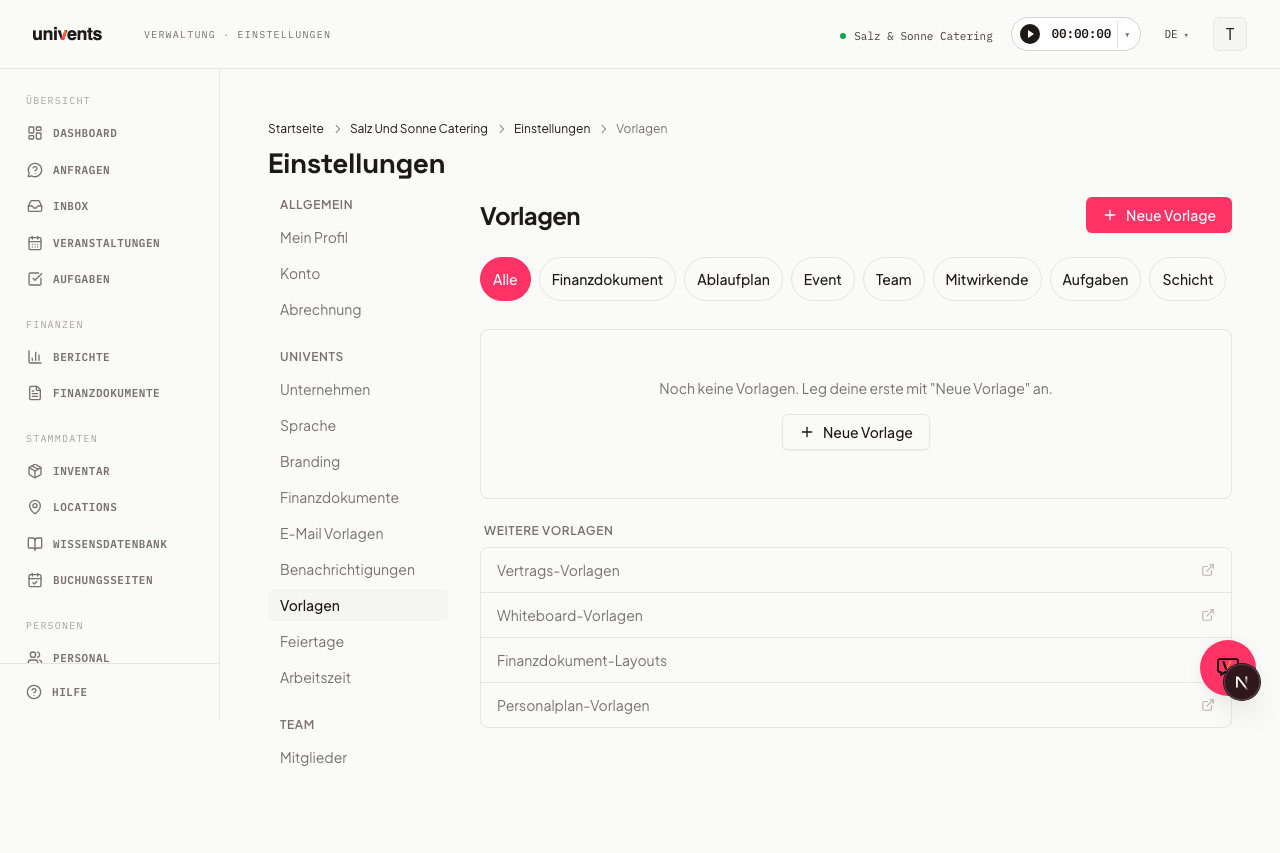
The Templates Hub — your central starting point
- Open Settings in the main navigation and pick the Templates card.
- The filter bar at the top (All plus one chip per type) narrows the list down to a specific template type.
- Use New Template in the top right to open a grouped dropdown menu:
- Event building blocks: Event template, Task list, Run of Show, Crew groups, Job (staffing)
- Documents & finance: Contract, Item template, Finance document template, Layout template, plus the Document submenu (Upload, Whiteboard, Free text)
- Master data: Staff master-data
- For Event template and Layout template a dedicated editor opens on a separate page. Every other type opens a dialog directly inside the hub.
- Clicking an existing row in the list opens that same dialog in edit mode with all saved values — you change name, description, and content there.
One exception: Document template shows up as a filter in the hub but isn't created via "New Template" — you create it directly on an existing finance document via Save as Template.
Deleting templates — one at a time or several at once
To remove a single template use the ⋯ menu at the right end of its row: Delete, then confirm.
When you clean up a library that has grown over time, you can do it in one go:
- Tick the checkbox on the left of every template you want to remove. The checkbox in the header above the list selects all templates currently shown.
- A bar appears above the list with the number of selected templates. Click Delete templates there.
- Confirm in the dialog — it states the exact count.
Two things to know: filters and search narrow the selection too — only what is visible when you confirm gets deleted. And event templates and layout templates have no checkbox; you keep deleting those from their own editor.
Item template, finance document template, and layout — don't mix them up
These three terms sound similar but mean different things:
| Term | What it is | Where you create it |
|---|---|---|
| Item template | A saved bundle of sections and individual line items — no date, no customer, no layout. You insert it into any quote or invoice. | Hub > New Template > Item template, or directly from a finance document via Save as item template |
| Finance document template | A complete quote, invoice, or delivery note saved as a template — including line items, due date, clerk, and layout. | Hub > New Template > Finance document template |
| Layout | The visual design of the PDF: colors, logo, which sections appear. Independent of the content of the line items. | Hub > New Template > Layout template |
For the full walkthrough on creating, editing, and inserting an item template, see Create & use item templates. For complete finance document templates with due date, clerk, and layout, see Create & use finance document templates. Colors, logo, and sections in the PDF are configured as described in How do I create layouts for financial documents?.
Other template types at a glance
| Type | What it is for |
|---|---|
| Event template | Complete event template including title, tags, and optional location |
| Run of Show | Recurring run-of-show schedules for events |
| Task list | Reusable task lists with deadlines |
| Crew groups | Recurring crew line-ups for events |
| Job (staffing) | Job package bundled with its shifts, reusable across events |
| Staff master-data | Pre-filled staff profiles (role, hourly rate, qualification) |
| Contract | Contract texts with placeholders |
| Document (Upload/Whiteboard/Free text) | Files, whiteboards, or free text saved as a template |
Budget envelopes in the event template
An event template links the building blocks a new event should come with — since 24 August 2026 that includes budget envelopes.
To connect them: go to Settings › Event templates, open the template, pick one or more envelope templates in the Budget envelopes field, and save. When you then create an event from that template, the envelopes are created automatically with their budget and alert threshold — just like the task list, schedule or shifts.
You maintain the envelope templates where the envelopes live: in an event's finance tab, via the Templates button. Deleting a template there also removes it from the event templates that used it; envelopes already created stay untouched.
Budget envelopes require the Core plan or higher. Applying a template in a workspace without it creates every other building block as usual and simply skips the envelopes.
Time logic: distance or fixed time
For Run-of-Show, Task, and Job templates, Univents never stores times as fixed dates. For each point you pick an anchor:
- Event Start or Event End — a distance from the event, combined with a value in Minutes, Hours, or Days and the direction before or after.
- Fixed time — the point always happens at that time, independent of when the event starts. Enter the time and pick the day (Event day, +1 day … +6 days). This anchor is available in Run-of-Show and shift templates.
Both kinds can sit side by side in the same template: the standby shift stays “60 minutes before Event Start” while lunch is pinned to 12:00.
Example: a task with the offset "4 days before Event Start" will automatically appear as due on Sep 16 when the event is on Sep 20 — no manual calculation needed.
Creating contract templates
Use New Template > Contract to create a contract template directly in the hub: give it a name and write the text in the editor, including a placeholder dropdown for values like customer name or event date. When creating a contract inside an event you select the template — content and title are carried over, recipient and signatures are not.
You manage the full list — renaming and deleting included — on the Contract Templates page. See Creating contract templates for details.
Frequently asked questions
What's the difference between an item template and a finance document template? An item template is just a bundle of line items with no document context — you insert it into an existing quote or invoice. A finance document template is the whole document including due date, clerk, and layout.
Can I rename a template after it has been created? Yes. Click the row in the Templates Hub — the edit dialog opens with all saved values. Change the name and confirm with Save.
Will existing events or documents be affected if I delete a template? No. Anything already created from a template stays unchanged; the template just stops being available for future use.
Where do I save the line items from an open quote directly as a template? In the line-item editor of a finance document, via Save as item template — the current set of line items and sections is saved as a new item template without leaving the editor.