

Connect Stripe Payment Integration
After following this guide, your Stripe account will be connected to Univents and your customers can pay online directly when booking.
With the Stripe integration, you can allow your customers to pay online directly when booking. Revenue lands automatically in your bank account — no manual follow-up required.
The video shows how to connect Stripe, take payment directly on booking pages and allow online payment for individual invoices.
You’ll find the individual steps written out below as well.
Prerequisites
Before you start, make sure the following applies:
- You have permission to manage payment providers. Owners and admins have it; crew with portal-only access do not.
- You have a Stripe account or can create one for free at stripe.com.
Connect Stripe
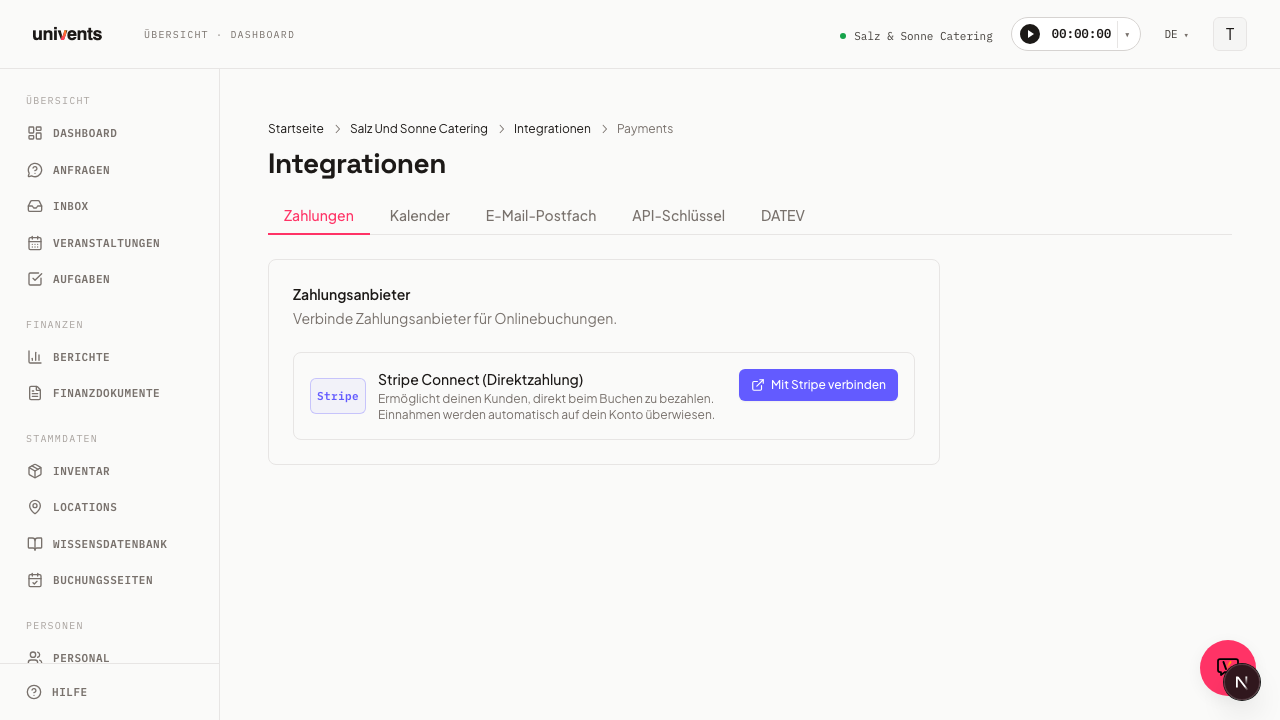
- Open Integrations in the left navigation. You land on the All integrations page with every integration card.
- Click the Payments category on the left, or type "Stripe" into the search field at the top.
- Open the Stripe card. The detail page shows the Payment Providers section with the Stripe Connect (Direct Payment) entry.
- Click Connect with Stripe.
- You will be redirected to the Stripe website, where you can sign in with your Stripe account or create a new one.
- Follow the steps in the Stripe onboarding: fill in your account details, bank account, and identity verification.
- At the end, Stripe will automatically redirect you back to Univents.
Once successfully completed, the card displays the green Active badge — the connection is ready.
Onboarding not completed?
If you exited the Stripe onboarding partway through, the card will show the Onboarding pending badge. In that case:
- Click Continue onboarding.
- You will be redirected back to Stripe, where you can complete the process.
Payments are only possible once onboarding is fully completed and the Active badge appears.
What happens after connecting
Once Stripe is active, customers can pay online directly on your booking pages. Stripe automatically transfers revenue to the bank account on file.
You see transactions, payouts, and fees in your Stripe dashboard. Click Open Stripe dashboard next to Stripe Connect (Direct Payment) — the dashboard opens in a new tab, and Stripe sends you a sign-in code by text message or email. You can also sign in directly at connect.stripe.com/express_login. Signing in at dashboard.stripe.com does not work: the connection uses a Stripe Express account, which only has this dashboard.
Disconnect Stripe
To deactivate Stripe:
- Go to Integrations and open the Stripe card (category Payments).
- Click Disconnect on the Stripe Connect (Direct Payment) entry.
- Confirm with Disconnect Stripe in the dialog — this applies to the entire workspace.
After disconnecting, no new online payments can be processed. You can reconnect Stripe at any time.
Frequently asked questions
Who can connect or disconnect Stripe? Anyone allowed to manage payment providers — owners and admins. Admins without that permission can see the status but cannot change the connection. The connection therefore does not depend on one single person: even if whoever created the workspace has left the company, someone else can set up or switch Stripe.
What happens to ongoing bookings if I disconnect Stripe? Payments already received are not affected. New online payments will not be possible after disconnecting until you reconnect.
Does Stripe charge fees? Stripe applies its own transaction fees. You can find details directly at stripe.com/pricing.
I'm getting the message "You do not have permission to manage payment providers." You are in the workspace, but your role is not allowed to manage payment providers. Ask someone who has that permission to set up the connection — you can still see its status. In this case the Connect with Stripe button is greyed out, with a matching note next to it.
I'm getting the message "Stripe rejected the connection." This error comes from Stripe, not from anything you entered — clicking again usually does not help. Try again later and contact Univents support if it keeps failing; we see these rejections in our logs and can sort them out with Stripe.
I'm getting the error message "Connection failed. Please try again." This generic message appears when the cause cannot be determined — a dropped internet connection, for example. Reload the page and try again. For ongoing issues, contact Univents support.