

Creating & Using Recipes
Create recipes as a dedicated product type in your inventory, add ingredients, and enable the product for the kitchen monitor and production list.
With the Recipe product type in Univents you create kitchen and catering products that bundle ingredients, allergens, and preparation notes. Once a recipe is booked in an event, it automatically appears in the kitchen monitor and on the production list — no manual follow-up required.
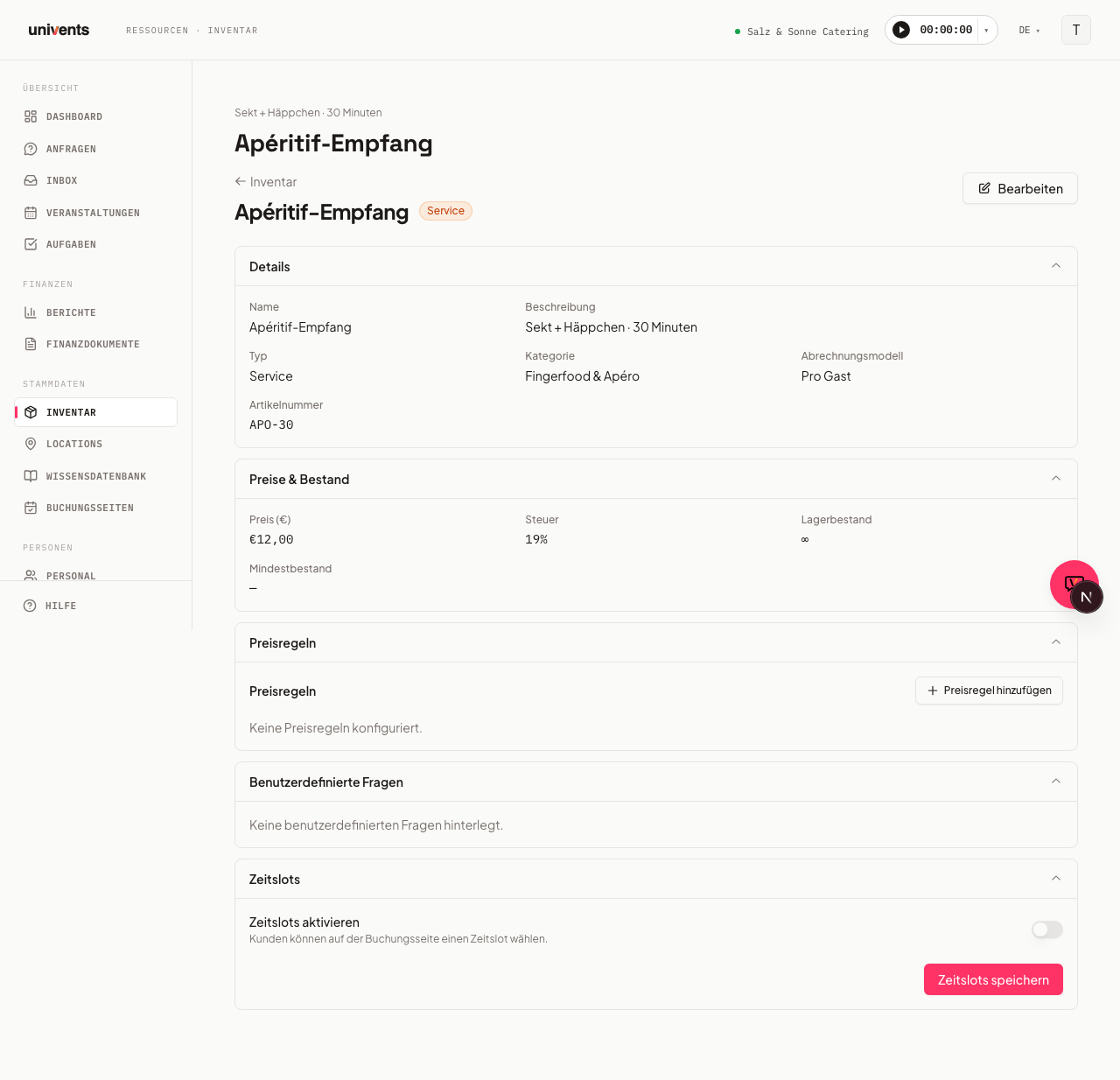
The video shows how to maintain a recipe with ingredients per guest, allergens, shelf life, prep time and production category.
You’ll find the individual steps written out below as well.
Creating a Recipe
- Go to Inventory in the left navigation.
- Click Add Product in the top right.
- In the Select Product Type dialog, choose Recipe. Univents immediately creates a draft and opens the product form.
- In the Master Data section, enter at least a Name and Category. Choose the Billing Model (e.g. Per Guest or Per Unit) here as well.
- Click Save to store the draft, or continue directly to the next step.
Adding Production Details and Ingredients
After saving for the first time, switch to the Recipe section (left sidebar of the form). This is where all production-relevant fields are found:
- Enable Use for Kitchen Production — only then will the remaining fields become editable.
- Under Allergens, enter all relevant allergens as tags (press Enter to confirm each one).
- Under Dietary Information, add notes such as "vegan" or "gluten-free" where applicable. Once saved, they appear in the inventory under the Allergens & dietary column, next to the allergens, so you can read both without opening the product. Dietary information is not inherited from the ingredients: unlike an allergen, which adds up, "vegan" only holds if it applies to every ingredient — so you maintain it on the recipe itself.
- Under Times & Shelf Life, set the Shelf Life (Days) and Preparation Time (Hours) — the kitchen monitor uses these values to calculate production windows.
- Select a Production Type (Internal or External).
- Under Production Category, assign the recipe to a kitchen station (e.g. Hot Kitchen). Use the plus button next to the dropdown to create a new category on the spot.
- In the Recipe field, enter the preparation instructions as free text; Notes is for internal comments.
- In the Ingredients area, click Add Ingredient, search for the product in your inventory, enter the Quantity, and confirm with Add. Univents shows the unit next to it automatically — it is the ingredient product's Unit (that product's form, Price & stock → Unit), not its package and not an entry here. The quantity counts in exactly that unit:
8for a lime with unitgmeans 8 g, even if you buy limes in crates of 5,000 g. If the unit is wrong, correct it once on the ingredient product — it's then right in every recipe that uses that ingredient. Repeat for each ingredient. If the ingredient has a content per unit set (e.g. 1 bottle of Adelholzener = 1,000 ml, see Creating & configuring products), the field shows Quantity in ml instead — you enter the amount directly in the base unit (e.g.200), and next to it, for reference, the conversion "= 0.2 bottle". Ingredients without content still only show the quantity field in their unit. If you later change the content on the ingredient product (e.g. to 750 ml), Univents automatically recalculates the 200 ml into the new bottle amount — the recipe's calculated purchase price follows along. Remove the content on the ingredient product again and the row goes back to counting in the unit. Entering an amount in another unit. If the ingredient's unit or content is a metric unit (g, kg, ml, l …), a selector with the matching units appears to the right of the quantity field — for a lime with unitkg, for example,mg,gandkg. Pickg, type8, and below it you see “= 0.008 kg” as a check. The amount is saved in the ingredient's unit (0.008 kg), so purchase price and material planning calculate exactly as before, but the row is shown the way you entered it: “8 g”. In the same way you can enter0.2inlor4inclfor a bottle with 1,000 ml content. Switching the unit in the selector keeps the number you typed — it is not converted, you type it again in the new unit. Which units are converted is listed below under Which Units Univents Converts. - Directly below the ingredient list you can enable Calculate purchase price from ingredients. Univents then adds up quantity × purchase price for every ingredient and writes the result into the recipe's purchase price. The Purchase price / cost field under Price & Stock is locked afterwards and shows the calculated value. If an ingredient's purchase price, a quantity or the ingredient list itself changes, Univents recalculates straight away. Without the checkbox the purchase price stays your own entry as before — so nothing changes on existing recipes unless you switch it on.
- Finally, click Save or Publish to make the recipe active.
Using a Recipe in Events and Quotes
A published recipe behaves like any other product: add it to an event under line items (quote, delivery note, invoice). If the billing model is set to Per Guest, ingredient quantities in the production list automatically adjust to match the number of guests booked. What counts is the number of people on the line item itself — the People column on the document, otherwise the event guest count. It is applied exactly once: ingredients build on the quantity of the recipe or bundle, no matter which billing model is set on the individual ingredient.
If you swap one dish for another inside a menu (Bookings tab → Edit position on the component row), the ingredients are swapped automatically too: Univents scales the newly chosen recipe's ingredients — recipe quantities times the dish's quantity — and replaces the old dish's ingredients with them. This shows up in the material view, the function sheet, and the production list.
Kitchen Monitor and Production List
The two areas depend on different settings — worth knowing when a dish is missing from one of them:
- Production List (Production List tab in Inventory): Aggregates all required quantities across multiple events. Filter by date range, event, or production category and print the list directly. Every recipe gets its own row here as soon as it is booked — the Produced in the kitchen toggle is enough, you do not need Use for kitchen production.
- Kitchen (Kitchen tab in Inventory): Shows all open, in-progress, and completed production tasks in real time. Tasks can be moved between the Preparation, In Progress, and Done columns. A recipe only reaches this board if Use for kitchen production is ticked as well.
In short: the Use for kitchen production checkbox controls the kitchen monitor and nothing else. The recipe appears on the production list either way.
Ingredients with content shown in brackets. If an ingredient has a content per unit set, the kitchen monitor, the recipe detail view in the employee portal kitchen, and the component block on the production list (PDF) show it in the base unit with the unit in brackets — e.g. "10,000 ml Adelholzener (10 bottle)" for a quantity of 50 portions. Ingredients without content still show only in their unit, e.g. "0.4 kg lime".
In the unit you entered. If you entered an ingredient in a different metric unit (8 g instead of 0.008 kg), the kitchen monitor, the portal kitchen, the production list and the “Contains:” line on the Function Sheet show it in that unit too — scaled to the quantity, e.g. “400 g lime” for 50 portions or “10 l Adelholzener (10 bottle)”. Univents never rescales on its own: 10,000 ml stay 10,000 ml unless the row was entered in litres. The material view, packing list, reorder and document line items always stay in the ingredient's unit.
Which Units Univents Converts
When you enter an ingredient amount, Univents converts within two unit families:
| Family | Units | Conversion |
|---|---|---|
| Mass | mg, g, kg | 1 kg = 1,000 g, 1 g = 1,000 mg |
| Volume | ml, cl, dl, l | 1 l = 10 dl = 100 cl = 1,000 ml |
Common spellings like “gram”, “kilo”, “litre”, “ltr” or “centilitre” are recognised too. Univents deliberately does not convert between volume and mass — ml to g depends on density (oil, honey, flour), so any automatic number would be a guess. Nor does it convert between pieces and weight, bunches, bottles or spoon measures (tsp, tbsp). If an ingredient's unit is something else (e.g. “bunch”), there is no unit selector and the amount keeps counting in that unit, as before.
Frequently Asked Questions
Does Univents calculate the nutrition values of a recipe? Yes. Once the ingredients carry their nutrition values per 100 g or per 100 ml, the recipe shows the total per portion in the Recipe section below Allergens & Dietary and — where the weight can be determined — per 100 g. If something is missing for an ingredient, the total is marked Incomplete, with the affected ingredient and the reason. Details in Maintaining nutrition values and calculating them for recipes.
Can I manage ingredients without using the Recipe section? Ingredients are exclusively available for the Recipe product type. The Use for Kitchen Production toggle must be active for the ingredients area to become editable. Standard items do not have an ingredients area.
What happens if I set the production type to "External"? The recipe still appears in the production list and kitchen monitor, but is marked as externally produced — useful for purchased dishes that still need to show up in the production plan.
Can allergens be automatically pulled in from individual ingredients? Yes. As soon as an ingredient carries its own allergens, Univents pulls them into the read-only Inherited from Ingredients area of the recipe automatically — even across multiple levels, if an ingredient is itself a bundle with its own ingredients. This starts with the first ingredient: add it and its allergens appear in the open window right away, and the same happens with every further ingredient, when you remove one, or when its allergens change later on. Inherited allergens can't be edited there directly; change the allergens on the relevant ingredient instead. The Allergens field still holds allergens that belong to the recipe itself and aren't derivable from ingredients (e.g. when the kitchen uses a shared fryer). Dietary information such as “vegan” is deliberately not inherited.
Does the product need to be published to appear in the kitchen monitor? Yes. Drafts do not appear in the kitchen monitor. Click Publish in the form to make the recipe active.
Why can't I type a unit for an ingredient any more? A free-text value on the individual ingredient row wouldn't have controlled anything, it would only have looked like it did. Instead, every ingredient always counts in the Unit of its own product — the same unit its purchase price refers to, which is why the recipe's calculated purchase price (quantity × purchase price per unit) is right. That means you set it once and it's automatically correct in every recipe using that ingredient, instead of having to keep it in sync across every ingredient list. If the unit is a metric unit (g, kg, ml, l …), choose the entry unit in the selector next to the quantity (see Which Units Univents Converts). If the ingredient is kept in bottles or pieces but the recipe needs millilitres or grams, set a content per unit on the ingredient product (see above) — the ingredient row then automatically shows a quantity field in that base unit.
Why does my ingredient suddenly show "Quantity in ml" instead of the number of bottles? Because the ingredient product has a content per unit set (e.g. 1 bottle = 1,000 ml, form Price & stock → Unit, content & package). It's still saved and calculated in the unit (bottle) — the material view, packing list, reorder and document line items still show bottles. Only the recipe entry, the kitchen monitor, the production list and the Function Sheet show the base unit, because that's where millilitres or grams are the working measure. Remove the content on the product again and the ml field disappears — the row goes back to counting in bottles.